Information, Instalation & Configuration, Maderia, Tip & Tricks

Configure Demo Madeira for Preview

Today I got chance to get Installed & Configured Madeira Demo.

The first thing that you need to ensure is you have Microsoft Partner Network, you can take help of Admin in your organization to get this done in case yet you don’t have.

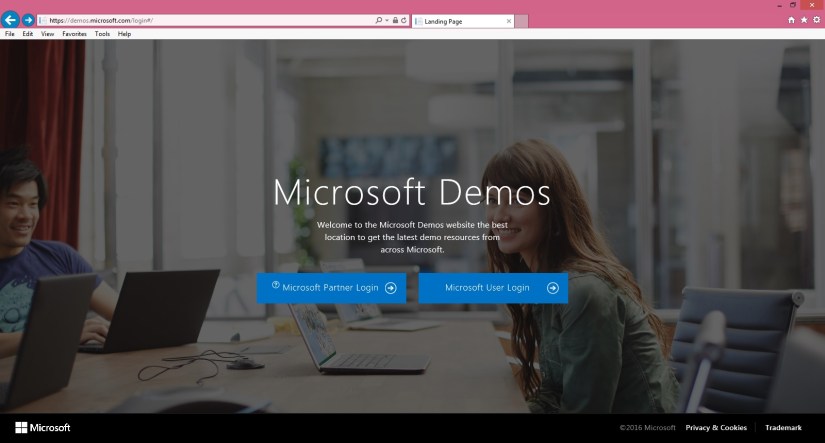
Once you have sign in information ready visit the page : https://demos.microsoft.com/login#/

You will be taken to the landing page as in below screen.
Maderia2

Select Microsoft Partner Login and sign in using your Live ID and password credentials
Maderia2

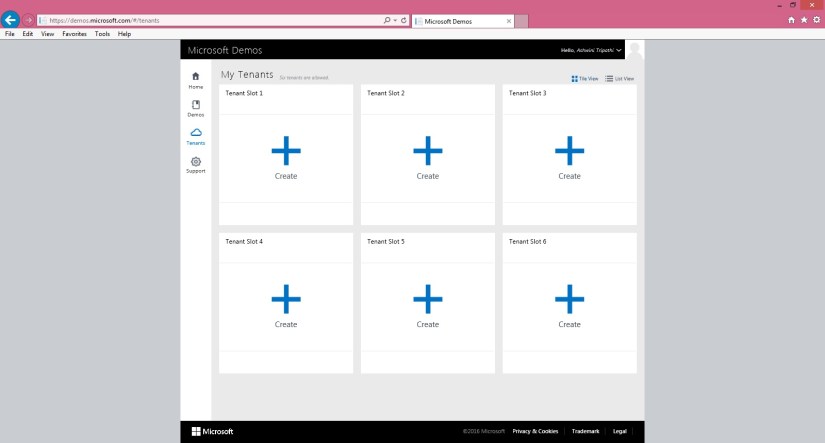
From Navigation bar left on Screen choose Tenant. You have option to add up to 6 Maximum tenants. From right screen click on blue ‘ + ‘ written Create.

Maderia2

From Create a New Tenant choose ‘Quick Tenant’.

Maderia2

In Select Tenant Type choose first ‘Select Office 365 Demo Content’ and choose Next.

Maderia2

From Add Ons select ‘Add Project Online demo data’ and choose Next.

Maderia2

From Create Quick Tenant choose Finish to continue.

Maderia2

On completion your Tenant will be shown.

Note the Tenant Id, User Id & Password  this will be required in following steps.

Maderia2

From Microsoft Demo Screen from left Navigation bar choose Demos.

From ‘My Demos’ click button Create New Demo.

Maderia2

Give meaningful Name to you Demo

Select the Tenant  Id.

Select the Templates you want to Add to your Demo.

Click on ‘Create Demo’ Button.

Maderia2

If you have select more than one Templates you may get screen to confirm Merge Order in your Demo.

Click on ‘Update Demo’ Button once you are done setting the Order.
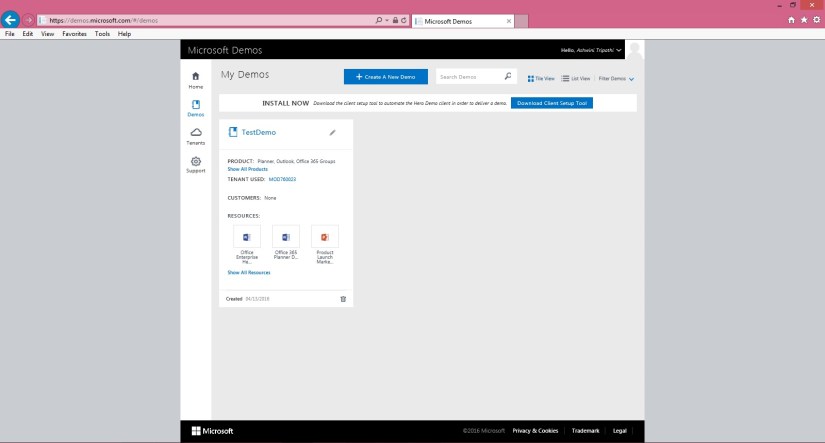
Maderia2

Your Demo is Created in my case I have name it TestDemo.

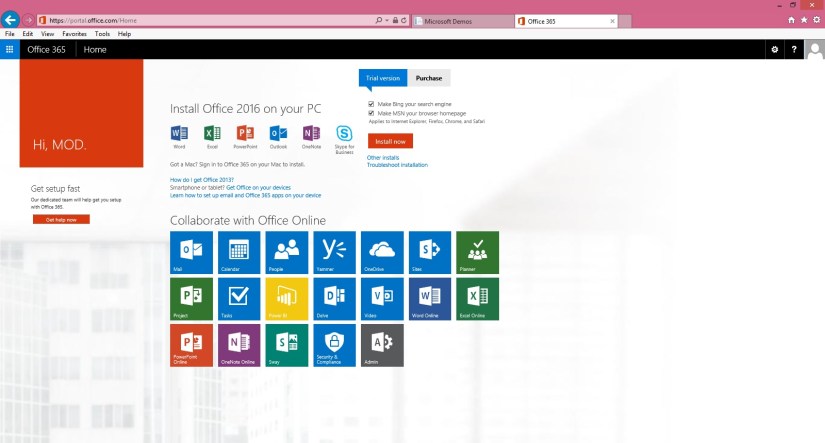
Open the Office 365 Portal using Link : http://portal.office.com

Maderia2

Login with the credentials we noted in above step while creating the Tenant.
Maderia2

Open Madeira Website https://madeira.microsoft.com/en-us/

Maderia2

Choose Try the Preview.

Maderia2

Sign up using the User Id we obtained in above step.

Maderia2

Choose Start to continue.

Maderia2

Now you will get Project Madeira Icon along with other Office Icons.

Maderia2

Choose Get Started Button on Welcome Screen to continue.

Maderia2

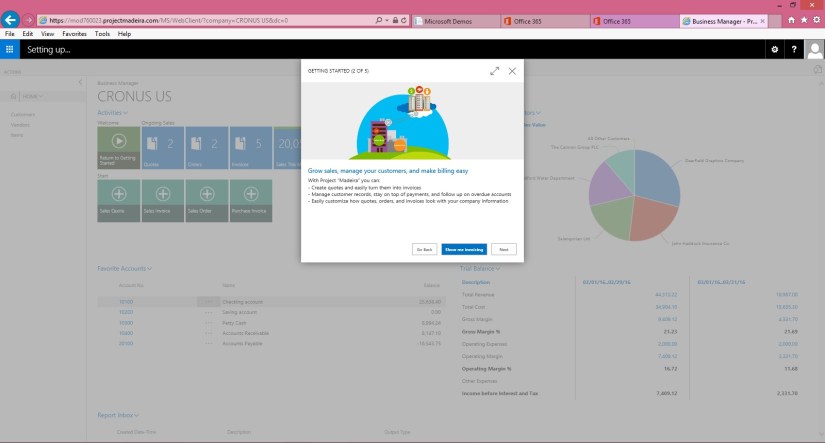
If you wish can See the Tour or can skip at this point and can review Later. To continue select Next.
Maderia2

If you wish can See the Tour or can skip at this point and can review Later. To continue select Next.

Maderia2

If you wish can See the Tour or can skip at this point and can review Later. To continue select Next.

Maderia2

If you wish can See the Tour or can skip at this point and can review Later. To continue select Setup In Outlook.

Maderia2

Provide User Id & Password we obtained in above step.

Select OK to continue.

Maderia2

On confirmation window say OK.

Maderia2

Select Next to continue to next step.

Maderia2

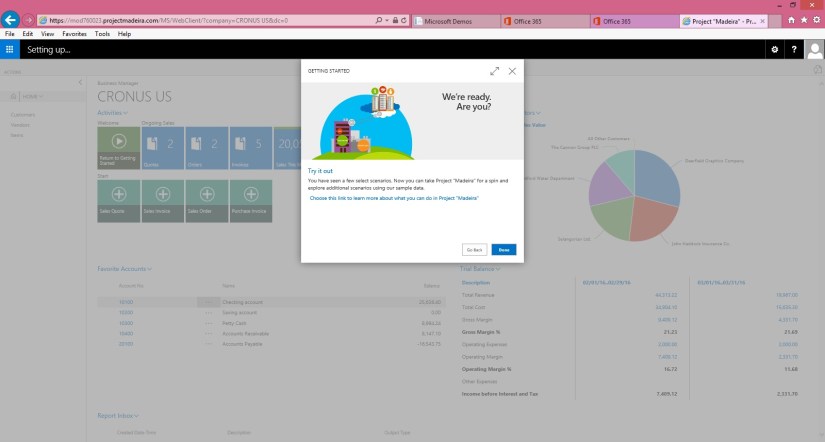
Note the Activation Code provided on this screen you will require to activate Office.
Maderia2

We are Done. Choose Done to close the Welcome Wizard.

You will be landed to your Home Page of Madeira.

Maderia30

You are done now look around the new Look and feel of this product.

During this process you will receive several Mail Notification you can check same using Notification or open your Outlook account from the office 365 screen.

I will come up with more in my next post till then explore and keep learning.


Maderia, PowerBI.com, Tip & Tricks

Project “Madeira” content pack for Power BI

Maderia1

Getting insights into your Project “Madeira” data is easy with the Project “Madeira” content pack for Power BI. Power BI retrieves your data and then builds an out-of-the-box dashboard and reports based on that data. This blog post announces the availability of the Project “Madeira” content pack for Power BI.

Check out this Link.

The content pack is preconfigured to work with sales data and financial data from the demonstration company that you get when you sign up for the Project “Madeira” preview. – Choose any visual on the dashboard to bring up one of seven underlying reports. – Filter the report or add fields that you want to monitor. – Pin this customized view to the dashboard to continue tracking. The dashboard and underlying reports refresh daily. You can control the refresh schedule and modify the frequency on the dataset.

The data is extracted from your Project “Madeira” company using web services to read live data. In Project “Madeira”, the Web Services window lists the web services that have been set up for you, including the following that are consumed by the content pack in Power BI:

  • ItemSalesAndProfit
  • ItemSalesByCustomer
  • powerbifinance
  • SalesDashboard
  • SalesOpportunities
  • SalesOrdersBySalesPerson
  • TopCustomerOverview


Maderia, Tip & Tricks

WHAT IS PROJECT MADEIRA?

Maderia1

Project “Madeira” offers an embedded experience within Office 365 so you can create customers, vendors, quotes, and invoices without leaving Outlook.

Project “Madeira” is a business management solution for small and mid-sized organizations that automates and streamlines business processes and helps you manage your business.

Want to know more? Follow this Link.

Key scenarios to try out on your own:

System Requirements:

Safari: Project “Madeira” is designed to work with the current version of Safari on OSX.

Microsoft Edge: Project “Madeira” is designed to work with the current version of Microsoft Edge.

Internet Explorer: Project “Madeira” is designed to work with Internet Explorer 11 and Internet Explorer 10.

For detailed list see this Link.

If you do not use an Office 365 email account, you must specify technical information about your mail server.

Checkout more here.


Cumulative Updates, Tip & Tricks

Cumulative Update 6 for Microsoft Dynamics NAV 2016 released in April

Cumulative Update 6 includes all application and platform hotfixes and regulatory features that have been released for Microsoft Dynamics NAV 2016.

Where to find Cumulative Update 6

You can download the cumulative update from KB 3151017 – Cumulative Update 6 for Microsoft Dynamics NAV 2016 (Build 45480).

Warning

Before you install a cumulative update in a production environment, take the following precautions:

  1. Test the cumulative update in a non-production environment.
  2. Make a backup of the system or computer where the cumulative update is to be installed.

Additional Information

For information about how to install the cumulative update, see How to Install a Microsoft Dynamics NAV 2016 Cumulative Update.

For a list of all cumulative updates for this version, see Released Cumulative Updates for Microsoft Dynamics NAV 2016.

Cumulative Updates, Tip & Tricks

Cumulative Update 18 for Microsoft Dynamics NAV 2015 released in April

Cumulative Update 18 includes all application and platform hotfixes and regulatory features that have been released for Microsoft Dynamics NAV 2015.

Where to find Cumulative Update 18

You can download the cumulative update from KB 3151020 – Cumulative Update 18 for Microsoft Dynamics NAV 2015 (Build 45483).

Warning

Before you install a cumulative update in a production environment, take the following precautions:

  1. Test the cumulative update in a non-production environment.
  2. Make a backup of the system or computer where the cumulative update is to be installed.

Additional Information

For information about how to install the cumulative update, see How to Install a Microsoft Dynamics NAV 2015 Cumulative Update.

For information about how to work around a recent process change, see How to Get Back the ‘Hotfix Directories’ from NAV 2015 Cumulative Update 1.

For a list of all cumulative updates for this version, see Released Cumulative Updates for Microsoft Dynamics NAV 2015.

Cumulative Updates, Tip & Tricks

Cumulative Update 30 for Microsoft Dynamics NAV 2013 R2 released in April

Cumulative Update 30 includes all application and platform hotfixes and regulatory features that have been released for Microsoft Dynamics NAV 2013 R2.

Where to find Cumulative Update 30

You can download the cumulative update from KB 3151021 – Cumulative Update 30 for Microsoft Dynamics NAV 2013 R2 (Build 45478).

Warning

Before you install a cumulative update in a production environment, take the following precautions:

  1. Test the cumulative update in a non-production environment.
  2. Make a backup of the system or computer where the cumulative update is to be installed.

Additional Information

For more information about cumulative updates for this version, see Announcement of update rollups for Microsoft Dynamics NAV 2013 R2.

For a list of all cumulative updates for this version, see Released Cumulative Updates for Microsoft Dynamics NAV 2013 R2.

For a list of all hotfixes included in cumulative updates for this version, see the following CustomerSource and PartnerSource pages:

CustomerSource:

PartnerSource

Cumulative Updates, Tip & Tricks

Cumulative Update 37 for Microsoft Dynamics NAV 2013 released in April

Cumulative Update 37 includes all application and platform hotfixes and regulatory features that have been released for Microsoft Dynamics NAV 2013.

https://blogs.msdn.microsoft.com/nav/2016/04/04/cumulative-update-37-for-microsoft-dynamics-nav-2013-has-been-released/


Where to find Cumulative Update 37

You can download the cumulative update from KB 3151023 – Cumulative Update 37 for Microsoft Dynamics NAV 2013 (Build 45477).

Warning

Before you install a cumulative update in a production environment, take the following precautions:

  1. Test the cumulative update in a non-production environment.
  2. Make a backup of the system or computer where the cumulative update is to be installed.

Additional Information

For a list of all cumulative updates for this version, see Released Cumulative Updates for Microsoft Dynamics NAV 2013.

For a list of all hotfixes included in cumulative updates for this version, see the following CustomerSource and PartnerSource pages:

CustomerSource:

PartnerSource:

PowerBI.com, Tip & Tricks

Microsoft Power BI – Part VIII

Continuing from my previous post. Today we will see usage of Power Content Pack to Refresh in Premise Navision Installation using Personnel Gateway.

Please see my previous post it will help you in continuing with this Walkthrough.

In case you have missed here I present the link to all previous posts here below.

Microsoft Power BI – Part – I

Introduction to Power BI and Creating Report from Excel Data, Local Files.

Microsoft Power BI – Part – II

Introduction to few Features of Power BI

Microsoft Power BI – Part – III

Power BI Desktop, Creating Dataset & Reports from In Premise Database installation

Microsoft Power BI – Part – IV

Power BI Gateway usage

Microsoft Power BI – Part – V

Scheduling Refresh of Dataset & Report created using In Premise Database

Microsoft Power BI – Part – VI

Power BI Content Pack

Microsoft Power BI – Part – VII

Power BI Mobile App

Step -1

Check your Service is up & running, here we are not going to use SLL in fact Personnel Gateway.

PowerBI-86

Step -2

Make sure you Imported your Query Objects required for Power BI Dynamics Nav Content Pack. If you are not using NAV-2016, in my case I am using NAV-2015 for this Walkthrough.

PowerBI-87

Step -3

Make sure your Web Services are published.

PowerBI-88

Step -4

You have installed the Power BI Gateway – Personal and Login to it using your Credentials.

PowerBI-89

Step – 5

Login to PowerBI using your Credentials and choose Get Data from Bottom Left Corner in your Navigation Bar.

PowerBI-90

Step – 6

Connect Your Service using MS Dynamics Content Pack.

PowerBI-91

PowerBI-92

Notice here I am not using https:// also remove any ‘/’ and Service name from the URL.

PowerBI-93

Set your Authentication Mode and Sign In.

PowerBI-94

It will take some moment and your Dataset, Report & Dashboard will be available to you.

Graphical representation and data may vary depending upon data in your database.

We are done.

For further detail on any step you can refer previous posts for any clarifications, Links provided above.

Will come up with more details in my upcoming posts.

Till then keep trying and practicing.


PowerBI.com

Microsoft Power BI for Beginners Table of Content

In March I have written few posts on Power BI keeping in mind who are beginners.

In case you have missed here I present the link to all those posts here below.


Microsoft Power BI – Part – I

Introduction to Power BI and Creating Report from Excel Data, Local Files.

Microsoft Power BI – Part – II

Introduction to few Features of Power BI

Microsoft Power BI – Part – III

Power BI Desktop, Creating Dataset & Reports from In Premise Database installation

Microsoft Power BI – Part – IV

Power BI Gateway usage

Microsoft Power BI – Part – V

Scheduling Refresh of Dataset & Report created using In Premise Database

Microsoft Power BI – Part – VI

Power BI Microsoft NAV Content Pack

Microsoft Power BI – Part – VII

Power BI Mobile App

Microsoft Power BI – Part – VIII

Power BI Content Pack

Microsoft Power BI – Part – IX

Power BI Publisher for Excel

Microsoft Power BI – Part – X

ANALYZE IN EXCEL

I will come up with more features and other important details in my future posts.

You can find lots of materials on Power BI here : https://powerbi.microsoft.com/en-us/

https://powerbi.microsoft.com/en-us/learning/

PowerBI-85