Appointment, Development Tips, Email, How To, Information, NAV 2015, NAV 2016, NAV 2017, NAV 2018, Office 365, Office Integration, Outlook, Tip & Tricks

Programmatically Creating Outlook Appointment in Navision

Dear Friends in this post I will discuss about creating Outlook Appointment from Navision using DotNet Interop. Without going much in theory lets jump to practical approach.

To start with first we need to define some DotNet variables:

Name DataType Subtype
OutlookItemType DotNet Microsoft.Office.Interop.Outlook.OlItemType.
‘Microsoft.Office.Interop.Outlook, Version=15.0.0.0, Culture=neutral, PublicKeyToken=71e9bce111e9429c’
outlookApplication DotNet Microsoft.Office.Interop.Outlook.Application.
‘Microsoft.Office.Interop.Outlook, Version=15.0.0.0, Culture=neutral, PublicKeyToken=71e9bce111e9429c’
outlookApplicationClass DotNet Microsoft.Office.Interop.Outlook.ApplicationClass.
‘Microsoft.Office.Interop.Outlook, Version=15.0.0.0, Culture=neutral, PublicKeyToken=71e9bce111e9429c’
outlookAppItem DotNet Microsoft.Office.Interop.Outlook.AppointmentItem.
‘Microsoft.Office.Interop.Outlook, Version=15.0.0.0, Culture=neutral, PublicKeyToken=71e9bce111e9429c’

I have created a function CreateOutlookAppointment which takes parameters as:


OAP1

And the code as below:

OAP2

To call this function I use below code:

OAP3

The code is itself self-explanatory.

You can add other validations and parameters as per the requirement.

Imp Tip:- Make sure you set for all DotNet Variables RunOnClient = Yes.

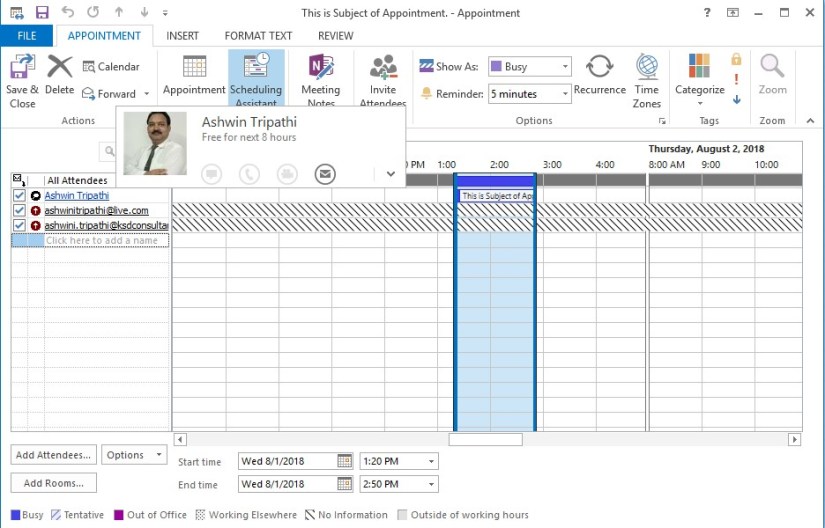
On run the output will be as:
OAP4


OAP5


What you are waiting for, go create Appointment and have fun.

See you seen via my next post. Till then keep learning and growing in your career.


Convert to PDF, Development Tips, Email, How To, NAV 2017, Office 365, Office Integration, Report, Tip & Tricks, Word

Mail Sending Option in NAV 2017 with Cover Letter & Attachments –Part 2

Continuing from previous post, further in next step we will apply same feature discussed in earlier post to our custom documents and learn where all places we need to take care development to get it working.

If you have missed First Part you can find here. Mail Sending Option in NAV 2017 with Cover Letter & Attachments –Part 1

In my Example I am using Policy Module:

I am using my Custom Table Policy where Policy Holder is setup as Customer, also few general details related to policy is stored. In nutshell we are concentration on Sending mail to customer as we have done in previous post for sending Invoice details to customer.

Step-1:

In my Policy Table I have added 2 Function as below:

MSI-07


MSI-08

SendRecords()

IF DocumentSendingProfile.LookupProfile(“Policy Holder No.”,FALSE) THEN

SendProfile(DocumentSendingProfile);


SendProfile(VAR DocumentSendingProfile : Record “Document Sending Profile”)

DocumentSendingProfile.Send(

DummyReportSelections.Usage::”Policy Issue”,Rec,”Document No.”,”Policy Holder No.”,

DocTxt,FIELDNO(“Policy Holder No.”),FIELDNO(“Document No.”));

Step-2:

In Table 77 Report Selections add new option to usage field

MSI-09

Step-3:

In Table 60 Document Sending Profile add below customization.

Add Text Constants

MSI-10

Update below function as:

MSI-11

Step-4:

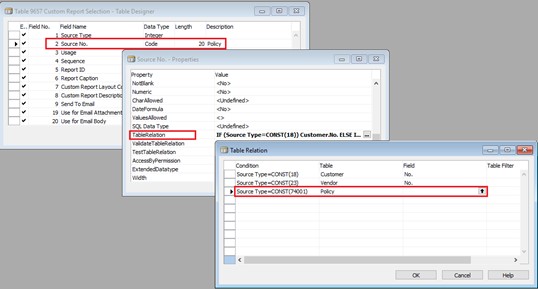
In Table 9657 Custom Report Selection add below customizations.

MSI-12


MSI-13

Step-5:

In Page 9657 Custom Report Selection add below customization.

MSI-14


MSI-15


MSI-16

Step-6:

Create 2 Reports one for Mail Body and one for Attachment. You can use same report as attachment too, it depends on your requirement.

Step-7:

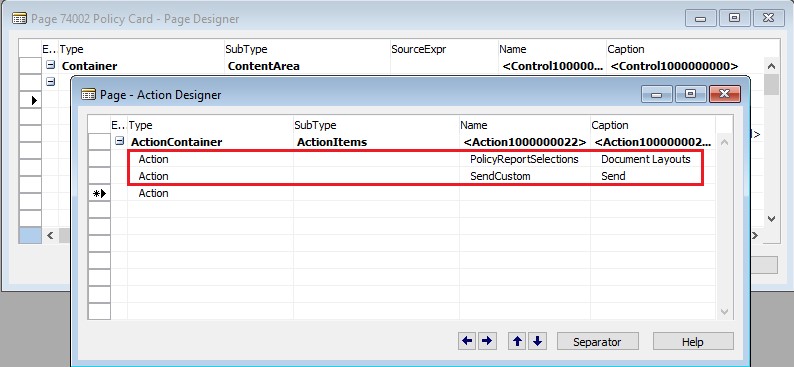
In Page Policy add below customization.

MSI-17


MSI-18

Step-8:

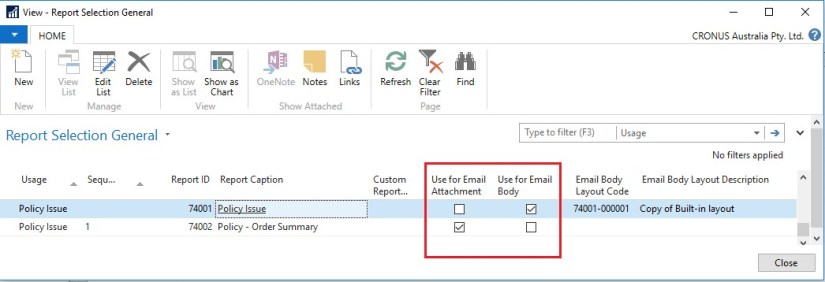
Setup your report Selection as below:

MSI-19

Now you are good to go.

Test your solution/ customization.

This is just a small idea, many lots can be done depending upon your requirements.


Convert to PDF, Development Tips, Email, Functional Tips, How To, Information, Layouts, NAV 2017, Office Integration, Tip & Tricks, What's New, Word

Mail Sending Option in NAV 2017 with Cover Letter & Attachments –Part 1

Generally we get demand for customized mail body to send from Navision. Normally we use templates or html etc. coding to achieve this. In NAV 2017 this feature is now available in product itself. Today we will explore this feature available for Std. documents and learn to setup, further in next step we will apply same to our custom documents and learn where all places we need to take care development to get it working.

The cover letters are created using RDLC or Word layout customization features providing visual consistency with any attached pdf document.

Document Layout for a Customer

MSI-01

For Example say we want to setup different e-Mail body for specific customer. To achieve this we will assign a specific report by customer which will enable us to process multiple formats at the same time. We will use the Customer Layout from the customer card by Document Type to do this.

MSI-02

In above example I am setting up a customized cover letter designed using selected report.

The Send To Email The e-Mail will be sent to the e-Mail provided in the customer card or you can provide an extra e-Mail in this field or you can specify at the time of sending mail if not setup automatic.

Email Body Layout Description = Modern – Email Body (Choose from the Custom Report Layouts)

Use for E-mail Body select this if you wish to include output of selected report as Cover Letter to Email body.

Send and Receive E-Mail

We can now use the Send Email window to have a preview of what our layout will look like and the using the options we can send the e-Mail.

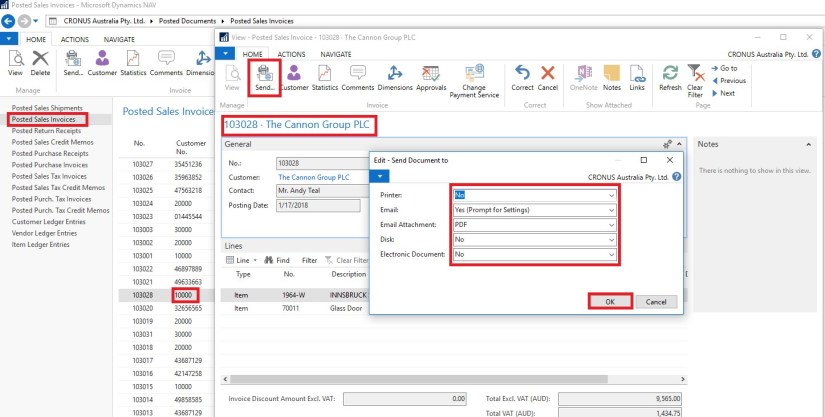
Let’s open a posted invoice for this customer.

MSI-03

On the Posted Sales Invoice click Send, which will open a window with some options, such as:

We can choose Email Prompt for Settings or use Default Settings

We can select how the attachment needs to be attached

We can also have Disk options as PDF or Electronic Documents if we use those.

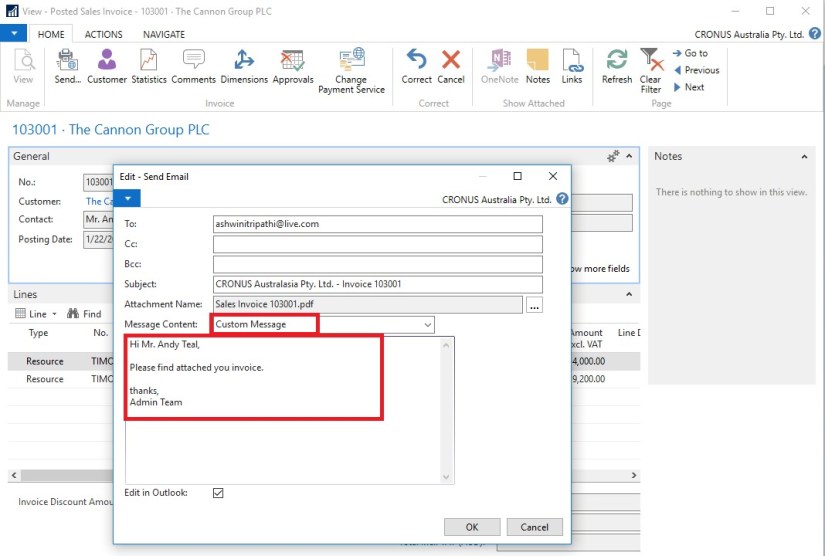
Click OK. Before e-Mail is sent, we have the possibility to verify the e-Mail address, the subject line, the attachments and as per the Email Body Template, this is how the e-Mail will look like:

MSI-04

When we click OK, an e-Mail is sent to the Customer using the e-Mail Template.

By opening the e-Mail the recipient can see the contents of the invoice which has been sent using the template and the full invoice is also available as an attachment.

MSI-05

You can switch to a manual written message:

By using the Message Content field or

If you are using a client, you can open and edit the message in Outlook

MSI-06

In our next part of this post, we will see how we can enable this feature for our custom Pages & Documents.


Cumulative Updates, Development Tips, How To, Information, Instalation & Configuration, NAV 2018, Tip & Tricks, Updates

Cumulative Update 06 for Microsoft Dynamics NAV 2018 (Build 22292) – Released in June 2018

This cumulative update includes all hotfixes and regulatory features that have been released for Microsoft Dynamics NAV 2018, including hotfixes and regulatory features that were released in previous cumulative updates.

This cumulative update replaces previously released cumulative updates. You should always install the latest cumulative update.

It may be necessary to update your license after implementing this hotfix to gain access to new objects included in this or a previous cumulative update (this only applies to customer licenses).

For a list of cumulative updates released for Microsoft Dynamics NAV 2018, see released cumulative updates for Microsoft Dynamics NAV 2018. Cumulative updates are intended for new and existing customers who are running Microsoft Dynamics NAV 2018.

Important

We recommend that you contact your Microsoft Dynamics Partner before you install hotfixes or updates. It is important to verify that your environment is compatible with the hotfixes or updates being installed. A hotfix or update may cause interoperability issues with customizations and third-party products that work with your Microsoft Dynamics NAV solution.

How to obtain the Microsoft Dynamics NAV update files

This update is available for manual download and installation from the Microsoft Download Center.

Download Cumulative update CU 06 for Microsoft Dynamics NAV 2018

How to install a Microsoft Dynamics NAV 2018 cumulative update

See How to install a Microsoft Dynamics NAV 2018 cumulative update.

Prerequisites

You must have Microsoft Dynamics NAV 2018 installed to apply this hotfix.

For more details see: https://support.microsoft.com/en-us/help/4337675/cumulative-update-06-for-microsoft-dynamics-nav-2018-build-22292

Cumulative Updates, Development Tips, How To, Information, Instalation & Configuration, NAV 2017, Tip & Tricks, Updates

Cumulative Update 19 for Microsoft Dynamics NAV 2017 (Build 22286) – June 2018

This cumulative update includes all hotfixes and regulatory features that have been released for Microsoft Dynamics NAV 2017, including hotfixes and regulatory features that were released in previous cumulative updates.

This cumulative update replaces previously released cumulative updates. You should always install the latest cumulative update.

It may be necessary to update your license after implementing this hotfix to gain access to new objects included in this or a previous cumulative update (this only applies to customer licenses).

For a list of cumulative updates released for Microsoft Dynamics NAV 2017, see released cumulative updates for Microsoft Dynamics NAV 2017. Cumulative updates are intended for new and existing customers who are running Microsoft Dynamics NAV 2017.

Important

We recommend that you contact your Microsoft Dynamics Partner before you install hotfixes or updates. It is important to verify that your environment is compatible with the hotfixes or updates being installed. A hotfix or update may cause interoperability issues with customizations and third-party products that work with your Microsoft Dynamics NAV solution.

How to obtain the Microsoft Dynamics NAV update files

This update is available for manual download and installation from the Microsoft Download Center.

Download Cumulative update CU 19 for Microsoft Dynamics NAV 2017

How to install a Microsoft Dynamics NAV 2017 cumulative update

See How to install a Microsoft Dynamics NAV 2017 cumulative update.

Prerequisites

You must have Microsoft Dynamics NAV 2017 installed to apply this hotfix.

For more details see: https://support.microsoft.com/en-us/help/4337674/cumulative-update-19-for-microsoft-dynamics-nav-2017-build-22286

Cumulative Updates, Development Tips, How To, Information, Tip & Tricks, Updates

Cumulative Update 32 for Microsoft Dynamics NAV 2016 (Build 50357) – Released in June 2018

This cumulative update includes all hotfixes and regulatory features that have been released for Microsoft Dynamics NAV 2016, including hotfixes and regulatory features that were released in previous cumulative updates.

This cumulative update replaces previously released cumulative updates. You should always install the latest cumulative update.

It may be necessary to update your license after implementing this hotfix to gain access to new objects included in this or a previous cumulative update (this only applies to customer licenses).

For a list of cumulative updates released for Microsoft Dynamics NAV 2016, see released cumulative updates for Microsoft Dynamics NAV 2016. Cumulative updates are intended for new and existing customers who are running Microsoft Dynamics NAV 2016.

Important

We recommend that you contact your Microsoft Dynamics Partner before you install hotfixes or updates. It is important to verify that your environment is compatible with the hotfixes or updates being installed. A hotfix or update may cause interoperability issues with customizations and third-party products that work with your Microsoft Dynamics NAV solution.

How to obtain the Microsoft Dynamics NAV update files

This update is available for manual download and installation from the Microsoft Download Center.

Download Cumulative update CU 32 for Microsoft Dynamics NAV 2016

How to install a Microsoft Dynamics NAV 2016 cumulative update

See How to install a Microsoft Dynamics NAV 2016 cumulative update.

Prerequisites

You must have Microsoft Dynamics NAV 2016 installed to apply this hotfix.

For more details see: https://support.microsoft.com/en-us/help/4337673/cumulative-update-32-for-microsoft-dynamics-nav-2016-build-50357


Cumulative Updates, Development Tips, How To, Information, Instalation & Configuration, Tip & Tricks, Updates

Cumulative Update 44 for Microsoft Dynamics NAV 2015 (Build 50355) – Released in June 2018

This cumulative update includes all hotfixes and regulatory features that have been released for Microsoft Dynamics NAV 2015, including hotfixes and regulatory features that were released in previous cumulative updates.

Note You must convert the database if you are upgrading to this cumulative update from a cumulative update earlier than cumulative update 9 (build 41779). For more information, see Converting a Database in Help for Microsoft Dynamics NAV.

This cumulative update replaces previously released cumulative updates. You should always install the latest cumulative update.

It may be necessary to update your license after implementing this hotfix to gain access to new objects included in this or a previous cumulative update (this only applies to customer licenses).

For a list of cumulative updates released for Microsoft Dynamics NAV 2015, see released cumulative updates for Microsoft Dynamics NAV 2015. Cumulative updates are intended for new and existing customers who are running Microsoft Dynamics NAV 2015.

Important

We recommend that you contact your Microsoft Dynamics Partner before you install hotfixes or updates. It is important to verify that your environment is compatible with the hotfixes or updates being installed. A hotfix or update may cause interoperability issues with customizations and third-party products that work with your Microsoft Dynamics NAV solution.

How to obtain the Microsoft Dynamics NAV update files

This update is available for manual download and installation from the Microsoft Download Center.

Download Cumulative update CU 44 for Microsoft Dynamics NAV 2015

How to install a Microsoft Dynamics NAV 2015 cumulative update

See How to install a Microsoft Dynamics NAV 2015 Cumulative Update.

Prerequisites

You must have Microsoft Dynamics NAV 2015 installed to apply this hotfix.

For more details see: https://support.microsoft.com/en-us/help/4337672/cumulative-update-44-for-microsoft-dynamics-nav-2015-build-50355

Cumulative Updates, Development Tips, How To, Information, Instalation & Configuration, NAV 2018, Tip & Tricks, Updates

Cumulative Update 05 for Microsoft Dynamics NAV 2018 (Build 21836) – Released in May 2018

released cumulative updates for Microsoft Dynamics NAV 2018This cumulative update includes all hotfixes and regulatory features that have been released for Microsoft Dynamics NAV 2018, including hotfixes and regulatory features that were released in previous cumulative updates.

This cumulative update replaces previously released cumulative updates. You should always install the latest cumulative update.

It may be necessary to update your license after implementing this hotfix to gain access to new objects included in this or a previous cumulative update (this only applies to customer licenses).

For a list of cumulative updates released for Microsoft Dynamics NAV 2018, see released cumulative updates for Microsoft Dynamics NAV 2018. Cumulative updates are intended for new and existing customers who are running Microsoft Dynamics NAV 2018.

How to obtain the Microsoft Dynamics NAV update files

This update is available for manual download and installation from the Microsoft Download Center.

Download Cumulative update CU 05 for Microsoft Dynamics NAV 2018

How to install a Microsoft Dynamics NAV 2018 cumulative update

See How to install a Microsoft Dynamics NAV 2018 cumulative update.

Prerequisites

You must have Microsoft Dynamics NAV 2018 installed to apply this hotfix.

For more information see : https://support.microsoft.com/en-us/help/4171921/cumulative-update-05-for-microsoft-dynamics-nav-2018-build-21836

Cumulative Updates, Development Tips, How To, Information, Instalation & Configuration, NAV 2017, Tip & Tricks, Updates

Cumulative Update 18 for Microsoft Dynamics NAV 2017 (Build 21832) – Released in May 2018

This cumulative update includes all hotfixes and regulatory features that have been released for Microsoft Dynamics NAV 2017, including hotfixes and regulatory features that were released in previous cumulative updates.

This cumulative update replaces previously released cumulative updates. You should always install the latest cumulative update.

It may be necessary to update your license after implementing this hotfix to gain access to new objects included in this or a previous cumulative update (this only applies to customer licenses).

For a list of cumulative updates released for Microsoft Dynamics NAV 2017, see released cumulative updates for Microsoft Dynamics NAV 2017. Cumulative updates are intended for new and existing customers who are running Microsoft Dynamics NAV 2017.

How to obtain the Microsoft Dynamics NAV update files

This update is available for manual download and installation from the Microsoft Download Center.

Download Cumulative update CU 18 for Microsoft Dynamics NAV 2017

How to install a Microsoft Dynamics NAV 2017 cumulative update

See How to install a Microsoft Dynamics NAV 2017 cumulative update.

Prerequisites

You must have Microsoft Dynamics NAV 2017 installed to apply this hotfix.

For more details see : https://support.microsoft.com/en-us/help/4171920/cumulative-update-18-for-microsoft-dynamics-nav-2017-build-21832

Cumulative Updates, Development Tips, How To, Information, Instalation & Configuration, Tip & Tricks, Updates

Cumulative Update 31 for Microsoft Dynamics NAV 2016 (Build 50293) – Released in May 2018

This cumulative update includes all hotfixes and regulatory features that have been released for Microsoft Dynamics NAV 2016, including hotfixes and regulatory features that were released in previous cumulative updates.

This cumulative update replaces previously released cumulative updates. You should always install the latest cumulative update.

It may be necessary to update your license after implementing this hotfix to gain access to new objects included in this or a previous cumulative update (this only applies to customer licenses).

For a list of cumulative updates released for Microsoft Dynamics NAV 2016, see released cumulative updates for Microsoft Dynamics NAV 2016. Cumulative updates are intended for new and existing customers who are running Microsoft Dynamics NAV 2016.

How to obtain the Microsoft Dynamics NAV update files

This update is available for manual download and installation from the Microsoft Download Center.

Download Cumulative update CU 31 for Microsoft Dynamics NAV 2016

How to install a Microsoft Dynamics NAV 2016 cumulative update

See How to install a Microsoft Dynamics NAV 2016 cumulative update.

Prerequisites

You must have Microsoft Dynamics NAV 2016 installed to apply this hotfix.

For more details see : https://support.microsoft.com/en-us/help/4171918/cumulative-update-31-for-microsoft-dynamics-nav-2016-build-50293