Cumulative Updates, Development Tips, How To, Information, Instalation & Configuration, NAV 2018, Tip & Tricks, Updates

Cumulative Update 05 for Microsoft Dynamics NAV 2018 (Build 21836) – Released in May 2018

released cumulative updates for Microsoft Dynamics NAV 2018This cumulative update includes all hotfixes and regulatory features that have been released for Microsoft Dynamics NAV 2018, including hotfixes and regulatory features that were released in previous cumulative updates.

This cumulative update replaces previously released cumulative updates. You should always install the latest cumulative update.

It may be necessary to update your license after implementing this hotfix to gain access to new objects included in this or a previous cumulative update (this only applies to customer licenses).

For a list of cumulative updates released for Microsoft Dynamics NAV 2018, see released cumulative updates for Microsoft Dynamics NAV 2018. Cumulative updates are intended for new and existing customers who are running Microsoft Dynamics NAV 2018.

How to obtain the Microsoft Dynamics NAV update files

This update is available for manual download and installation from the Microsoft Download Center.

Download Cumulative update CU 05 for Microsoft Dynamics NAV 2018

How to install a Microsoft Dynamics NAV 2018 cumulative update

See How to install a Microsoft Dynamics NAV 2018 cumulative update.

Prerequisites

You must have Microsoft Dynamics NAV 2018 installed to apply this hotfix.

For more information see : https://support.microsoft.com/en-us/help/4171921/cumulative-update-05-for-microsoft-dynamics-nav-2018-build-21836

Cumulative Updates, Development Tips, How To, Information, Instalation & Configuration, NAV 2017, Tip & Tricks, Updates

Cumulative Update 18 for Microsoft Dynamics NAV 2017 (Build 21832) – Released in May 2018

This cumulative update includes all hotfixes and regulatory features that have been released for Microsoft Dynamics NAV 2017, including hotfixes and regulatory features that were released in previous cumulative updates.

This cumulative update replaces previously released cumulative updates. You should always install the latest cumulative update.

It may be necessary to update your license after implementing this hotfix to gain access to new objects included in this or a previous cumulative update (this only applies to customer licenses).

For a list of cumulative updates released for Microsoft Dynamics NAV 2017, see released cumulative updates for Microsoft Dynamics NAV 2017. Cumulative updates are intended for new and existing customers who are running Microsoft Dynamics NAV 2017.

How to obtain the Microsoft Dynamics NAV update files

This update is available for manual download and installation from the Microsoft Download Center.

Download Cumulative update CU 18 for Microsoft Dynamics NAV 2017

How to install a Microsoft Dynamics NAV 2017 cumulative update

See How to install a Microsoft Dynamics NAV 2017 cumulative update.

Prerequisites

You must have Microsoft Dynamics NAV 2017 installed to apply this hotfix.

For more details see : https://support.microsoft.com/en-us/help/4171920/cumulative-update-18-for-microsoft-dynamics-nav-2017-build-21832

Cumulative Updates, Development Tips, How To, Information, Instalation & Configuration, Tip & Tricks, Updates

Cumulative Update 31 for Microsoft Dynamics NAV 2016 (Build 50293) – Released in May 2018

This cumulative update includes all hotfixes and regulatory features that have been released for Microsoft Dynamics NAV 2016, including hotfixes and regulatory features that were released in previous cumulative updates.

This cumulative update replaces previously released cumulative updates. You should always install the latest cumulative update.

It may be necessary to update your license after implementing this hotfix to gain access to new objects included in this or a previous cumulative update (this only applies to customer licenses).

For a list of cumulative updates released for Microsoft Dynamics NAV 2016, see released cumulative updates for Microsoft Dynamics NAV 2016. Cumulative updates are intended for new and existing customers who are running Microsoft Dynamics NAV 2016.

How to obtain the Microsoft Dynamics NAV update files

This update is available for manual download and installation from the Microsoft Download Center.

Download Cumulative update CU 31 for Microsoft Dynamics NAV 2016

How to install a Microsoft Dynamics NAV 2016 cumulative update

See How to install a Microsoft Dynamics NAV 2016 cumulative update.

Prerequisites

You must have Microsoft Dynamics NAV 2016 installed to apply this hotfix.

For more details see : https://support.microsoft.com/en-us/help/4171918/cumulative-update-31-for-microsoft-dynamics-nav-2016-build-50293

Cumulative Updates, Development Tips, How To, Information, Instalation & Configuration, Tip & Tricks, Updates

Cumulative Update 43 for Microsoft Dynamics NAV 2015 (Build 50291) – Released in May 2018

This cumulative update includes all hotfixes and regulatory features that have been released for Microsoft Dynamics NAV 2015, including hotfixes and regulatory features that were released in previous cumulative updates.

Note You must convert the database if you are upgrading to this cumulative update from a cumulative update earlier than cumulative update 9 (build 41779). For more information, see Converting a Database in Help for Microsoft Dynamics NAV.

This cumulative update replaces previously released cumulative updates. You should always install the latest cumulative update.

It may be necessary to update your license after implementing this hotfix to gain access to new objects included in this or a previous cumulative update (this only applies to customer licenses).

For a list of cumulative updates released for Microsoft Dynamics NAV 2015, see released cumulative updates for Microsoft Dynamics NAV 2015. Cumulative updates are intended for new and existing customers who are running Microsoft Dynamics NAV 2015.

How to obtain the Microsoft Dynamics NAV update files

This update is available for manual download and installation from the Microsoft Download Center.

Download Cumulative update CU 43 for Microsoft Dynamics NAV 2015

How to install a Microsoft Dynamics NAV 2015 cumulative update

See How to install a Microsoft Dynamics NAV 2015 Cumulative Update.

Prerequisites

You must have Microsoft Dynamics NAV 2015 installed to apply this hotfix.

For more details see : https://support.microsoft.com/en-us/help/4171916/cumulative-update-43-for-microsoft-dynamics-nav-2015-build-50291

Cumulative Updates, Development Tips, How To, Information, Instalation & Configuration, Tip & Tricks, Updates

Cumulative Update 42 for Microsoft Dynamics NAV 2015 (Build 50217) – Released in April 2018

This cumulative update includes all hotfixes and regulatory features that have been released for Microsoft Dynamics NAV 2015, including hotfixes and regulatory features that were released in previous cumulative updates. Note You must convert the database if you are upgrading to this cumulative update from a cumulative update earlier than cumulative update 9 (build 41779). For more information, see Converting a Database in Help for Microsoft Dynamics NAV. This cumulative update replaces previously released cumulative updates. You should always install the latest cumulative update. It may be necessary to update your license after implementing this hotfix to gain access to new objects included in this or a previous cumulative update (this only applies to customer licenses). For a list of cumulative updates released for Microsoft Dynamics NAV 2015, see released cumulative updates for Microsoft Dynamics NAV 2015. Cumulative updates are intended for new and existing customers who are running Microsoft Dynamics NAV 2015.

How to obtain the Microsoft Dynamics NAV update files

This update is available for manual download and installation from the Microsoft Download Center.

Cumulative update CU 42 for Microsoft Dynamics NAV 2015

How to install a Microsoft Dynamics NAV 2015 cumulative update

See How to install a Microsoft Dynamics NAV 2015 Cumulative Update.

Prerequisites                       

You must have Microsoft Dynamics NAV 2015 installed to apply this hotfix.

For more details see: https://support.microsoft.com/en-us/help/4100767/cumulative-update-42-for-microsoft-dynamics-nav-2015-build-50217


Cumulative Updates, Development Tips, How To, Information, Instalation & Configuration, NAV 2018, Tip & Tricks, Updates

Cumulative Update 04 for Microsoft Dynamics NAV 2018 (Build 21441) – Released in April 2018

This cumulative update includes all hotfixes and regulatory features that have been released for Microsoft Dynamics NAV 2018, including hotfixes and regulatory features that were released in previous cumulative updates.

This cumulative update replaces previously released cumulative updates. You should always install the latest cumulative update.

It may be necessary to update your license after implementing this hotfix to gain access to new objects included in this or a previous cumulative update (this only applies to customer licenses).

For a list of cumulative updates released for Microsoft Dynamics NAV 2018, see released cumulative updates for Microsoft Dynamics NAV 2018. Cumulative updates are intended for new and existing customers who are running Microsoft Dynamics NAV 2018.

How to obtain the Microsoft Dynamics NAV update files

This update is available for manual download and installation from the Microsoft Download Center.

Download Cumulative update CU 04 for Microsoft Dynamics NAV 2018

How to install a Microsoft Dynamics NAV 2018 cumulative update

See How to install a Microsoft Dynamics NAV 2018 cumulative update.

Prerequisites

You must have Microsoft Dynamics NAV 2018 installed to apply this hotfix.

For more details see: https://support.microsoft.com/en-us/help/4100770/cumulative-update-04-for-microsoft-dynamics-nav-2018-build-21441

Cumulative Updates, Development Tips, How To, Information, Instalation & Configuration, NAV 2017, Tip & Tricks, Updates

Cumulative Update 17 for Microsoft Dynamics NAV 2017 (Build 21440) – Released in April 2018

This cumulative update includes all hotfixes and regulatory features that have been released for Microsoft Dynamics NAV 2017, including hotfixes and regulatory features that were released in previous cumulative updates.

This cumulative update replaces previously released cumulative updates. You should always install the latest cumulative update.

It may be necessary to update your license after implementing this hotfix to gain access to new objects included in this or a previous cumulative update (this only applies to customer licenses).

For a list of cumulative updates released for Microsoft Dynamics NAV 2017, see released cumulative updates for Microsoft Dynamics NAV 2017. Cumulative updates are intended for new and existing customers who are running Microsoft Dynamics NAV 2017.

How to obtain the Microsoft Dynamics NAV update files

This update is available for manual download and installation from the Microsoft Download Center.

Download Cumulative update CU 17 for Microsoft Dynamics NAV 2017

How to install a Microsoft Dynamics NAV 2017 cumulative update

See How to install a Microsoft Dynamics NAV 2017 cumulative update.

Prerequisites

You must have Microsoft Dynamics NAV 2017 installed to apply this hotfix.

For more details see : https://support.microsoft.com/en-us/help/4100769/cumulative-update-17-for-microsoft-dynamics-nav-2017-build-21440

Cumulative Updates, Development Tips, How To, Information, Instalation & Configuration, Tip & Tricks, Updates

Cumulative Update 30 for Microsoft Dynamics NAV 2016 (Build 50221) – Released in April 2018

This cumulative update includes all hotfixes and regulatory features that have been released for Microsoft Dynamics NAV 2016, including hotfixes and regulatory features that were released in previous cumulative updates.

This cumulative update replaces previously released cumulative updates. You should always install the latest cumulative update.

It may be necessary to update your license after implementing this hotfix to gain access to new objects included in this or a previous cumulative update (this only applies to customer licenses).

For a list of cumulative updates released for Microsoft Dynamics NAV 2016, see released cumulative updates for Microsoft Dynamics NAV 2016. Cumulative updates are intended for new and existing customers who are running Microsoft Dynamics NAV 2016.

How to obtain the Microsoft Dynamics NAV update files

This update is available for manual download and installation from the Microsoft Download Center.

Download Cumulative update CU 30 for Microsoft Dynamics NAV 2016

How to install a Microsoft Dynamics NAV 2016 cumulative update

See How to install a Microsoft Dynamics NAV 2016 cumulative update.

Prerequisites

You must have Microsoft Dynamics NAV 2016 installed to apply this hotfix.

For more details See :- https://support.microsoft.com/en-us/help/4100768/cumulative-update-30-for-microsoft-dynamics-nav-2016-build-50221

Data, Development Tips, How To, Information, Instalation & Configuration, Replication, SQL, Tip & Tricks

Database Replication – Part V

This post is in continuation to my earlier post. Please check if you missed.

Database Replication – Part I

Database Replication – Part II

Database Replication – Part III

Database Replication – Part IV

As committed in this post we will continue to cover practical approach, Next step from last post.

We will create a subscription using SQL Server Management Studio

To create the subscription

  • Connect to the Publisher in SQL Server Management Studio, expand the server node, and then expand the Replication folder.
  • In the Local Publications folder, right-click the Nav2018ItemTrans publication, and then click New Subscriptions.

DR-39

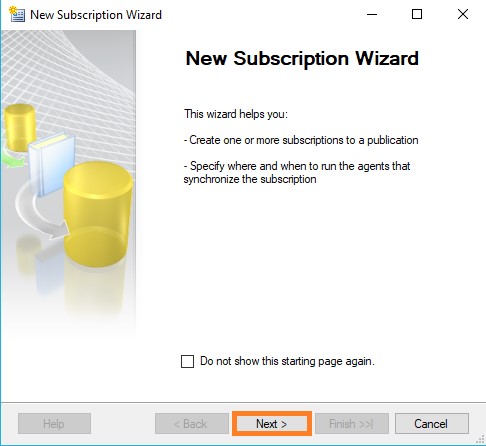
The New Subscription Wizard launches.
DR-40

  • On the Publication page, select Nav2018ItemTrans, and then click Next.

DR-41

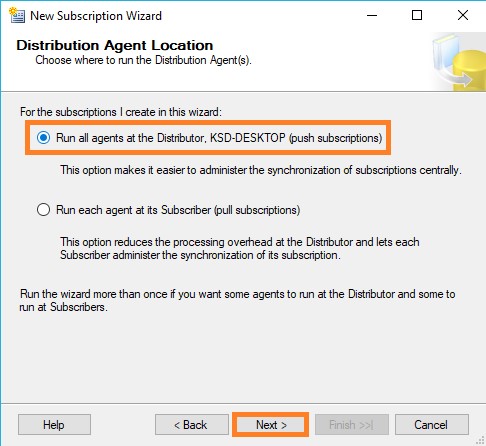
  • On the Distribution Agent Location page, select Run all agents at the Distributor, and then click Next.
DR-42

  • On the Subscribers page, if the name of the Subscriber instance is not displayed, click Add Subscriber, click Add SQL Server Subscriber, enter the Subscriber instance name in the Connect to Server dialog box, and then click Connect.
  • On the Subscribers page, select the instance name of the Subscriber server, and select under Subscription Database.
  • On the New Database dialog box/Select from Drop Down List, enter Nav2018ReplDatabase in the Database name box, click OK, and then click Next.

DR-43

  • In the Distribution Agent Security dialog box, click the ellipsis (…) button, enter <Machine_Name>\repl_distribution in the Process account box, enter the password for this account, click OK.

DR-44

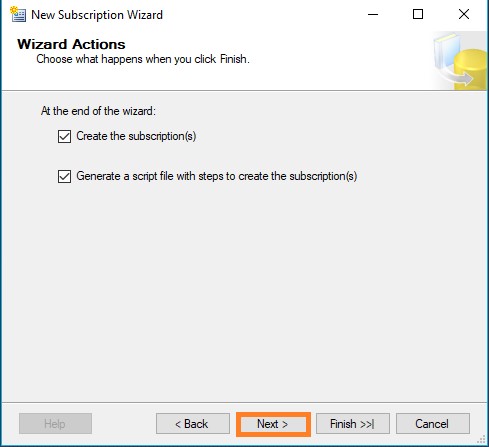
  • Click Next.


DR-45DR-46DR-47DR-48DR-49

  • Click Finish to accept the default values on the remaining pages and complete the wizard.

Setting database permissions at the Subscriber

  • Connect to the Subscriber in SQL Server Management Studio, expand Databases, Nav2018ReplDatabase, and Security, right-click Users, and then select New User.
  • On the General page, in the User type list, select Windows user.
  • Select the User name box and click the ellipsis (…) button, in the Enter the object name to select box type <Machine_Name>\repl_distribution, click Check Names, and then click OK.

DR-50

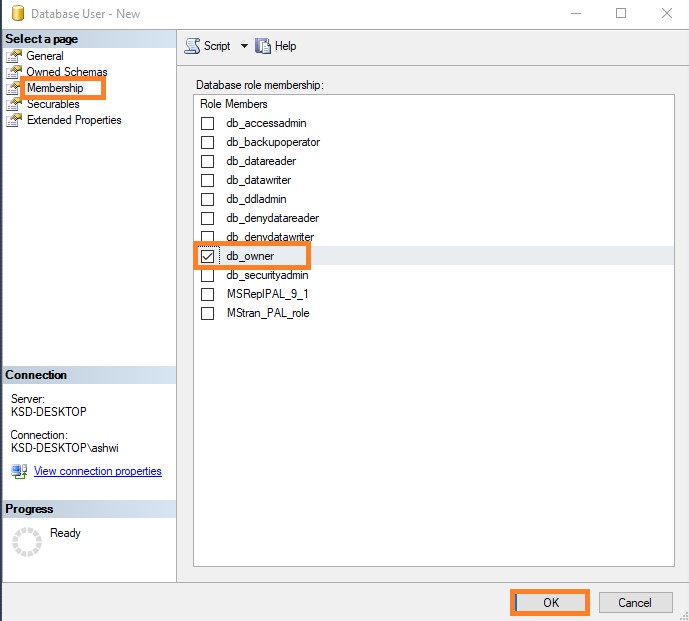
  • On the Membership page, in Database role membership area, select db_owner, and then click OK to create the user.
DR-51

When setting up SQL Server replication you might see an error message from the Transactional Replication Log Reader Agent which reads like the following.

Error messages:

  • The process could not execute ‘sp_replcmds’ on ”. (Source: MSSQL_REPL, Error number: MSSQL_REPL20011) Get help: http://help/MSSQL_REPL20011
  • Cannot execute as the database principal because the principal “dbo” does not exist, this type of principal cannot be impersonated, or you do not have permission. (Source: MSSQLServer, Error number: 15517) Get help: http://help/15517
  • The process could not execute ‘sp_replcmds’ on ”. (Source: MSSQL_REPL, Error number: MSSQL_REPL22037) Get help: http://help/MSSQL_REPL22037

Often this error message can come from the database not having a valid owner, or the SQL Server is not being able to correctly identify the owner of the database.

Often this is easiest to fix by changing the database owner by using the sp_changedbowner system stored procedure as shown below. The sa account is a reliable account to use to change the ownership of the database to.

USE PublishedDatabase

GO

EXEC sp_changedbowner ‘sa’

GO

Once the database ownership has been changed the log reader will probably start working right away. If it doesn’t quickly restarting the log reader should resolve the problem.

While this does require changes to the production database, there is no outage required to make these changes.

To view the synchronization status of the subscription

  • Connect to the Publisher in SQL Server Management Studio, expand the server node, and then expand the Replication folder.
  • In the Local Publications folder, expand the Nav2018ItemTrans publication, right-click the subscription in the Nav2018ReplDatabase database, and then click View Synchronization Status.

DR-52

The current synchronization status of the subscription is displayed.

DR-53

  • If the subscription is not visible under Nav2018ItemTrans, press F5 to refresh the list.

Validating the Subscription and Measuring Latency

We will use tracer tokens to verify that changes are being replicated to the Subscriber and to determine latency, the time it takes for a change made at the Publisher to appear to the Subscriber.

To insert a tracer token and view information on the token

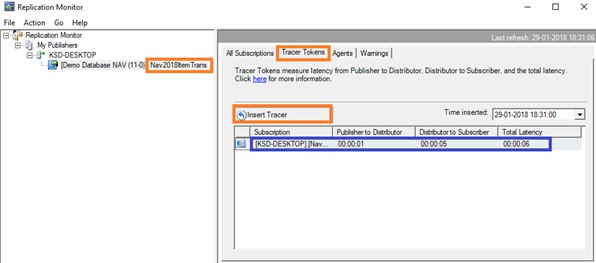
  • Connect to the Publisher in SQL Server Management Studio, expand the server node, right-click the Replication folder, and then click Launch Replication Monitor.
  • Replication Monitor launches.
  • Expand a Publisher group in the left pane, expand the Publisher instance, and then click the Nav2018ItemTrans publication.
  • Click the Tracer Tokens tab.
  • Click Insert Tracer.
  • View elapsed time for the tracer token in the following columns: Publisher to Distributor, Distributor to Subscriber, Total Latency. A value of Pending indicates that the token has not reached a given point.
DR-54

This way we are done with Database Replication Setup.

Will come up with more topic soon.


Cumulative Updates, Development Tips, How To, Information, Instalation & Configuration, NAV 2018, Tip & Tricks, Updates

Cumulative Update 03 for Microsoft Dynamics NAV 2018 (Build 20783) – Released in March 2018

This cumulative update includes all hotfixes and regulatory features that have been released for Microsoft Dynamics NAV 2018, including hotfixes and regulatory features that were released in previous cumulative updates.

This cumulative update replaces previously released cumulative updates. You should always install the latest cumulative update.

It may be necessary to update your license after implementing this hotfix to gain access to new objects included in this or a previous cumulative update (this only applies to customer licenses).

For a list of cumulative updates released for Microsoft Dynamics NAV 2018, see released cumulative updates for Microsoft Dynamics NAV 2018. Cumulative updates are intended for new and existing customers who are running Microsoft Dynamics NAV 2018.

How to obtain the Microsoft Dynamics NAV update files

This update is available for manual download and installation from the Microsoft Download Center.

Download Cumulative update CU 03 for Microsoft Dynamics NAV 2018

How to install a Microsoft Dynamics NAV 2018 cumulative update

See How to install a Microsoft Dynamics NAV 2018 cumulative update .

Prerequisites

You must have Microsoft Dynamics NAV 2018 installed to apply this hotfix.

For more details see: https://support.microsoft.com/en-us/help/4091307/cumulative-update-03-for-microsoft-dynamics-nav-2018-build-20783