
We will follow below step to create a certificate for Microsoft Dynamics Server. Then we will implement the same for login from WAN to access Navision using Windows and Web Clients.
- On the computer running Microsoft Dynamics NAV Server, create a temporary folder to use when you work with certificates.
- Open the command prompt as follows:
- If you have Visual Studio installed on your computer, choose Start, choose All Programs, choose Microsoft Visual Studio 2012, choose Visual Studio Tools, and then right-click Visual Studio Command Prompt and choose Run as Administrator.
- If you have the Windows SDK installed on your computer, choose Start, choose All Programs, choose Microsoft Windows SDK, and then right-click Windows SDK Command Prompt (2010) (or CMD Shell) and choose Run as Administrator.
- At the command prompt, locate the temporary directory.
- Type the following command.
makecert -n “CN=RootNavServiceCA” -r -sv RootNavServiceCA.pvk RootNavServiceCA.cer

- When you are prompted, enter a password.
- You need this password to create the service certificate.
- The RootNavServiceCA.cer certificate file and the RootNavServiceCA.pvk private key are saved in your temporary folder.
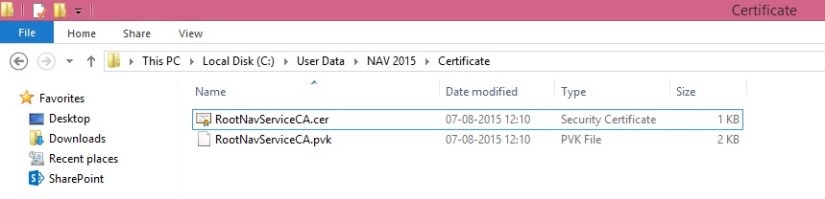
Now we will use the Certificates snap-in to install the root CA on the computer running Microsoft Dynamics NAV Server
- Start the Certificates snap-in for MMC on the computer running Microsoft Dynamics NAV Server, and then add the Certificates snap-in.
- In the Certificates snap-in dialog box, choose Computer account, and then choose Next.
- In the Select Computer pane, choose Local computer: (the computer this console is running on), and then choose Finish.
- Choose OK to close the Add or Remove Snap-ins dialog box.
- In the left pane of MMC, expand the Certificates (Local Computer) node.


- Expand the Trusted Root Certification Authorities node, right-click the Certificates subfolder, select All Tasks, and then choose Import.

- In the Certificate Import Wizard, on the Welcome page, choose Next.
- On the File to Import page, choose Browse.
- Browse to the location of the RootNavServiceCA.cer certificate file, select the file, and then choose Open.
- On the File to Import page, choose Next.
- On the Certificate Store page, accept the default selection, and then choose Next.
- On the Completing the Certificate Import Wizard page, choose Finish.

The RootNavServiceCA certificate is now visible in the list of trusted root CAs.

In next step we will now create a certificate revocation list for the root certification authority and then install the certificate revocation list on the computer running Microsoft Dynamics NAV Server.
A certificate revocation list is required because WCF applications check the revocation list when validating certificates.
Next Step Link- How to create a certificate revocation list for the root certification authority

 ARKSD Consultancy Private Limited