Corfu Navision 2016, Development Tips, Extension Package, How To, Information, Tip & Tricks

Useful Windows PowerShell cmdlets for managing Extensions in Dynamics Navision 2016

Today I will list few cmdlets which will help you getting your task done while working with Extensions.

For Overview of Extensions, please see my earlier posts

Introducing Extensions in Microsoft Dynamics NAV 2016

Which Object types you can Include & Restrictions applicable to C/AL code in Extension Packages

Which Properties are Restricted in Extension Packages

Just a quick reference you can study in details using links of MSDN below every cmdlet.

Get-Help

To get Help about syntax and options for a specific cmdlet, type the following cmdlet.

Syntax: Get-Help <cmd name>


Export-NAVApplicationObject

The Microsoft.Dynamics.Nav.Model.Tools.psd1 module includes a function, Export-NAVApplicationObject, which runs the ExportObjects command. This means that you can run a command such as the following:

Export-NAVApplicationObject

–DatabaseServer MyServer

–DatabaseName “Demo Database NAV (7-1)”

–Path C:\UserData\MyPackage\ORIGINAL\MyObjects.txt


Export-NAVApplicationObjectLanguage

Exports captions from the specified text files with Microsoft Dynamics NAV application objects. The captions are exported to text files.


Syntax:

Export-NAVApplicationObjectLanguage

[-Source] <String[]>

[-Destination] <String>

[[-LanguageId] <String[]> ]

[-DevelopmentLanguageId <String> ]

[-Encoding <FileEncoding> ] [-Force] [-PassThru] [-Confirm] [-WhatIf] [ <CommonParameters>]

The resulting text files are similar to the multilanguage files that you can export in the Microsoft Dynamics NAV Development Environment. If your source files contain more than one language, you can choose to export one language, multiple languages, or all languages


Example:

PS C:\> Export-NAVApplicationObjectLanguage

–Source .\ORIGINAL\ -LanguageId “DEU”,”FRA”

-Destination .\RESULT\languages.txt

Click here for more details on MSDN

Export-NAVAppPermissionSet

Exports the specified permission set from a Microsoft Dynamics NAV database to a file.


Syntax:

Export-NAVAppPermissionSet

[-ServerInstance] <String>

-Path <String> -PermissionSetId <String[]>

[-Force] [-PassThru] [ <CommonParameters>]


Example:

PS C:\> Export-NAVAppPermissionSet

-ServerInstance DynamicsNAV90 -Path ‘.\PermissionSet.xml’

-PermissionSetId SUPER


This example exports the permission set with the ID “SUPER” in the database that is used by the DynamicsNAV90 server instance to the PermissionSet.xml file.

Click here for more details on MSDN


Split-NAVApplicationObjectFile

Splits a text file that contains two or more application objects into separate text files for each application object.

Syntax:

Split-NAVApplicationObjectFile

[-Source] <String>

[[-Destination] <String> ]

[-Force] [-PassThru] [-PreserveFormatting] [-Confirm] [-WhatIf] [ <CommonParameters>]


The Split-NAVApplicationObjectFile cmdlet can copy each application object to a new file, or it can recreate the object in the new file.

The default setting is to recreate the object, but you can change this by setting the PreserveFormatting parameter.

Example:

PS C:\> Split-NAVApplicationObjectFile -Source C:\UserData\MyPackage\ORIGINAL\All.txt -Destination C:\UserData\MyPackage\ORIGINAL\TXT\ -PreserveFormatting


Click here for more details on MSDN


Compare-NAVApplicationObject

Compares text files with Microsoft Dynamics NAV application objects and then calculates the delta between the two versions. The result of the comparison is a number of text files with the calculated delta.

The Compare-NAVApplicationObject cmdlet compares the text files in the two specified folders and creates .delta files that describe the difference between the two versions

The cmdlet creates a text file for each application object that is different between the two versions.

Syntax:

Compare-NAVApplicationObject

[-OriginalPath] <String[]>

[-ModifiedPath] <String[]>

[-DeltaPath] <String>

[-Confirm] [-Force] [-Legacy] [-NoCodeCompression] [-PassThru] [-Confirm] [-WhatIf] [ <CommonParameters>]


Example:

PS C:\> Compare-NAVApplicationObject

–OriginalPath C:\UserData\MyPackage\ORIGINAL\*.txt

-ModifiedPath C:\ UserData\MyPackage \MODIFIED\*.txt

-DeltaPath C:\ UserData\MyPackage \DELTA


Below example compares the text files in the MODIFIED folder to the baseline in the ORIGINAL folder. The result of the comparison is put into the DELTA folder and also piped to the Update-NAVApplicationObject cmdlet, which applies the updates.

PS C:\> Compare-NAVApplicationObject

-OriginalPath .\ORIGINAL\*.txt

-ModifiedPath .\MODIFIED\*.txt

-DeltaPath .\DELTA -Force

-PassThru |   Update-NAVApplicationObject

-TargetPath .\TARGET\*.txt

-ResultPath .\RESULT –Force

Click here for more details on MSDN


Merge-NAVApplicationObject

Compares the changes that have been made to application objects between two versions of Microsoft Dynamics NAV, and applies the difference to a third set of application objects.


Syntax:

Merge-NAVApplicationObject

[-OriginalPath] <String[]>

[-ModifiedPath] <String[]>

[-TargetPath] <String[]>

[-ResultPath] <String>

[-DateTimeProperty <DateTimePropertyAction> ] [-DisableCommentOut] [-DocumentationConflict <DocumentationConflictAction> ] [-Force] [-Legacy] [-ModifiedProperty <ModifiedPropertyAction> ] [-PassThru] [-Strict] [-VersionListProperty <VersionListPropertyAction> ] [-Confirm] [-WhatIf] [ <CommonParameters>]


You specify an original version and compare that to a latest version.

The difference is then applied to the target version.

The result of the merge is a number of text files with the merged application objects.

Any conflicts that the cmdlet cannot merge are identified in conflict files.

Example:

PS C:\> Merge-NAVApplicationObject

-OriginalPath C:\UserData\MyPackage \ ORIGINAL\*.TXT

-TargetPath C:\ UserData\MyPackage \TARGET \*.TXT

-ModifiedPath C:\ UserData\MyPackage \MODIFIED \*.TXT

-ResultPath C:\ UserData\MyPackage \RESULT\


Click here for more details on MSDN


Import-NAVApplicationObjectLanguage

Imports strings in the specified language into text files that contain Microsoft Dynamics NAV application objects.


Syntax:

Import-NAVApplicationObjectLanguage

[-Source] <String[]>

[-LanguagePath] <String[]>

[-Destination] <String>

[[-LanguageId] <String[]> ]

[-Encoding <FileEncoding> ] [-Force] [-PassThru] [-Confirm] [-WhatIf] [ <CommonParameters>]

Example:

PS C:\> Import-NAVApplicationObjectLanguage

–Source .\TAB18.TXT

-LanguageId “CHS”

-LanguagePath .\ALL-CHS.TXT

-Destination .\RESULT\

This command will import the CHS language into the Microsoft Dynamics NAV application object that is specified in the –Source parameter, TAB18.txt. The strings are imported from the text files in the ALL-CHS.txt file, and the result of the command is a text file in the RESULT folder, TAB18.txt, that includes captions in Chinese.

Click here for more details on MSDN


Get-NAVAppInfo

Gets information about a Microsoft Dynamics NAV extension based on the specified package file or the specified Microsoft Dynamics NAV Server instance.


Syntax:

  • Get-NAVAppInfo -Path <String> [ <CommonParameters>]

  • Get-NAVAppInfo [-ServerInstance] <String> [-CompatibilityId <Version> ] [-Id <Guid> ] [-Name <String> ] [-Publisher <String> ] [-Version <Version> ] [ <CommonParameters>]

  • Get-NAVAppInfo [-ServerInstance] <String> -Tenant <String> [ <CommonParameters>]


Example:

To see Microsoft Dynamics NAV extensions that are published to the DynamicsNAV90 server instance use below command.

PS C:\>Get-NAVAppInfo -ServerInstance DynamicsNAV90

Or

This command will return information about all Microsoft Dynamics NAV extensions that are published to the DynamicsNAV90 server instance by Ashwini.

PS C:\>Get-NAVAppInfo -ServerInstance DynamicsNAV90 -Publisher ‘Ashwini’


You will see output similar to shown below

Id Name Version Publisher
9a47a833-e22f-4812-ade314219c53 EDD1.01 1.0.0.00 Ashwini
3c88160c-e0eb-4fe1-b4f6-011e45d74b10 EDD1.02 1.0.0.01 Ashwini


Below command returns information about the extension with the specified name and version on the DynamicsNAV90 server instance.

PS C:\>Get-NAVAppInfo -ServerInstance DynamicsNAV90 -Name ‘EDD1.01’ -Version 1.0.0.00

Or

This command will return information about all Microsoft Dynamics NAV extensions that are installed for the tenant with the ID Tenant1 on the DynamicsNAV90 server instance.

PS C:\>Get-NAVAppInfo -ServerInstance DynamicsNAV90 -Tenant ‘Tenant1’

Or

This command will return information about all Microsoft Dynamics NAV extensions that are installed on a non-multitenant Microsoft Dynamics NAV Server instance.

PS C:\>Get-NAVAppInfo -ServerInstance DynamicsNAV90 -Tenant default

You will see output similar to shown below

Id 3c88160c-e0eb-4fe1-b4f6-011e45d74b10
Name EDD1.02
Version 1.0.0.01
Publisher Ashwini
Description Second Extension by Ashwini
Compatibility Id 1.0.0.00
Capabilities
Prerequisites
Dependencies


Click here for more details on MSDN

Get-NAVApplicationObjectProperty

Gets Microsoft Dynamics NAV application object properties from the specified application object text files.


Syntax:

Get-NAVApplicationObjectProperty [-Source] <String[]> [ <CommonParameters>]


Example:

PS C:\> Get-NAVApplicationObjectProperty -Source .\SOURCE\COD1.txt

Click here for more details on MSDN


Set-NAVApplicationObjectProperty

Sets Microsoft Dynamics NAV application object properties in the specified application object text files.

Syntax:

Set-NAVApplicationObjectProperty

[-TargetPath] <String[]>

[-DateTimeProperty <String> ]

[-ModifiedProperty <SetModifiedPropertyAction> ]

[-VersionListProperty <String> ]

[-PassThru] [-Confirm] [-WhatIf] [ <CommonParameters>]


You can use the Get-NAVApplicationObjectProperty cmdlet to extract information about the application objects before you change them.

Example:

PS C:\> Set-NAVApplicationObjectProperty -TargetPath C:\UserData\MyPackage\RESULT\FinalObjects.txt -VersionListProperty ” EDD1.02″ – ModifiedProperty No -DateTimeProperty (Get-Date -Format g)

Click here for more details on MSDN


Update-NAVApplicationObject

Applies a set of deltas to the specified application objects. The files that describe the delta are generated by the Compare-NAVApplicationObject cmdlet.

Optionally, you can use the Set-NAVApplicationObjectProperty cmdlet to change the version or other properties. Then, you use Update-NAVApplicationObject cmdlet to apply the delta to target files.

Syntax:

Update-NAVApplicationObject

[-TargetPath] <String[]>

[-DeltaPath] <String[]>

[-ResultPath] <String>

[-DateTimeProperty <DateTimePropertyAction> ]

[-DisableCommentOut]

[-DocumentationConflict <DocumentationConflictAction> ]

[-ModifiedProperty <ModifiedPropertyAction> ]

[-VersionListProperty <VersionListPropertyAction> ]

[-Force] [-Legacy] [-PassThru] [-Strict] [-Confirm] [-WhatIf] [ <CommonParameters>]


Example:

PS C:\> Update-NAVApplicationObject -TargetPath C:\UserData\MyPackage \TARGET\*.txt -DeltaPath C:\UserData\MyPackage \DELTA\*.txt –ResultPath C:\UserData\MyPackage \RESULT\


Click here for more details on MSDN


Get-NAVAppManifest

Loads a manifest for a Microsoft Dynamics NAV extension from an external source , such as an .xml file.


Syntax:

Get-NAVAppManifest [-Path] <String> [ <CommonParameters>]


Example:

PS C:\> Get-NAVAppManifest -Path ‘.\Manifest-EDD1_02.xml’

You will see output similar to shown below

AppId 3c88160c-e0eb-4fe1-b4f6-011e45d74b10
AppName EDD1.02
AppPublisher Ashwini
AppDescription Second Extension by Ashwini
AppVersion 1.0.0.01
AppCompatibilityId 1.0.0.00
Capabilities {}
Prerequisites {}
Dependencies {}


Below command gets a manifest from an XML manifest file and then passes the manifest to the New-NAVAppPackage cmdlet to create a new extension package.

PS C:\> Get-NAVAppManifest

-Path ‘.\Manifest-Proseware SmartStuff.xml’ | New-NAVAppPackage

-Path ‘ C:\UserData\MyPackage\Manifest\EDD1.02.navx’

-SourcePath ‘C:\UserData\MyPackage \NavExtensionFiles’

Click here for more details on MSDN


Set-NAVAppManifest

Sets one or more available properties on an in-memory manifest for a Microsoft Dynamics NAV extension.

You can then write the updated manifest object to disk by using the New-NAVAppManifestFile cmdlet. The manifest is required when you create the extension package file (.navx) using the New-NAVAppPackage cmdlet.

Syntax:

Set-NAVAppManifest

[-Manifest] <NavAppManifest>

[-CompatibilityId <Version> ]

[-Dependencies <String[]> ]

[-Description <String> ]

[-Id <Guid> ]

[-Name <String> ]

[-Prerequisites <String[]> ]

[-Publisher <String> ]

[-Version <Version> ]

[ <CommonParameters>]


PS C:\> Get-NAVAppManifest -Path ‘ C:\UserData\MyPackage\MANIFEST\Manifest-EDD1_02.xml’ | Set-NavAppManifest -Version 1.0.0.01 -CompatibilityId 1.0.0.00 | New-NavAppManifestFile -Path ” C:\UserData\MyPackage\MANIFEST\Manifest-EDD1_02.xml” -Force

Gets a manifest from file, sets the version property and then saves the updated manifest back to file. By setting the Force parameter, the existing file is overwritten.

Click here for more details on MSDN


New-NAVAppManifest

Creates a new in-memory manifest object with the specified metadata for a Microsoft Dynamics NAV extension.

Syntax:

New-NAVAppManifest

[-Name] <String>

[-Publisher] <String>

[[-Id] <Guid> ]

[[-Description] <String> ]

[[-Version] <Version> ]

[[-CompatibilityId] <Version> ]

[-Dependencies <String[]> ]

[-Prerequisites <String[]> ]

[ <CommonParameters>]


The manifest is required when creating the Extension package file (.navx) using the New-NAVAppPackage cmdlet.

The manifest property values can be changed using the Set-NAVAppManifest cmdlet.


PS C:\>New-NavAppManifest

-Name ” EDD1.02″

-Publisher ” Ashwini ”

-Description ” Second Extension by Ashwini ”

-Version “1.0.0.01”

-CompatibilityId “1.0.0.00”

-Id 3c88160c-e0eb-4fe1-b4f6-011e45d74b10

-Dependencies C:\UserData\MyPackage\APPLICATION\EDD1.01.navx

-Prerequisites Table=18, CodeUnit=80


AppId 3c88160c-e0eb-4fe1-b4f6-011e45d74b10
AppName EDD1.02
AppPublisher Ashwini
AppDescription Second Extension by Ashwini
AppVersion 1.0.0.01
AppCompatibilityId 1.0.0.00
Capabilities {}
Prerequisites {Table=18, CodeUnit=80}
Dependencies {EDD1.01, Ashwini, 1.0.0.00}


Click here for more details on MSDN

New-NAVAppManifestFile

Creates a file with metadata for a Microsoft Dynamics NAV extension package.

Syntax:

New-NAVAppManifestFile

[-Path] <String>

[-Manifest] <NavAppManifest>

[-Force] [-PassThru] [-Confirm] [-WhatIf] [ <CommonParameters>]


Below command will create information in-memory manifest and then writes it to disk.

Because the example sets the Force parameter, the file will be overwritten if it already exists.

 PS C:\> New-NavAppManifest  -Name “EDD1.02”  -Publisher “Ashwini”  -Description ” Second Extension by Ashwini” | New-NavAppManifestFile -Path ” C:\UserData\MyPackage\ MANIFEST \Manifest-EDD1_02.xml” -Force

Click here for more details on MSDN


New-NAVAppPackage

Creates a Microsoft Dynamics NAV extension package file (.navx) at the specified location based on the specified manifest file and source files.

Syntax:

New-NAVAppPackage

[-Path] <String>

[-Manifest] <NavAppManifest>

[-SourcePath] <String[]>

[-Force] [-PassThru] [-Confirm] [-WhatIf] [ <CommonParameters>]


You can then use the package file to deploy the extension to a Microsoft Dynamics NAV Server instance.


Example:

PS C:\> New-NavAppManifest -Name ‘ EDD1.02’ -Publisher ‘Ashwini’ -Version 1.0.0.01 | New-NAVAppPackage -Path ‘ C:\UserData\MyPackage\APPLICATION\EDD1.02.navx’ -SourcePath ‘ C:\UserData\MyPackage\MyExtensionFiles’

Click here for more details on MSDN


Publish-NAVApp

Publishes a Microsoft Dynamics NAV extension to the app catalog of the specified Microsoft Dynamics NAV Server instance.

When the extension has been published, you can install it for individual tenants.


Syntax:

Publish-NAVApp

[-ServerInstance] <String>

[-Path] <String>

[[-PassThru]] [[-LogPath] <String> ] [-Confirm] [-WhatIf] [ <CommonParameters>]


Example:

PS C:\> Publish-NAVApp -ServerInstance DynamicsNAV90 -Path ‘ C:\UserData\MyPackage \NAVAPP\EDD1_02.navx’

Publishes the Microsoft Dynamics NAV extension from the EDD1_02.navx package to the DynamicsNAV90 server instance.

Click here for more details on MSDN


Unpublish-NAVApp

Unpublishes a Microsoft Dynamics NAV extension from the app catalog of the specified Microsoft Dynamics NAV Server instance.

The extension cannot be unpublished if it is currently installed for a tenant of the specified Microsoft Dynamics NAV Server instance.


Syntax:

Unpublish-NAVApp

[-ServerInstance] <String>

[-Path] <String>

[-Confirm] [-WhatIf] [ <CommonParameters>]


Unpublish-NAVApp

[-ServerInstance] <String>

[-Name] <String>

[[-Publisher] <String> ]

[[-Version] <Version> ]

[-Confirm] [-WhatIf] [ <CommonParameters>]

Click here for more details on MSDN


Install-NAVApp

Installs a Microsoft Dynamics NAV extension for a tenant in the specified Microsoft Dynamics NAV deployment.

Syntax:

Install-NAVApp

[-ServerInstance] <String>

-Path <String>

[-Tenant <TenantId> ]

[-DoNotLoadData]

[-Force] [-PassThru] [ <CommonParameters>]


Install-NAVApp

[-ServerInstance] <String>

-Name <String>

[-Publisher <String> ]

[-Tenant <TenantId> ]

[-Version <Version> ]

[-DoNotLoadData]

[-Force] [-PassThru] [ <CommonParameters>]


Example:

PS C:\> Install-NAVApp -ServerInstance DynamicsNAV90 -Name ‘EDD1.02’ -Version 1.0.0.01 -Tenant ‘MyTenant’


Click here for more details on MSDN


Uninstall-NAVApp

Uninstalls a Microsoft Dynamics NAV extension for the specified tenant.

If other extensions have a dependency on the specified extension, you must specify if they must also be uninstalled. Set the Force parameter to automatically remove dependent extensions.

Syntax:

Uninstall-NAVApp

[-ServerInstance] <String>

-Path <String>

[-Tenant <TenantId> ]

[-DoNotSaveData] [-Force] [-PassThru] [ <CommonParameters>]


Uninstall-NAVApp

[-ServerInstance] <String>

-Name <String>

[-Publisher <String> ]

[-Tenant <TenantId> ]

[-Version <Version> ]

[-DoNotSaveData]

[-Force] [-PassThru] [ <CommonParameters>]


Example:

PS C:\> Uninstall-NAVApp

-ServerInstance DynamicsNAV90

-Name ”EDD1.02′

-Version 1.0.0.01


Click here for more details on MSDN


Get-NAVAppTenant

Gets a list of tenants where the specified Microsoft Dynamics NAV extension is installed.

You can specify the extension by name, publisher, or version.

You can use the returned list of tenants to apply general changes, such as uninstalling the extension for all tenants that currently have it installed.


Syntax:

Get-NAVAppTenant

[-ServerInstance] <String>

-Path <String>

[ <CommonParameters>]


Get-NAVAppTenant

[-ServerInstance] <String>

[-Name <String> ]

[-Publisher <String> ]

[-Version <Version> ]

[ <CommonParameters>]


PS C:\> Get-NavAppTenant -ServerInstance DynamicsNAV90 -Name ‘EDD1.02’ -Version 1.0.0.01 | Uninstall-NAVApp -ServerInstance DynamicsNAV90 -Name ‘EDD1.02’ -Version 1.0.0.01

Click here for more details on MSDN


Repair-NAVApp

Repairs a Microsoft Dynamics NAV extension by recompiling it against the current base application.

It is recommend that you restart the Microsoft Dynamics NAV Server instance after running the repair.

Syntax:

Repair-NAVApp

[-ServerInstance] <String>

[-Name] <String>

[[-Publisher] <String> ]

[[-Version] <Version> ]

[ <CommonParameters>]


Example:

PS C:\> Get-NAVAppInfo -ServerInstance DynamicsNAV90 | Repair-NAVApp

Click here for more details on MSDN


Corfu Navision 2016, Data, Development Tips, How To, Information, Instalation & Configuration, PowerShell, upgrade

Few Helpful PowerShell Commands which you can use for Upgrade Process in Navision 2016 – Part 2

You can use Windows PowerShell scripts to upgrade the latest version of Microsoft Dynamics NAV. Microsoft Dynamics NAV 2016 provides sample scripts that you can adapt for your deployment architecture.

Automating the Upgrade Process

When you upgrade to Microsoft Dynamics NAV 2016, you must first upgrade the application code, and then you upgrade the data.

In my earlier post I have explained this using PowerShell commands, you can find the link here: Helpful PowerShell Commands which you can use for Upgrade Process in Navision 2016

By using Windows PowerShell, you can automate both parts of the upgrade process. Also, you can use the same scripts to test each step in your upgrade process before you upgrade production databases.

You can combine this automated upgrade with a migration to multitenancy this makes maintenance easier for you.

The Sample Scripts for Code Upgrade

Microsoft Dynamics NAV includes sample scripts that illustrate how you can use Windows PowerShell cmdlets to upgrade your application to the latest version of Microsoft Dynamics NAV.

The sample scripts are located in the ApplicationMergeUtilities folder under the WindowsPowerShellScripts folder on the Microsoft Dynamics NAV product media.

However you can follow above post link steps explanation to get it done.

The Sample Scripts for Data Upgrade

Microsoft Dynamics NAV includes sample scripts that illustrate how you can automate the upgrade of data to the latest version of Microsoft Dynamics NAV.

The sample scripts are located in the Upgrade folder under the WindowsPowerShellScripts folder on the Microsoft Dynamics NAV product media. You can run the sample script using a partner license or a customer license.
PowerShell-3

To learn and follow MS suggested steps you can find details using this link. Automating the Upgrade Process using Windows PowerShell Scripts in Microsoft Dynamics NAV 2016

To run the sample script for the data upgrade of a Microsoft Dynamics NAV database, you must have a Microsoft Dynamics NAV 2013, Microsoft Dynamics NAV 2013 R2, or Microsoft Dynamics NAV 2015 database that is available on a SQL Server instance and is ready to be upgraded.

Here I present my version derived from above Steps:

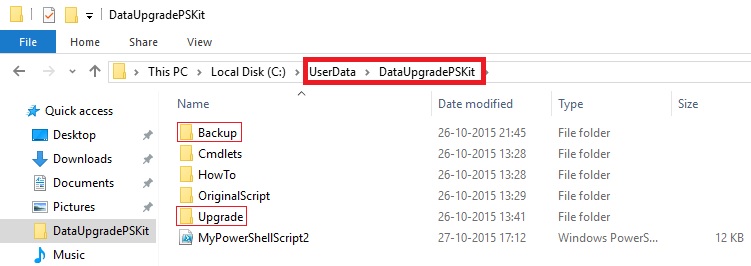
To continue we will do some setup. Copy the Upgrade folder from above path and save as DataUpgradePSKit.

PowerShell-4

Create Folder OriginalScript and move the PS1 file on root to this folder although we don’t require for this exercise but you can safe copy for your reference. (Example, Set-PartnerSettings, Set-PowerShellEnvironment)

Create Backup folder, script will use to store backup of the database previous to start Upgrade process.

Create Upgrade Folder and place these files:

  • License File
  • New Merged Objects fob
  • Upgrade Toolkit / or your own prepared Upgrade Codeunits

PowerShell-5

  • Create ProcessLogs Folder, which will be used for recording log of Shell Script.

Here is the script which we will be using to perform our Data Upgrade process:

You can find this script here http://1drv.ms/1NyolVV or you can download from Menu of my Blog using Link Shared Files.


# Added below parameter values globally for ease of maintenance

# You just do correction on values here (as per your environment) and will be in effect for rest of below script

# No need to scan and change every occurrence for same value in different steps of the script.

# Select this section and Execute first so that these Variables value are available for rest of the script.

Import-Module ‘C:\Program Files\Microsoft Dynamics NAV\90\Service\NavAdminTool.ps1’

$NAVUpgrade_NAVServerInstance = “UpgradedDBfrom2013R2”

$NAVUpgrade_NAVServerServiceAccount = “NT AUTHORITY\NETWORK SERVICE”

$NAVUpgrade_FinSqlExeFile = “C:\Program Files (x86)\Microsoft Dynamics NAV\90\RoleTailored Client\finsql.exe”

$NAVUpgrade_IDEModulePath = “”

$NAVUpgrade_DatabaseServer = “INDEL-AXT5283VM”

$NAVUpgrade_DatabaseInstance = “”

$NAVUpgrade_DatabaseName = “Demo Database NAV (7-1)”

$NAVUpgrade_DatabaseToUpgradeBakFile = “C:\UserData\DataUpgradePSKit\Backup\DynamicsNAV70_BeforeUpgrade.bak”

$NAVUpgrade_NewVersionObjectsFobFilePath = “C:\UserData\DataUpgradePSKit\Upgrade\NewObjects.fob”

$NAVUpgrade_UpgradeToolkitObjectsFobFilePath = “C:\UserData\DataUpgradePSKit\Upgrade\Upgrade710900.FOB”

$NAVUpgrade_UpgradeObjectsFilter = “Version List=UPGTK9.00.00”

$NAVUpgrade_UpgradeLogsDirectory = “C:\UserData\DataUpgradePSKit\Upgrade\ProcessLogs”

#$NAVUpgrade_RapidStartPackageFile = ‘C:\UserData\DataUpgradePSKit\Upgrade\PackageSTCODES.rapidstart’

$NAVUpgrade_CurrentVersionLicenseFile = “C:\UserData\DataUpgradePSKit\Upgrade\DevLicense.flf”

$NAVUpgrade_PreviousVersionLicenseFilePath = “C:\UserData\DataUpgradePSKit\Upgrade\DevLicense.flf”


# Upgrade Steps:

Import-Module (Join-Path (Get-Location) ‘Cmdlets\NAVUpgradeCmdlets.psm1’) -DisableNameChecking

#1. Prepares the Windows PowerShell session by importing the required modules.

        # Import the NAV IDE Module.

Import-NAVIdeModule -IDEModuleSuggestedPath $NAVUpgrade_IDEModulePath -FinSqlExeFile $NAVUpgrade_FinSqlExeFile

Import-NAVManagementModule

Import-SqlPsModule


#2. Saves the current license from the Microsoft Dynamics NAV 2013, Microsoft Dynamics NAV 2013 R2, or Microsoft Dynamics NAV 2015 database.

# Backup current license from the application part of the database (table ‘$ndo$dbproperty’) , if it exists

        Export-NAVLicenseFromApplicationDatabase `

-DatabaseName $NAVUpgrade_DatabaseName `

-DatabaseServer $NAVUpgrade_DatabaseServer `

-DatabaseInstance $NAVUpgrade_DatabaseInstance `

-LicenseFilePath $NAVUpgrade_PreviousVersionLicenseFilePath


#3. Creates a backup of the Microsoft Dynamics NAV 2013, Microsoft Dynamics NAV 2013 R2, or Microsoft Dynamics NAV 2015 database, and then converts the database to Microsoft Dynamics NAV 2016.

        Backup-NAVSqlDatabase `

-DatabaseServer $NAVUpgrade_DatabaseServer `

-DatabaseInstance $NAVUpgrade_DatabaseInstance `

-DatabaseName $NAVUpgrade_DatabaseName `

-DatabaseBackupFilePath $NAVUpgrade_DatabaseToUpgradeBakFile

$NAVUpgrade_DatabaseSQLServerInstance = Get-SqlServerInstance -DatabaseServer $NAVUpgrade_DatabaseServer -DatabaseInstance $NAVUpgrade_DatabaseInstance

$NavServerInfo = New-Object PSObject

Add-Member -InputObject $NavServerInfo -MemberType NoteProperty -Name NavServerName -Value “$NAVUpgrade_DatabaseServer”

Add-Member -InputObject $NavServerInfo -MemberType NoteProperty -Name NavServerInstance -Value (Get-NAVServerConfigurationValue  -ServerInstance $NAVUpgrade_NAVServerInstance -ConfigKeyName “ServerInstance”)

Add-Member -InputObject $NavServerInfo -MemberType NoteProperty -Name NavServerManagementPort -Value (Get-NAVServerConfigurationValue -ServerInstance $NAVUpgrade_NAVServerInstance -ConfigKeyName “ManagementServicesPort”)


# Perform technical upgrade of the NAV database

        Invoke-NAVDatabaseConversion `

-DatabaseName $NAVUpgrade_DatabaseName `

-DatabaseServer $NAVUpgrade_DatabaseSQLServerInstance `

-LogPath $NAVUpgrade_UpgradeLogsDirectory\”Database Conversion”


#4. Connects the Microsoft Dynamics NAV 2016 Server instance to the converted database, imports the Microsoft Dynamics NAV 2016 license file, and then synchronizes the table schema.


# Connect the NAV Server to the NAV database

        Connect-NAVServerToNAVDatabase  `

-NAVServerInstance $NAVUpgrade_NAVServerInstance `

-NAVServerServiceAccount $NAVUpgrade_NAVServerServiceAccount `

-DatabaseServer $NAVUpgrade_DatabaseServer `

-DatabaseInstance $NAVUpgrade_DatabaseInstance `

-DatabaseName $NAVUpgrade_DatabaseName

# Import the new version license into the application database, and restart the server in order for the license to be loaded

        Import-NAVServerLicense -ServerInstance $NAVUpgrade_NAVServerInstance -LicenseFile $NAVUpgrade_CurrentVersionLicenseFile -Database NavDatabase

Set-NAVServerInstance -ServerInstance $NAVUpgrade_NAVServerInstance -Restart

# Synchronize the NAV database

        Sync-NAVTenant -ServerInstance $NAVUpgrade_NAVServerInstance -Mode Sync -Force


#5. Imports the application objects and upgrade toolkit objects from the specified .fob file, and then synchronizes the table schema again.

#   This updates the SQL Server database based on the new table schema that is defined by the imported application objects. Data that must be mapped to another table is saved in upgrade tables.

# Delete the tables from the previous version, using SynchronizeSchemaChanges Later.

# The new  objects we import will contain the new version of the tables.

        Delete-NAVApplicationObject `

-DatabaseName $NAVUpgrade_DatabaseName `

-DatabaseServer $NAVUpgrade_DatabaseSQLServerInstance `

-LogPath $NAVUpgrade_UpgradeLogsDirectory `

-Filter “Type=Table;ID=<2000000000” `

-SynchronizeSchemaChanges “No” `

-NavServerName $NavServerInfo.NavServerName `

-NavServerInstance $NAVServerInfo.NavServerInstance `

-NavServerManagementPort $NavServerInfo.NavServerManagementPort `

-Confirm:$false

# Import all the new objects and the upgrade objects, by delaying the schema synchronization

# If an $UpgradeToolkitObjects value has not been provided, then

#  the assumption is that the upgrade toolkit is within the same .FOB as the new objects

           if(!$UpgradeToolkitObjects)

{

# Import FOB file containing the new version of the application objects, including the upgrade toolkit

Import-NAVApplicationObject `

-Path $NAVUpgrade_NewVersionObjectsFobFilePath `

-DatabaseName $NAVUpgrade_DatabaseName `

-DatabaseServer $NAVUpgrade_DatabaseSQLServerInstance `

-LogPath $NAVUpgrade_UpgradeLogsDirectory `

-ImportAction “Overwrite” `

-SynchronizeSchemaChanges “No” `

-NavServerName $NavServerInfo.NavServerName `

-NavServerInstance $NAVServerInfo.NavServerInstance `

-NavServerManagementPort $NavServerInfo.NavServerManagementPort `

-Confirm:$false

}

else

{


# Import FOB file containing the new version of the application objects

Import-NAVApplicationObject `

-Path $NAVUpgrade_NewVersionObjectsFobFilePath `

-DatabaseName $NAVUpgrade_DatabaseName `

-DatabaseServer $NAVUpgrade_DatabaseSQLServerInstance `

-LogPath $NAVUpgrade_UpgradeLogsDirectory `

-ImportAction “Overwrite” `

-SynchronizeSchemaChanges “No” `

-Confirm:$false


# Import FOB file containing the upgrade codeunit and upgrade tables

Import-NAVApplicationObject `

-Path $NAVUpgrade_UpgradeToolkitObjectsFobFilePath `

-DatabaseName $NAVUpgrade_DatabaseName `

-DatabaseServer $NAVUpgrade_DatabaseSQLServerInstance `

-LogPath $NAVUpgrade_UpgradeLogsDirectory `

-ImportAction “Overwrite” `

-SynchronizeSchemaChanges “No” `

-Confirm:$false

}

# Synchronize the metadata changes to SQL

        Sync-NAVTenant -ServerInstance $NAVUpgrade_NAVServerInstance -Mode Sync -Force

#6. Calls the Start-NAVDataUpgrade cmdlet to verify the data upgrade preconditions and transfer data from the upgrade tables to the destination tables.

# Invoke the Data Upgrade process

        Invoke-NAVDataUpgrade -ServerInstance $NAVUpgrade_NAVServerInstance


#7. Deletes all obsolete tables and the upgrade toolkit objects.

# Delete Upgrade Toolkit objects

        Delete-NAVApplicationObject `

-DatabaseName $NAVUpgrade_DatabaseName `

-DatabaseServer $NAVUpgrade_DatabaseSQLServerInstance `

-LogPath $NAVUpgrade_UpgradeLogsDirectory `

-Filter “$NAVUpgrade_UpgradeObjectsFilter;ID=<2000000000” `

-SynchronizeSchemaChanges “Force” `

-NavServerName $NavServerInfo.NavServerName `

-NavServerInstance $NAVServerInfo.NavServerInstance `

-NavServerManagementPort $NavServerInfo.NavServerManagementPort `

-Confirm:$false


#8.       Initializes all companies in the upgraded database. If you specified a RapidStart package in the Set-PartnerSettings.ps1 file, the package is applied to all companies.

# Optionally, run RapidStart package import

        if($NAVUpgrade_RapidStartPackageFile)

{

Invoke-NAVRapidStartDataImport -ServerInstance      $NAVUpgrade_NAVServerInstance -RapidStartPackageFile $NAVUpgrade_RapidStartPackageFile


}


The sample script is intended to be run in the context of a Microsoft Dynamics NAV 2016 deployment, including the Microsoft Dynamics NAV Server instance.

The Microsoft Dynamics NAV Server instance cannot be multitenant. When the sample script runs successfully, the result is a Microsoft Dynamics NAV 2016 database that is connected to a Microsoft Dynamics NAV 2016 Server instance, and which uses a Microsoft Dynamics NAV 2016 license.

You may face some permission related issues, take help of you IT person if not sure about the nature of issue or use Administrator login.

I will come with more details in my next posts.


Corfu Navision 2016, Development Tips, How To, Information, upgrade

Helpful PowerShell Commands which you can use for Upgrade Process in Navision 2016

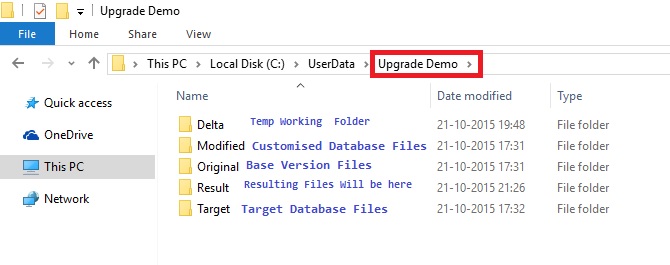
In today’s post we will see some Power Shell Commands which will be helpful while performing Upgrades using PowerShell. For below commands to exercise you will need to create/prepare Folder Structure as below else you will have to modify the path in below script as one which you will be using.

For your ease I have uploaded the below script in form of text file named ‘MyPowerShellScript.txt’ which you can get using this link http://1drv.ms/1OOf7If alternatively from Menu of my blog side use Shared Files to access the file.
PowerShell-1

Extract you objects in Text format from Base, Customized and Target Database and place in respective folders. One text file per object will be better option for getting more clear insight on Results. You can find the command for Splitting the File per object in below Script.

After opening the PowerShell or ISE change your folder to Upgrade Demo as in my case it will be:

PS C:\userdata\upgrade demo>
PowerShell-2
Select the Script and Press Button in Toolbar Run Selection (F8) in Windows PowerShell ISE (Desktop App).

#1. Start Import NAV Module

Import-Module “${env:ProgramFiles(x86)}\Microsoft Dynamics NAV\90\RoleTailored Client\Microsoft.Dynamics.Nav.Model.Tools.psd1” -force -DisableNameChecking

Get-Help “NAV”

This is must in order to run all below commands.

#2. Merge Objects

# Compare ORIGINAL and MODIFIED and merge onto TARGET, then put the merged files in RESULT

Merge-NAVApplicationObject -OriginalPath .\ORIGINAL\*.txt -ModifiedPath .\MODIFIED\*.txt -TargetPath .\TARGET\*.txt -ResultPath .\RESULT -Force

# Standard PowerShell table formatting with sorting on Object Type, Id

Merge-NAVApplicationObject -OriginalPath .\ORIGINAL\*.txt -ModifiedPath .\MODIFIED\*.txt -TargetPath .\TARGET\*.txt -ResultPath .\RESULT -Force -PassThru |

Sort-Object ObjectType, Id |

Format-Table

# Use PowerShell VARIABLE, PIPING, FILTER, and LISTS – capture result in variable, then list file names of ORIGINAL and TARGET files in conflict 

$myVariable = Merge-NAVApplicationObject -OriginalPath .\ORIGINAL\*.txt -TargetPath .\TARGET\*.txt `

-ModifiedPath .\MODIFIED\*.txt -ResultPath .\RESULT -Force

$myVariable.Summary

$myVariable |

Where-Object MergeResult –eq ‘Conflict’ |

Select Original, Target |

Format-List

# Open NOTEPAD for each CONFLICT file 

Merge-NAVApplicationObject -OriginalPath .\ORIGINAL\*.txt -TargetPath .\TARGET\*.txt `

-ModifiedPath .\MODIFIED\*.txt -ResultPath .\RESULT -Force -PassThru |

Where-Object MergeResult -eq ‘Conflict’ |

foreach { NOTEPAD $_.Conflict }

# Handling Documentation triggers: Merged by default, but conflict can either be treated as real conflict (Strict) or both inserted (ModifiedFirst or TargetFirst)

Merge-NAVApplicationObject -OriginalPath .\ORIGINAL\pagXXXX.txt -ModifiedPath .\MODIFIED\pagXXXX.txt `

-TargetPath .\TARGET\pagXXXX.txt -ResultPath .\RESULT\pagXXXX.txt -Force -DocumentationConflict Strict

Merge-NAVApplicationObject -OriginalPath .\ORIGINAL\pagXXXX.txt -ModifiedPath .\MODIFIED\pagXXXX.txt `

-TargetPath .\TARGET\pagXXXX.txt -ResultPath .\RESULT\pagXXXX.txt -Force -DocumentationConflict ModifiedFirst

#3. Merge Format Output

# Compare ORIGINAL and MODIFIED and merge onto TARGET, then put the merged files in RESULT

Merge-NAVApplicationObject -OriginalPath .\ORIGINAL\*.txt -ModifiedPath .\MODIFIED\*.txt -TargetPath .\TARGET\*.txt -ResultPath .\RESULT -Force

# Same: Capture the rich output in a PowerShell variable for further processing

$result = Merge-NAVApplicationObject -OriginalPath .\ORIGINAL\*.txt -ModifiedPath .\MODIFIED\*.txt -TargetPath .\TARGET\*.txt -ResultPath .\RESULT -Force

# Using the variable: Use standard PowerShell outputting of variable 

$result

# Using the variable: Use the Summary property of the result 

$result.Summary

# Using the variable: Use standard PowerShell table formatting 

$result | Format-Table

# Use standard PowerShell table formatting 

Merge-NAVApplicationObject -OriginalPath .\ORIGINAL\*.txt -ModifiedPath .\MODIFIED\*.txt -TargetPath .\TARGET\*.txt -ResultPath .\RESULT -Force -PassThru |

Format-Table

# Use standard PowerShell table formatting with sorting on ObjectType, Id 

Merge-NAVApplicationObject -OriginalPath .\ORIGINAL\*.txt -ModifiedPath .\MODIFIED\*.txt -TargetPath .\TARGET\*.txt -ResultPath .\RESULT -Force -PassThru |

Sort-Object ObjectType, Id |

Format-Table

# Use standard PowerShell graphical output (GridView) 

Merge-NAVApplicationObject -OriginalPath .\ORIGINAL\*.txt -ModifiedPath .\MODIFIED\*.txt -TargetPath .\TARGET\*.txt -ResultPath .\RESULT -Force -PassThru |

Out-GridView

#4. Merge Filter Output

 # Compare ORIGINAL and MODIFIED and merge onto TARGET, then put the merged files in RESULT

Merge-NAVApplicationObject -OriginalPath .\ORIGINAL\*.txt -ModifiedPath .\MODIFIED\*.txt -TargetPath .\TARGET\*.txt -ResultPath .\RESULT -Force

# Same: Plus use PIPING, PASSTHRU and FILTER – show objects with CONFLICT only

Merge-NAVApplicationObject -OriginalPath .\ORIGINAL\*.txt -TargetPath .\TARGET\*.txt `

-ModifiedPath .\MODIFIED\*.txt -ResultPath .\RESULT -PassThru -Force |

Where-Object MergeResult –eq ‘Conflict’

# Same: Plus use PIPING, PASSTHRU, FILTER, and COUNT – count MERGED objects

Merge-NAVApplicationObject -OriginalPath .\ORIGINAL\*.txt -TargetPath .\TARGET\*.txt `

-ModifiedPath .\MODIFIED\*.txt -ResultPath .\RESULT -PassThru -Force |

Where-Object MergeResult –eq ‘Merged’ |

Measure-Object

# Same: Plus use PIPING, PASSTHRU, FILTER, and LISTING FILES – list file names of ORIGINAL and TARGET files in conflict 

Merge-NAVApplicationObject -OriginalPath .\ORIGINAL\*.txt -TargetPath .\TARGET\*.txt `

-ModifiedPath .\MODIFIED\*.txt -ResultPath .\RESULT -PassThru -Force |

Where-Object MergeResult –eq ‘Conflict’ |

Select Original, Target |

Format-List

#5. Merge and open Conflicts files using External Tools

 # Compare ORIGINAL and MODIFIED and merge onto TARGET, then put the merged files in RESULT 

$result = Merge-NAVApplicationObject -OriginalPath .\ORIGINAL\*.txt -ModifiedPath .\MODIFIED\*.txt -TargetPath .\TARGET\*.txt -ResultPath .\RESULT -Force

# Open NOTEPAD for each CONFLICT file 

$result |

Where-Object MergeResult -eq ‘Conflict’ |

foreach { NOTEPAD $_.Conflict }

#6. Merge and Documentation Triggers

 # Compare object DOCUMENTATION modifications: Body-text (can be merged) and version list additions (potential conflict). 

Merge-NAVApplicationObject -OriginalPath .\ORIGINAL\pagXXXX.txt -ModifiedPath .\MODIFIED\pagXXXX.txt `

-TargetPath .\TARGET\pagXXXX.txt -ResultPath .\RESULT\pagXXXX.txt -Force -DocumentationConflict ModifiedFirst

# Same: But STRICT on conflicts. 

Merge-NAVApplicationObject -OriginalPath .\ORIGINAL\pagXXXX.txt -ModifiedPath .\MODIFIED\pagXXXX.txt `

-TargetPath .\TARGET\pagXXXX.txt -ResultPath .\RESULT\pagXXXXa.txt -Force -DocumentationConflict Strict

#7. Merge and import in CSIDE

# Compare ORIGINAL and MODIFIED and merge onto TARGET, then put the merged files in RESULT 

Merge-NAVApplicationObject -OriginalPath .\ORIGINAL\*.txt -ModifiedPath .\MODIFIED\*.txt -TargetPath .\TARGET\*.txt -ResultPath .\RESULT -Force

# Locate subset (code units) of partionally merged object files, combine them into a single file for performance, and import them into C/SIDE (parameter -Database for you to provide). All throught piping. 

Get-ChildItem .\RESULT\COD*.txt |

Join-NAVApplicationObjectFile -Destination .\RESULT\partially-merged.txt |

Import-NAVApplicationObject

#8. Merge and Export Result to Excel Output 

# Compare ORIGINAL and MODIFIED and merge onto TARGET, then put the merged files in RESULT 

$result = Merge-NAVApplicationObject -OriginalPath .\ORIGINAL\*.txt -ModifiedPath .\MODIFIED\*.txt -TargetPath .\TARGET\*.txt -ResultPath .\RESULT -Force

$AutoMerged = ($result | Where-Object MergeResult -eq ‘Merged’).Count

$Conflict   = ($result | Where-Object MergeResult -eq ‘Conflict’).Count

$Unchanged  = ($result | Where-Object MergeResult -eq ‘Unchanged’).Count

$Inserted   = ($result | Where-Object MergeResult -eq ‘Inserted’).Count

$Unknown    = ($result | Where-Object MergeResult -eq ‘Unknown’).Count

$Deleted    = ($result | Where-Object MergeResult -eq ‘Deleted’).Count

$Title      = “MySample”  # update Excel template file to allow blanks and special characters

$excelPath = “$(Get-ItemProperty ‘HKLM:\SOFTWARE\Microsoft\Windows\CurrentVersion\App Paths\excel.exe’ | select -exp Path)\Excel.exe”

& $excelPath “.\Merge Result Sample.xlsm” “/e/$Title/$AutoMerged/$Conflict/$Unchanged/$Inserted/$Unknown/$Deleted”

# Start-Process -FilePath “.\Merge Result Sample.xlsm” -ArgumentList “/e/BAS/$AutoMerged/$Conflict/$Unchanged/$Inserted/$Unknown/$Deleted”

#9. Compare

 # Compare ORIGINAL and MODIFIED and output MULTIPLE separate DELTA files 

Compare-NAVApplicationObject -OriginalPath .\ORIGINAL\*.txt -ModifiedPath .\MODIFIED\*.txt -DeltaPath .\DELTA -Force

# Compare ORIGINAL and TARGET, pipe the result into the Update-cmdlet (in particular the DELTA parameter) 

Compare-NAVApplicationObject -OriginalPath .\ORIGINAL\*.txt -ModifiedPath .\MODIFIED\*.txt -DeltaPath .\DELTA -Force -PassThru |

Update-NAVApplicationObject -TargetPath .\TARGET\*.txt -ResultPath .\RESULT -Force

#10. Compare Piped

 # Compare ORIGINAL and TARGET and output ONE summary DELTA file 

Compare-NAVApplicationObject -OriginalPath .\ORIGINAL\*.txt -ModifiedPath .\TARGET\*.txt -DeltaPath .\RESULT\sum-of-deltas.txt -Force

#11. Update Piped

# Compare ORIGINAL and MODIFIED and output MULTIPLE separate DELTA files, capture result in variable to apply multiple times 

$myDifferences = Compare-NAVApplicationObject -OriginalPath .\ORIGINAL\*.txt -ModifiedPath .\MODIFIED\*.txt -DeltaPath .\DELTA -Force

# Apply a captured set of differences to TARGET objects using the Update-cmdlet 

$myDifferences |

Update-NAVApplicationObject -TargetPath .\TARGET\*.txt -ResultPath .\RESULT -Force

#12. Join & Split Object Files

# Join all Codeunit-TXT-files into a single TXT-file

Join-NAVApplicationObjectFile -Source .\ORIGINAL\COD*.txt -Destination .\RESULT\all-codeunits.txt -Force

# Join list of Codeunit-TXT-files into a single TXT-file 

Join-NAVApplicationObjectFile -Source .\ORIGINAL\COD1.txt, .\ORIGINAL\COD2.txt, .\ORIGINAL\COD3.txt -Destination .\RESULT\3-codeunits.txt -Force

# Split a single TXT-file with multiple application objects into separate files in the DESTINATION folder 

Split-NAVApplicationObjectFile -Source .\RESULT\all-codeunits.txt -Destination .\SEPARATE -Force

Make sure you have created Separate Folder before executing this script.

#13. Get Application Properties 

# Show values of application properties in CODXXXX.TXT 

Get-NAVApplicationObjectProperty -Source .\RESULT\CODXXXX.txt

#14. Set Application Properties

# Set all object properties on named object COD1.TXT: VersionList to DemoV1, Modified as modified, and Date and Time to current date/time (show outcome) 

Set-NAVApplicationObjectProperty -TargetPath .\RESULT\COD1.txt -VersionListProperty “DemoV1” -ModifiedProperty Yes -DateTimeProperty (Get-Date -Format g)

Get-NAVApplicationObjectProperty -Source .\RESULT\COD1.txt

# Set date/time to a fixed, machine-locale agnostic date (January 1st, 2015) on Merged objects 

Merge-NAVApplicationObject -OriginalPath .\ORIGINAL\*.txt -ModifiedPath .\MODIFIED\*.txt -TargetPath .\TARGET\*.txt -ResultPath .\RESULT -Force -PassThru |

Where-Object MergeResult –eq ‘Merged’ |

foreach { Set-NAVApplicationObjectProperty -TargetPath $_.Result -DateTimeProperty (Get-Date -Year 2015 -Month 1 -Day 1 -Hour 0 -Minute 0 -Format g) }

# Capture merge-result in variable, set VersionList property as an concatenation of Modified and Target values with trailing ‘!’ 

$result = Merge-NAVApplicationObject -OriginalPath .\ORIGINAL\*.txt -ModifiedPath .\MODIFIED\*.txt -TargetPath .\TARGET\*.txt -ResultPath .\RESULT -Force

$result |

Where-Object MergeResult –eq ‘Merged’ |

foreach { Set-NAVApplicationObjectProperty -TargetPath $_.Result -VersionListProperty “$_.Modified.VersionList,$_.Target.VersionList!”;

Get-NAVApplicationObjectProperty -Source $_.Result }

# Display property VersionList of CODXXXX.TXT in MODIFIED, TARGET, and RESULT 

Get-NAVApplicationObjectProperty -Source .\MODIFIED\CODXXXX.txt | select VersionList

Get-NAVApplicationObjectProperty -Source .\TARGET\CODXXXX.txt | select VersionList

Get-NAVApplicationObjectProperty -Source .\RESULT\CODXXXX.txt | select VersionList

#15. Set Application Properties

# Set date/time to fixed date (January 31st, 2015) on Merged objects 

Merge-NAVApplicationObject -OriginalPath .\ORIGINAL\*.txt -ModifiedPath .\MODIFIED\*.txt -TargetPath .\TARGET\*.txt -ResultPath .\RESULT -Force -PassThru |

Where-Object MergeResult –eq ‘Merged’ |

foreach { Set-NAVApplicationObjectProperty -TargetPath $_.Result -DateTimeProperty “31-1-2015” }

#16. Export Language

# Export ONE language (Spanish) from a single object file.  

Export-NAVApplicationObjectLanguage –Source .\original\TAB14.TXT -LanguageId “ESP” -Destination .\result\TAB14-ESP.TXT -Force

# Export one language (Spanish) from a single object file with non-standard code page ENCODING.  

Export-NAVApplicationObjectLanguage –Source .\original\TAB14.TXT -LanguageId “ESP” -Destination .\result\TAB14-ESP-UNICODE.TXT -Encoding Unicode -Force

# Export ONE language (Spanish) from ALL objects into a SINGLE file. 

Export-NAVApplicationObjectLanguage –Source .\original\*.TXT -LanguageId “ESP” -Destination .\result\ALL-ESP.TXT -Force

# Export MULTIPLE languages (Spanish, US English) from ALL objects

Export-NAVApplicationObjectLanguage –Source .\original -LanguageId “ESP”,”ENU” -Destination .\result -Force

# Export ALL languages (Spanish, US English, Danish) from ALL objects into result folder  

Export-NAVApplicationObjectLanguage –Source .\original -Destination .\result -Force

# Export ALL languages (Spanish, US English, Danish) from ALL objects into a SINGLE file

Export-NAVApplicationObjectLanguage –Source .\original -Destination .\result\single.txt -Force

#17. Import Language  

# Import Spanish language from FULL translation file into a single object 

Import-NAVApplicationObjectLanguage –Source .\original\TAB14.TXT -LanguageId “ESP” -LanguagePath .\result\ALL-ESP.TXT -Destination .\result -Force

#18. Remove Language

# Remove Spanish captions from a single object 

Remove-NAVApplicationObjectLanguage –Source .\target\TAB14.TXT -LanguageId “ESP” -Destination .\result\TAB14-ESP-REMOVED.TXT -Force

# Remove all captions from multiple objects, result in a single file 

Remove-NAVApplicationObjectLanguage –Source .\target\TAB14.TXT, .\target\PAGXXXX.TXT -Destination .\result -Force

#19. Test-Languages 

# Test all Spanish captions are present. PowerShell error returned, if translations are missing.

Test-NAVApplicationObjectLanguage –Source .\original\TAB14.TXT -LanguageId ESP

# Test all Danish captions are all present. Catch error situation and report nicely back to the script. 

try

{

Test-NAVApplicationObjectLanguage –Source .\original\TAB14.TXT -LanguageId DAN -ErrorAction Stop

}

catch

{

Write-Host “One or more translations are missing for the DAN language.” -ForegroundColor Yellow

}

# Test all Danish and Spanish captions are all present. With -PassThru a warning is reported and tranlation lines are returned for processing. 

Test-NAVApplicationObjectLanguage –Source .\original\TAB14.TXT -LanguageId ESP,DAN -PassThru

#20. Split or Join Language File

# Split an application translation file into per-object files

Split-NAVApplicationObjectLanguageFile -Source .\result\single.txt -Destination .\result -Force

# Join multiple application translation files into one combined file  

Join-NAVApplicationObjectLanguageFile -Source .\result\*-ESP.TXT -Destination .\result\JOINED-ESP.txt -Force

I will come with more details in my upcoming posts.