Cumulative Updates

Cumulative Update 36 for Microsoft Dynamics NAV 2013 Released in March

Cumulative Update 36 includes all application and platform hotfixes and regulatory features that have been released for Microsoft Dynamics NAV 2013

Where to find Cumulative Update 36

You can download the cumulative update from KB 3145849 – Cumulative Update 36 for Microsoft Dynamics NAV 2013 (Build 45241).

Additional Information

For a list of all cumulative updates for this version, see Released Cumulative Updates for Microsoft Dynamics NAV 2013.

For a list of all hotfixes included in cumulative updates for this version, see the following CustomerSource and PartnerSource pages:

CustomerSource:

PartnerSource:

Corfu Navision 2016, Warehouse

Warehouse Terminology

What is Bin?

A bin is a storage device designed to contain discrete parts. It is the smallest container unit in Microsoft Dynamics NAV.

What is Bin Content?

Item quantities in bins are referred to as bin content. A lookup from the Item field or Bin Code field on any warehouse-related document line displays the calculated availability of the item in the bin.

A bin content can be given a property of Fixed, Dedicated, or Default to define how the bin content can be used. Bins with none of these properties are referred to as floating bins.

What dose Fixed Bin means?

A fixed bin holds items that are assigned to the bin code.

The Fixed bin property ensures that even if the bin content is momentarily emptied, the bin content does not disappear, and the bin is therefore selected again as soon as it has been replenished.

What dose Dedicated Bin means?

A dedicated bin holds bin content that can only be picked for the dedicated resource, such as a machine center, that uses the bin.

Other non-pick content, such as quantities outbound on a shipment posting, can still be consumed from a dedicated bin.

Only bin content considered by the Create Pick algorithm is protected in a dedicated bin.

What are Default Bins?

The Default bin property is used by the system to suggest bins for warehouse activities. At WMS locations, the Default bin property is not used.

At locations where bins are required, the property is used in inbound flows to specify where to place items. In outbound flows, the property is used to specify where to take items from.

Rule for Bin preference

If the outbound items are placed in several bins, then items are first taken from the non-default bins, to empty that bin content, and then the remaining items are taken from the default bin. There can only be one default bin per item per location.

What are the Bin Types?

You can restrict the warehouse activities that are allowed for a bin by assigning a bin type to it.

Below are the bin types in Navision:

Type Description
RECEIVE Items posted as received but not yet put away.
SHIP Items picked for warehouse shipment lines but not yet posted as shipped.
PUT AWAY Typically, items are stored in large units of measure but you do not want to access for picking purposes.

These bins are not used for picking, either for production orders or shipments, this bin type could be useful if you have purchased a large quantity of items.

Use of these type of bin might be limited.

Bins of this type should always have a low bin-ranking, so that when received items are put away, other higher-ranking PUTPICK bins fixed to the item are put away first.

These type of bins should regularly perform bin replenishment so that the items stored in these bins are also available in PUTPICK or PICK type bins.

PICK Used for picking only.

The replenishment of these bins can only be made by movement, not by put-away.

PUTPICK Bins that are suggested for both the put-away and pick functions.

Bins of this type probably have different bin rankings.

You can set up your bulk storage bins as this type of bin with low bin rankings compared to your ordinary pick bins or forward picking area bins.

QC This bin is used for inventory adjustments if specified on the location card in the Adjustment Bin Code field.

You can also set up bins of this type for defective items and items being inspected.

You can move items to this type of bin if you want to make them inaccessible to the usual item flow.

The QC bin type has none of the item handling check boxes selected by default.

Any content you place in a QC bin is excluded from item flows.

For all bin types, except PICK, PUTPICK, and PUTAWAY, no other activity is allowed for the bin than what is defined by its bin type.

Only movement can be made to bins of type RECEIVE and QC. Similarly, only movements can be made from bins of type SHIP and QC.

What dose Bin Ranking means?

In advanced warehousing, you can automate and optimize how items are collected in put-away and pick worksheets by ranking bins so that items are suggested taken or placed according to rank criteria to use warehouse space optimally.

  • Put-away processes are optimized according to bin ranking by suggesting higher-ranking bins before lower-ranking bins.
  • Pick processes are optimized by first suggesting items from bin content with high bin ranking.
  • Bin replenishments are suggested from lower-ranking bins to higher-ranking bins.

Bin ranking together with bin content information are the basic properties that allow users to slot items in the warehouse.

How are Bin Setup?

Bins can be set up with capacity values, such as quantity, total cubage, and weight to control which and how items are stored in the bin.

On each item card, you can assign a unit of measure (UOM) for the item, such as pieces, pallets, liters, grams, or boxes.

If you want to set a maximum quantity of a specific item to be stored in an individual bin and the item has more than one UOM, then you must set the maximum quantity for every UOM that exists on the item card.

If an item has been set up to be handled in pieces and pallets, then the Max. Qty. field in the Bin Content window for that item must also be in pieces and pallets.

Allowed quantity for that bin is not calculated correctly if above rule is not followed.

In order to set capacity restrictions for bin contents on a bin, UOM and dimensions of the item must be set up on the item card.

What is Zone?

In advanced warehousing, bins can be grouped in zones to manage how the workflow of warehouse activities is directed.

A zone could be a receiving zone or a stocking zone, and each zone can consist of one or several bins.

Most properties assigned to a zone will by default assigned to the bin that is created from that zone.

What are Classes?

In advanced warehousing, you can assign warehouse class codes to items, bins, and zones to control where different item classes are stored, such as frozen goods.

You can divide a zone into several warehouse classes.

When you work with warehouse classes and a default receiving/shipping bin, you must manually fill in the appropriate bins in the warehouse receipt and shipment lines.

In inbound flows, the class code is only highlighted on inbound lines where the item class code does not match the default receiving bin. If the correct default bins are not assigned, then the quantity cannot be received.

What does Location refer to?

A location is a physical structure or place where inventory is received, stored, and shipped, potentially organized in bins. A location can be a warehouse, service car, showroom, plant, or an area in a plant.

What is First Expired First Out setup?

If you select the Pick According to FEFO check box on the Bin Policies FastTab on the location card, then item-tracked items are picked according to their expiration date. Below rule applies while picking the item:

  • The items with the earliest expiration dates are picked first.
  • Warehouse activities in all pick and movement documents are sorted according to FEFO, unless the items already have serial/lot numbers assigned.
  • If only a part of the quantity on the line already has serial/lot numbers assigned, then the remaining quantity to be picked is sorted according to FEFO.
  • When picking by FEFO, the available items that expire first are gathered in a temporary item tracking list based on the expiration date.
  • If two items have the same expiration date, then the item with the lowest lot or serial number is picked first.
  • If the lot or serial numbers are the same, then the item that was registered first is selected first.

What is Put-away Template?

The put-away template can be assigned to an item and to a location.

The put-away template specifies a set of prioritized rules that must be respected when creating put-aways.

Corfu Navision 2016, Warehouse

Warehouse Overview

One of my reader have demanded a Warehouse related query, before jumping to the solution I thought to have a brief overview regarding this topic. As I have not covered this topic in my past posts, so I will be posting couple of posts on this series as and when I get some time and the answer will be in these couple of posts.

Each transactions performed using warehouse is stored in a Warehouse Register.

For each transaction or movement in the warehouse is recorded in Warehouse Entry table.

Warehouse Documents and Warehouse Journal are used to register item movements in the warehouse.

Whenever an item in the warehouse is moved, received, put away, picked, shipped, or adjusted, Warehouse Entries are registered to store the physical information about zone, bin, and quantity

The Bin Content table is used to handle all the different dimensions of the contents of a bin per item, such as unit of measure, maximum quantity, and minimum quantity.

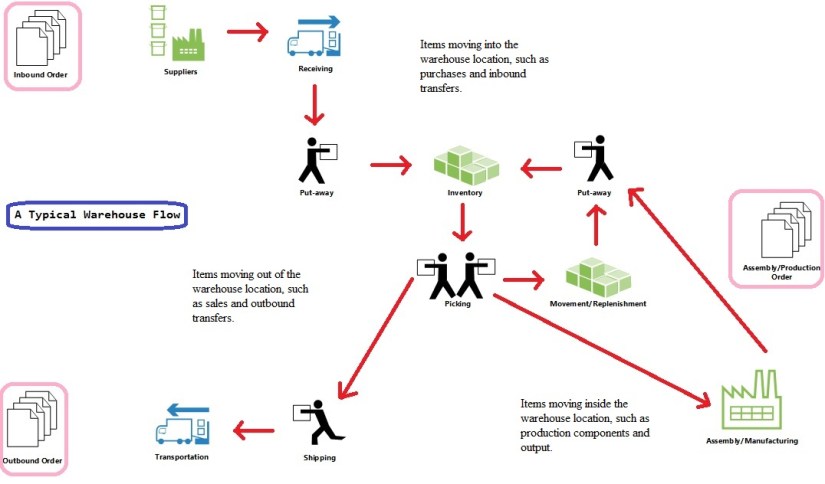
Below is the typical Warehouse Flow:

Flow Diagram

Basic UI Documents

  • Inventory Put-away
  • Inventory Pick
  • Inventory Movement
  • Item Journal
  • Item Reclassification Journal

Advanced UI Documents

  • Warehouse Receipt
  • Put-away Worksheet
  • Warehouse Put-away
  • Pick Worksheet
  • Warehouse Pick
  • Movement Worksheet
  • Warehouse Movement
  • Internal Whse. Pick
  • Internal Whse. Put-away
  • Bin Creation Worksheet
  • Bin Content Creation Worksheet
  • Whse. Item Journal
  • Whse. Item Reclass. Journal


Below are the warehouse-related granules in Navision:

  • Basic Inventory (4010)
  • Bin (4170)
  • Put Away (4180)
  • Warehouse Receipt (4190)
  • Pick (4200)
  • Warehouse Shipment (4210)
  • Warehouse Management Systems (4620)
  • Internal Picks and Put-aways (4630)
  • Automated Data Capture System (4640)
  • Bin Setup (4660)


Granules Vs  UI Documents:

The following table shows which granules are required to define different warehouse complexity levels, which UI documents support each level.

Complexity level Description UI document Minimum granule requirement
1 No dedicated warehouse activity.

Receive/ship posting from orders.

Order Basic Inventory
2 No dedicated warehouse activity.

Receive/ship posting from orders.

Bin code is required.

Order, with bin code Basic Inventory/Bin
3 Basic warehouse activity, order-by-order.

Receive/ship posting from inventory put-away/pick documents.

Bin code is required.

Inventory Put-away/Inventory Movement/Inventory Pick, with bin code Basic Inventory/Bin/

Put Away/Pick

4 Advanced warehouse activity, for multiple orders.

Consolidated receive/ship posting based on warehouse put-away/pick registrations.

Warehouse Receipt/Warehouse Put-away/Warehouse Pick/Warehouse Shipment/Pick Worksheet Basic Inventory/

Warehouse Receipt/

Put Away/

Pick/

Warehouse Shipment

5 Advanced warehouse activity, for multiple orders.

Consolidated receive/ship posting based on warehouse put-away/pick registrations.

Bin code is required.

Warehouse Receipt/Warehouse Put-away/Warehouse Pick/Warehouse Shipment/Pick Worksheet/Put-away Worksheet, with bin code Basic Inventory/Bin/

Warehouse Receipt/

Put Away/Pick/

Warehouse Shipment

6

This level is referred to as “WMS”, since it requires the most advanced granule, Warehouse Management Systems.

Advanced warehouse activity, for multiple orders.

Consolidated receive/ship posting based on warehouse put-away/pick registrations.

Bin code is required.

Zone/class code is optional.

Warehouse workers directed by workflow.

Bin replenishment planning.

Bin ranking.

Bin setup by capacity.

Slotting.

Hand-help device integration.

Warehouse Receipt/Warehouse Put-away/Warehouse Pick/Warehouse Shipment/Warehouse Movement/Pick Worksheet/Put-away Worksheet/Internal Whse. Pick/Internal Warehouse Put-away, with bin/class/zone code

Various worksheets for bin management

ADCS screens

Basic Inventory/Bin/

Put Away/

Warehouse Receipt/

Pick/

Warehouse Shipment/

Warehouse Management Systems/

Internal Picks and Put-aways/

Bin Setup/

Automated Date Capture System/

Bin Setup

I will come up with more details in my next post.

Cumulative Updates

Cumulative Update 35 for Microsoft Dynamics NAV 2013 has been released on 5th Feb 2016

Overview of Released Platform Hotfixes for Microsoft Dynamics NAV 2013Cumulative Update 35 includes all application and platform hotfixes and regulatory features that have been released for Microsoft Dynamics NAV 2013.

Additional Information

For a list of all cumulative updates for this version, see Released Cumulative Updates for Microsoft Dynamics NAV 2013.

For a list of all hotfixes included in cumulative updates for this version, see the following CustomerSource and PartnerSource pages:

CustomerSource:

PartnerSource:

You can check for complete details here : https://blogs.msdn.microsoft.com/nav/2016/02/05/cumulative-update-35-for-microsoft-dynamics-nav-2013-has-been-released/

Cumulative Updates

Cumulative Update 28 for Microsoft Dynamics NAV 2013 R2 has been released on 5th Feb 2016

Cumulative Update 28 includes all application and platform hotfixes and regulatory features that have been released for Microsoft Dynamics NAV 2013 R2.


Additional Information

For more information about cumulative updates for this version, see Announcement of update rollups for Microsoft Dynamics NAV 2013 R2.

For a list of all cumulative updates for this version, see Released Cumulative Updates for Microsoft Dynamics NAV 2013 R2.

For a list of all hotfixes included in cumulative updates for this version, see the following CustomerSource and PartnerSource pages:

CustomerSource:

PartnerSource


You can check for complete details here : https://blogs.msdn.microsoft.com/nav/2016/02/05/cumulative-update-28-for-microsoft-dynamics-nav-2013-r2-has-been-released/

Cumulative Updates

Cumulative Update 16 for Microsoft Dynamics NAV 2015 has been released on 5th Feb 2016

Cumulative Update 16 includes all application and platform hotfixes and regulatory features that have been released for Microsoft Dynamics NAV 2015.


Additional Information

For information about how to install the cumulative update, see How to Install a Microsoft Dynamics NAV 2015 Cumulative Update.

For information about how to work around a recent process change, see How to Get Back the ‘Hotfix Directories’ from NAV 2015 Cumulative Update 1.

For a list of all cumulative updates for this version, see Released Cumulative Updates for Microsoft Dynamics NAV 2015.


You can check for complete details here : https://blogs.msdn.microsoft.com/nav/2016/02/05/cumulative-update-16-for-microsoft-dynamics-nav-2015-has-been-released/

Cumulative Updates

Cumulative Update 4 for Microsoft Dynamics NAV 2016 has been released on 5th Feb 2016

Cumulative Update 4 includes all application and platform hotfixes and regulatory features that have been released for Microsoft Dynamics NAV 2016.


Additional Information

For information about how to install the cumulative update, see How to Install a Microsoft Dynamics NAV 2016 Cumulative Update.

For a list of all cumulative updates for this version, see Released Cumulative Updates for Microsoft Dynamics NAV 2016.


You can check for complete details here : https://blogs.msdn.microsoft.com/nav/2016/02/05/cumulative-update-4-for-microsoft-dynamics-nav-2016-has-been-released/

Corfu Navision 2016, Development Tips, Extension Package, How To, Information, Tip & Tricks

How do I: Develop an Extension

You can build extension packages that add functionality to a Microsoft Dynamics NAV deployment.

For Overview, please see my earlier posts Introducing Extensions in Microsoft Dynamics NAV 2016

Like any common functionality you want to roll out to different locations of a same company maintaining Object Set Globally for their Navision deployment.

You can perform conventional Export object and send to different locations, where they import these objects in their databases. Another option is through Extensions. Specially very helpful in Tenant model deployment.

But do the limitations apply as we discussed in my earlier post:

[A] Which Object types you can Include & Restrictions applicable to C/AL code in Extension Packages

[B] Which Properties are Restricted in Extension Packages

Unlike the familiar development and deployment of Microsoft Dynamics NAV functionality, building an extension relies on the exported version of an application to .TXT files.

You can export the application from the development environment, use the development environment commands, or use the Windows PowerShell cmdlet that is available in the Microsoft Dynamics NAV 2016 Development Shell,

Export-NAVApplicationObject.

MS recommend that you create a folder structure that can be leveraged by the cmdlets that you use when you build the extension package. That structure should contain folders for the ORIGINAL object files, MODIFIED object files, and DELTA files. These names match those used as parameters in the application merge utilities.

Recall from my earlier post where we deled with Upgrading the Application Code in Microsoft Dynamics NAV 2016

We used folder structure for placing the objects before we performed action:

“In my example, the UpgradeDemo folder on the C drive contains five folders: ORIGINAL, MODIFIED, TARGET, DELTA, and RESULT. The DELTA and RESULT folders are empty. The ORIGINAL, MODIFIED, and TARGET folders contains one or more text files that contain application objects.”

Similar structure we will be using for creating package. You can follow same for easy reference or you can use your convenient naming convention and structure.

I will come back on this in my future post, what exactly structure I will be using for my walkthrough on Extension.

You can refer to cmdlets we discussed earlier for upgrade and extensions which will be used in rest of the parts of this and upcoming posts while dealing with Extensions.

[A] Helpful PowerShell Commands which you can use for Upgrade Process in Navision 2016

[B] Few Helpful PowerShell Commands which you can use for Upgrade Process in Navision 2016 – Part 2

[C] Useful Windows PowerShell cmdlets for managing Extensions in Dynamics Navision 2016


5 Steps To create an extension

  1. Establish the BASE as TXT files.
  • The foundation for your extension is the exported .txt files of the objects you are modifying.
  • You can export just the objects that you want to modify, or you can export the entire Microsoft Dynamics NAV application.
  • In the Microsoft Dynamics NAV 2016 Development Shell, the Export-NAVApplicationObject cmdlet can automate this process or you can use the export functionality in the development environment.
  • The following example uses this cmdlet to export objects to establish the base for the planned modifications.

Export-NAVApplicationObject -Path ORIGINAL -DatabaseName MyDatabase -DatabaseServer MyDatabaseServer

  • Objects must be exported as .TXT files. You cannot build an extension based on a .FOB file.
  • If you use a source control system, you may want to pull the base .TXT files from there.
  1. Create functionality in the development environment.
  • Use the development environment as usual to create new objects or modify ones to the extent your license allows you.
  • Also don’t forget to reference limitations with Extensions Property and Objects which you can include in Extensions, see above provided link for more details.
  • Keep in mind the following rules as discussed earlier:
  • DO NOT make C/AL code modifications
  • DO use subscribing to events to execute code.
  • DO NOT create new or modified XMLPorts, Queries, or Report.
  • DO NOT change restricted page and table properties.
  • In order to get an easy upgrade experience for your extensions, you cannot modify code the way you do in the traditional customization process.
  • Instead, you extend Microsoft Dynamics NAV functionality by subscribing to programming events that are raised either explicitly in code, or implicitly by the platform.
  • Test your application with the extension added.
  1. Export your changed and added application objects to .TXT files.
  • Export all objects that you added or modified to .TXT files.
  • Use the same export cmdlet from step 1 or manually export within the development environment.
  • They must also be exported as .TXT files and should be placed in a separate directory so that the packaging process can be pointed at them.

Export-NAVApplicationObject -Path MODIFIED -DatabaseName MyDatabase -DatabaseServer MyDatabaseServer

  1. Create DELTA files using the Microsoft Dynamics NAV 2016 Development Shell cmdlets.
  • Extension packages are based on application object deltas. Again, you use the application merge utilities in the Microsoft Dynamics NAV 2016 Development Shell to distil the changes in the form of application object differences that are stored in DELTA files.
  • Creating an extension uses many of the same concepts and tools as you know from application object deltas. You use the Compare-NAVApplicationObject cmdlet to create these delta files.

Compare-NAVApplicationObject -OriginalPath ORIGINAL -ModifiedPath MODIFIED -DeltaPath DELTA

Your delta files must be one-to-one with the objects you have added or modified. You cannot include a single merged delta file. If you output your export file as a single file use the Split-NAVAppplicationObjectFile cmdlet to create the individual files.

  1. Build the extension package.


I will come up with more details in my upcoming posts on this topic.

Corfu Navision 2016, Development Tips, Extension Package, How To, Information, Tip & Tricks

Useful Windows PowerShell cmdlets for managing Extensions in Dynamics Navision 2016

Today I will list few cmdlets which will help you getting your task done while working with Extensions.

For Overview of Extensions, please see my earlier posts

Introducing Extensions in Microsoft Dynamics NAV 2016

Which Object types you can Include & Restrictions applicable to C/AL code in Extension Packages

Which Properties are Restricted in Extension Packages

Just a quick reference you can study in details using links of MSDN below every cmdlet.

Get-Help

To get Help about syntax and options for a specific cmdlet, type the following cmdlet.

Syntax: Get-Help <cmd name>


Export-NAVApplicationObject

The Microsoft.Dynamics.Nav.Model.Tools.psd1 module includes a function, Export-NAVApplicationObject, which runs the ExportObjects command. This means that you can run a command such as the following:

Export-NAVApplicationObject

–DatabaseServer MyServer

–DatabaseName “Demo Database NAV (7-1)”

–Path C:\UserData\MyPackage\ORIGINAL\MyObjects.txt


Export-NAVApplicationObjectLanguage

Exports captions from the specified text files with Microsoft Dynamics NAV application objects. The captions are exported to text files.


Syntax:

Export-NAVApplicationObjectLanguage

[-Source] <String[]>

[-Destination] <String>

[[-LanguageId] <String[]> ]

[-DevelopmentLanguageId <String> ]

[-Encoding <FileEncoding> ] [-Force] [-PassThru] [-Confirm] [-WhatIf] [ <CommonParameters>]

The resulting text files are similar to the multilanguage files that you can export in the Microsoft Dynamics NAV Development Environment. If your source files contain more than one language, you can choose to export one language, multiple languages, or all languages


Example:

PS C:\> Export-NAVApplicationObjectLanguage

–Source .\ORIGINAL\ -LanguageId “DEU”,”FRA”

-Destination .\RESULT\languages.txt

Click here for more details on MSDN

Export-NAVAppPermissionSet

Exports the specified permission set from a Microsoft Dynamics NAV database to a file.


Syntax:

Export-NAVAppPermissionSet

[-ServerInstance] <String>

-Path <String> -PermissionSetId <String[]>

[-Force] [-PassThru] [ <CommonParameters>]


Example:

PS C:\> Export-NAVAppPermissionSet

-ServerInstance DynamicsNAV90 -Path ‘.\PermissionSet.xml’

-PermissionSetId SUPER


This example exports the permission set with the ID “SUPER” in the database that is used by the DynamicsNAV90 server instance to the PermissionSet.xml file.

Click here for more details on MSDN


Split-NAVApplicationObjectFile

Splits a text file that contains two or more application objects into separate text files for each application object.

Syntax:

Split-NAVApplicationObjectFile

[-Source] <String>

[[-Destination] <String> ]

[-Force] [-PassThru] [-PreserveFormatting] [-Confirm] [-WhatIf] [ <CommonParameters>]


The Split-NAVApplicationObjectFile cmdlet can copy each application object to a new file, or it can recreate the object in the new file.

The default setting is to recreate the object, but you can change this by setting the PreserveFormatting parameter.

Example:

PS C:\> Split-NAVApplicationObjectFile -Source C:\UserData\MyPackage\ORIGINAL\All.txt -Destination C:\UserData\MyPackage\ORIGINAL\TXT\ -PreserveFormatting


Click here for more details on MSDN


Compare-NAVApplicationObject

Compares text files with Microsoft Dynamics NAV application objects and then calculates the delta between the two versions. The result of the comparison is a number of text files with the calculated delta.

The Compare-NAVApplicationObject cmdlet compares the text files in the two specified folders and creates .delta files that describe the difference between the two versions

The cmdlet creates a text file for each application object that is different between the two versions.

Syntax:

Compare-NAVApplicationObject

[-OriginalPath] <String[]>

[-ModifiedPath] <String[]>

[-DeltaPath] <String>

[-Confirm] [-Force] [-Legacy] [-NoCodeCompression] [-PassThru] [-Confirm] [-WhatIf] [ <CommonParameters>]


Example:

PS C:\> Compare-NAVApplicationObject

–OriginalPath C:\UserData\MyPackage\ORIGINAL\*.txt

-ModifiedPath C:\ UserData\MyPackage \MODIFIED\*.txt

-DeltaPath C:\ UserData\MyPackage \DELTA


Below example compares the text files in the MODIFIED folder to the baseline in the ORIGINAL folder. The result of the comparison is put into the DELTA folder and also piped to the Update-NAVApplicationObject cmdlet, which applies the updates.

PS C:\> Compare-NAVApplicationObject

-OriginalPath .\ORIGINAL\*.txt

-ModifiedPath .\MODIFIED\*.txt

-DeltaPath .\DELTA -Force

-PassThru |   Update-NAVApplicationObject

-TargetPath .\TARGET\*.txt

-ResultPath .\RESULT –Force

Click here for more details on MSDN


Merge-NAVApplicationObject

Compares the changes that have been made to application objects between two versions of Microsoft Dynamics NAV, and applies the difference to a third set of application objects.


Syntax:

Merge-NAVApplicationObject

[-OriginalPath] <String[]>

[-ModifiedPath] <String[]>

[-TargetPath] <String[]>

[-ResultPath] <String>

[-DateTimeProperty <DateTimePropertyAction> ] [-DisableCommentOut] [-DocumentationConflict <DocumentationConflictAction> ] [-Force] [-Legacy] [-ModifiedProperty <ModifiedPropertyAction> ] [-PassThru] [-Strict] [-VersionListProperty <VersionListPropertyAction> ] [-Confirm] [-WhatIf] [ <CommonParameters>]


You specify an original version and compare that to a latest version.

The difference is then applied to the target version.

The result of the merge is a number of text files with the merged application objects.

Any conflicts that the cmdlet cannot merge are identified in conflict files.

Example:

PS C:\> Merge-NAVApplicationObject

-OriginalPath C:\UserData\MyPackage \ ORIGINAL\*.TXT

-TargetPath C:\ UserData\MyPackage \TARGET \*.TXT

-ModifiedPath C:\ UserData\MyPackage \MODIFIED \*.TXT

-ResultPath C:\ UserData\MyPackage \RESULT\


Click here for more details on MSDN


Import-NAVApplicationObjectLanguage

Imports strings in the specified language into text files that contain Microsoft Dynamics NAV application objects.


Syntax:

Import-NAVApplicationObjectLanguage

[-Source] <String[]>

[-LanguagePath] <String[]>

[-Destination] <String>

[[-LanguageId] <String[]> ]

[-Encoding <FileEncoding> ] [-Force] [-PassThru] [-Confirm] [-WhatIf] [ <CommonParameters>]

Example:

PS C:\> Import-NAVApplicationObjectLanguage

–Source .\TAB18.TXT

-LanguageId “CHS”

-LanguagePath .\ALL-CHS.TXT

-Destination .\RESULT\

This command will import the CHS language into the Microsoft Dynamics NAV application object that is specified in the –Source parameter, TAB18.txt. The strings are imported from the text files in the ALL-CHS.txt file, and the result of the command is a text file in the RESULT folder, TAB18.txt, that includes captions in Chinese.

Click here for more details on MSDN


Get-NAVAppInfo

Gets information about a Microsoft Dynamics NAV extension based on the specified package file or the specified Microsoft Dynamics NAV Server instance.


Syntax:

  • Get-NAVAppInfo -Path <String> [ <CommonParameters>]

  • Get-NAVAppInfo [-ServerInstance] <String> [-CompatibilityId <Version> ] [-Id <Guid> ] [-Name <String> ] [-Publisher <String> ] [-Version <Version> ] [ <CommonParameters>]

  • Get-NAVAppInfo [-ServerInstance] <String> -Tenant <String> [ <CommonParameters>]


Example:

To see Microsoft Dynamics NAV extensions that are published to the DynamicsNAV90 server instance use below command.

PS C:\>Get-NAVAppInfo -ServerInstance DynamicsNAV90

Or

This command will return information about all Microsoft Dynamics NAV extensions that are published to the DynamicsNAV90 server instance by Ashwini.

PS C:\>Get-NAVAppInfo -ServerInstance DynamicsNAV90 -Publisher ‘Ashwini’


You will see output similar to shown below

Id Name Version Publisher
9a47a833-e22f-4812-ade314219c53 EDD1.01 1.0.0.00 Ashwini
3c88160c-e0eb-4fe1-b4f6-011e45d74b10 EDD1.02 1.0.0.01 Ashwini


Below command returns information about the extension with the specified name and version on the DynamicsNAV90 server instance.

PS C:\>Get-NAVAppInfo -ServerInstance DynamicsNAV90 -Name ‘EDD1.01’ -Version 1.0.0.00

Or

This command will return information about all Microsoft Dynamics NAV extensions that are installed for the tenant with the ID Tenant1 on the DynamicsNAV90 server instance.

PS C:\>Get-NAVAppInfo -ServerInstance DynamicsNAV90 -Tenant ‘Tenant1’

Or

This command will return information about all Microsoft Dynamics NAV extensions that are installed on a non-multitenant Microsoft Dynamics NAV Server instance.

PS C:\>Get-NAVAppInfo -ServerInstance DynamicsNAV90 -Tenant default

You will see output similar to shown below

Id 3c88160c-e0eb-4fe1-b4f6-011e45d74b10
Name EDD1.02
Version 1.0.0.01
Publisher Ashwini
Description Second Extension by Ashwini
Compatibility Id 1.0.0.00
Capabilities
Prerequisites
Dependencies


Click here for more details on MSDN

Get-NAVApplicationObjectProperty

Gets Microsoft Dynamics NAV application object properties from the specified application object text files.


Syntax:

Get-NAVApplicationObjectProperty [-Source] <String[]> [ <CommonParameters>]


Example:

PS C:\> Get-NAVApplicationObjectProperty -Source .\SOURCE\COD1.txt

Click here for more details on MSDN


Set-NAVApplicationObjectProperty

Sets Microsoft Dynamics NAV application object properties in the specified application object text files.

Syntax:

Set-NAVApplicationObjectProperty

[-TargetPath] <String[]>

[-DateTimeProperty <String> ]

[-ModifiedProperty <SetModifiedPropertyAction> ]

[-VersionListProperty <String> ]

[-PassThru] [-Confirm] [-WhatIf] [ <CommonParameters>]


You can use the Get-NAVApplicationObjectProperty cmdlet to extract information about the application objects before you change them.

Example:

PS C:\> Set-NAVApplicationObjectProperty -TargetPath C:\UserData\MyPackage\RESULT\FinalObjects.txt -VersionListProperty ” EDD1.02″ – ModifiedProperty No -DateTimeProperty (Get-Date -Format g)

Click here for more details on MSDN


Update-NAVApplicationObject

Applies a set of deltas to the specified application objects. The files that describe the delta are generated by the Compare-NAVApplicationObject cmdlet.

Optionally, you can use the Set-NAVApplicationObjectProperty cmdlet to change the version or other properties. Then, you use Update-NAVApplicationObject cmdlet to apply the delta to target files.

Syntax:

Update-NAVApplicationObject

[-TargetPath] <String[]>

[-DeltaPath] <String[]>

[-ResultPath] <String>

[-DateTimeProperty <DateTimePropertyAction> ]

[-DisableCommentOut]

[-DocumentationConflict <DocumentationConflictAction> ]

[-ModifiedProperty <ModifiedPropertyAction> ]

[-VersionListProperty <VersionListPropertyAction> ]

[-Force] [-Legacy] [-PassThru] [-Strict] [-Confirm] [-WhatIf] [ <CommonParameters>]


Example:

PS C:\> Update-NAVApplicationObject -TargetPath C:\UserData\MyPackage \TARGET\*.txt -DeltaPath C:\UserData\MyPackage \DELTA\*.txt –ResultPath C:\UserData\MyPackage \RESULT\


Click here for more details on MSDN


Get-NAVAppManifest

Loads a manifest for a Microsoft Dynamics NAV extension from an external source , such as an .xml file.


Syntax:

Get-NAVAppManifest [-Path] <String> [ <CommonParameters>]


Example:

PS C:\> Get-NAVAppManifest -Path ‘.\Manifest-EDD1_02.xml’

You will see output similar to shown below

AppId 3c88160c-e0eb-4fe1-b4f6-011e45d74b10
AppName EDD1.02
AppPublisher Ashwini
AppDescription Second Extension by Ashwini
AppVersion 1.0.0.01
AppCompatibilityId 1.0.0.00
Capabilities {}
Prerequisites {}
Dependencies {}


Below command gets a manifest from an XML manifest file and then passes the manifest to the New-NAVAppPackage cmdlet to create a new extension package.

PS C:\> Get-NAVAppManifest

-Path ‘.\Manifest-Proseware SmartStuff.xml’ | New-NAVAppPackage

-Path ‘ C:\UserData\MyPackage\Manifest\EDD1.02.navx’

-SourcePath ‘C:\UserData\MyPackage \NavExtensionFiles’

Click here for more details on MSDN


Set-NAVAppManifest

Sets one or more available properties on an in-memory manifest for a Microsoft Dynamics NAV extension.

You can then write the updated manifest object to disk by using the New-NAVAppManifestFile cmdlet. The manifest is required when you create the extension package file (.navx) using the New-NAVAppPackage cmdlet.

Syntax:

Set-NAVAppManifest

[-Manifest] <NavAppManifest>

[-CompatibilityId <Version> ]

[-Dependencies <String[]> ]

[-Description <String> ]

[-Id <Guid> ]

[-Name <String> ]

[-Prerequisites <String[]> ]

[-Publisher <String> ]

[-Version <Version> ]

[ <CommonParameters>]


PS C:\> Get-NAVAppManifest -Path ‘ C:\UserData\MyPackage\MANIFEST\Manifest-EDD1_02.xml’ | Set-NavAppManifest -Version 1.0.0.01 -CompatibilityId 1.0.0.00 | New-NavAppManifestFile -Path ” C:\UserData\MyPackage\MANIFEST\Manifest-EDD1_02.xml” -Force

Gets a manifest from file, sets the version property and then saves the updated manifest back to file. By setting the Force parameter, the existing file is overwritten.

Click here for more details on MSDN


New-NAVAppManifest

Creates a new in-memory manifest object with the specified metadata for a Microsoft Dynamics NAV extension.

Syntax:

New-NAVAppManifest

[-Name] <String>

[-Publisher] <String>

[[-Id] <Guid> ]

[[-Description] <String> ]

[[-Version] <Version> ]

[[-CompatibilityId] <Version> ]

[-Dependencies <String[]> ]

[-Prerequisites <String[]> ]

[ <CommonParameters>]


The manifest is required when creating the Extension package file (.navx) using the New-NAVAppPackage cmdlet.

The manifest property values can be changed using the Set-NAVAppManifest cmdlet.


PS C:\>New-NavAppManifest

-Name ” EDD1.02″

-Publisher ” Ashwini ”

-Description ” Second Extension by Ashwini ”

-Version “1.0.0.01”

-CompatibilityId “1.0.0.00”

-Id 3c88160c-e0eb-4fe1-b4f6-011e45d74b10

-Dependencies C:\UserData\MyPackage\APPLICATION\EDD1.01.navx

-Prerequisites Table=18, CodeUnit=80


AppId 3c88160c-e0eb-4fe1-b4f6-011e45d74b10
AppName EDD1.02
AppPublisher Ashwini
AppDescription Second Extension by Ashwini
AppVersion 1.0.0.01
AppCompatibilityId 1.0.0.00
Capabilities {}
Prerequisites {Table=18, CodeUnit=80}
Dependencies {EDD1.01, Ashwini, 1.0.0.00}


Click here for more details on MSDN

New-NAVAppManifestFile

Creates a file with metadata for a Microsoft Dynamics NAV extension package.

Syntax:

New-NAVAppManifestFile

[-Path] <String>

[-Manifest] <NavAppManifest>

[-Force] [-PassThru] [-Confirm] [-WhatIf] [ <CommonParameters>]


Below command will create information in-memory manifest and then writes it to disk.

Because the example sets the Force parameter, the file will be overwritten if it already exists.

 PS C:\> New-NavAppManifest  -Name “EDD1.02”  -Publisher “Ashwini”  -Description ” Second Extension by Ashwini” | New-NavAppManifestFile -Path ” C:\UserData\MyPackage\ MANIFEST \Manifest-EDD1_02.xml” -Force

Click here for more details on MSDN


New-NAVAppPackage

Creates a Microsoft Dynamics NAV extension package file (.navx) at the specified location based on the specified manifest file and source files.

Syntax:

New-NAVAppPackage

[-Path] <String>

[-Manifest] <NavAppManifest>

[-SourcePath] <String[]>

[-Force] [-PassThru] [-Confirm] [-WhatIf] [ <CommonParameters>]


You can then use the package file to deploy the extension to a Microsoft Dynamics NAV Server instance.


Example:

PS C:\> New-NavAppManifest -Name ‘ EDD1.02’ -Publisher ‘Ashwini’ -Version 1.0.0.01 | New-NAVAppPackage -Path ‘ C:\UserData\MyPackage\APPLICATION\EDD1.02.navx’ -SourcePath ‘ C:\UserData\MyPackage\MyExtensionFiles’

Click here for more details on MSDN


Publish-NAVApp

Publishes a Microsoft Dynamics NAV extension to the app catalog of the specified Microsoft Dynamics NAV Server instance.

When the extension has been published, you can install it for individual tenants.


Syntax:

Publish-NAVApp

[-ServerInstance] <String>

[-Path] <String>

[[-PassThru]] [[-LogPath] <String> ] [-Confirm] [-WhatIf] [ <CommonParameters>]


Example:

PS C:\> Publish-NAVApp -ServerInstance DynamicsNAV90 -Path ‘ C:\UserData\MyPackage \NAVAPP\EDD1_02.navx’

Publishes the Microsoft Dynamics NAV extension from the EDD1_02.navx package to the DynamicsNAV90 server instance.

Click here for more details on MSDN


Unpublish-NAVApp

Unpublishes a Microsoft Dynamics NAV extension from the app catalog of the specified Microsoft Dynamics NAV Server instance.

The extension cannot be unpublished if it is currently installed for a tenant of the specified Microsoft Dynamics NAV Server instance.


Syntax:

Unpublish-NAVApp

[-ServerInstance] <String>

[-Path] <String>

[-Confirm] [-WhatIf] [ <CommonParameters>]


Unpublish-NAVApp

[-ServerInstance] <String>

[-Name] <String>

[[-Publisher] <String> ]

[[-Version] <Version> ]

[-Confirm] [-WhatIf] [ <CommonParameters>]

Click here for more details on MSDN


Install-NAVApp

Installs a Microsoft Dynamics NAV extension for a tenant in the specified Microsoft Dynamics NAV deployment.

Syntax:

Install-NAVApp

[-ServerInstance] <String>

-Path <String>

[-Tenant <TenantId> ]

[-DoNotLoadData]

[-Force] [-PassThru] [ <CommonParameters>]


Install-NAVApp

[-ServerInstance] <String>

-Name <String>

[-Publisher <String> ]

[-Tenant <TenantId> ]

[-Version <Version> ]

[-DoNotLoadData]

[-Force] [-PassThru] [ <CommonParameters>]


Example:

PS C:\> Install-NAVApp -ServerInstance DynamicsNAV90 -Name ‘EDD1.02’ -Version 1.0.0.01 -Tenant ‘MyTenant’


Click here for more details on MSDN


Uninstall-NAVApp

Uninstalls a Microsoft Dynamics NAV extension for the specified tenant.

If other extensions have a dependency on the specified extension, you must specify if they must also be uninstalled. Set the Force parameter to automatically remove dependent extensions.

Syntax:

Uninstall-NAVApp

[-ServerInstance] <String>

-Path <String>

[-Tenant <TenantId> ]

[-DoNotSaveData] [-Force] [-PassThru] [ <CommonParameters>]


Uninstall-NAVApp

[-ServerInstance] <String>

-Name <String>

[-Publisher <String> ]

[-Tenant <TenantId> ]

[-Version <Version> ]

[-DoNotSaveData]

[-Force] [-PassThru] [ <CommonParameters>]


Example:

PS C:\> Uninstall-NAVApp

-ServerInstance DynamicsNAV90

-Name ”EDD1.02′

-Version 1.0.0.01


Click here for more details on MSDN


Get-NAVAppTenant

Gets a list of tenants where the specified Microsoft Dynamics NAV extension is installed.

You can specify the extension by name, publisher, or version.

You can use the returned list of tenants to apply general changes, such as uninstalling the extension for all tenants that currently have it installed.


Syntax:

Get-NAVAppTenant

[-ServerInstance] <String>

-Path <String>

[ <CommonParameters>]


Get-NAVAppTenant

[-ServerInstance] <String>

[-Name <String> ]

[-Publisher <String> ]

[-Version <Version> ]

[ <CommonParameters>]


PS C:\> Get-NavAppTenant -ServerInstance DynamicsNAV90 -Name ‘EDD1.02’ -Version 1.0.0.01 | Uninstall-NAVApp -ServerInstance DynamicsNAV90 -Name ‘EDD1.02’ -Version 1.0.0.01

Click here for more details on MSDN


Repair-NAVApp

Repairs a Microsoft Dynamics NAV extension by recompiling it against the current base application.

It is recommend that you restart the Microsoft Dynamics NAV Server instance after running the repair.

Syntax:

Repair-NAVApp

[-ServerInstance] <String>

[-Name] <String>

[[-Publisher] <String> ]

[[-Version] <Version> ]

[ <CommonParameters>]


Example:

PS C:\> Get-NAVAppInfo -ServerInstance DynamicsNAV90 | Repair-NAVApp

Click here for more details on MSDN


Corfu Navision 2016, Development Tips, Extension Package, Information, Tip & Tricks

Which Properties are Restricted in Extension Packages

For Overview, please see my earlier posts

Introducing Extensions in Microsoft Dynamics NAV 2016

Which Object types you can Include & Restrictions applicable to C/AL code in Extension Packages

Restricted Properties on Existing Page Modifications

You cannot change the values for the following properties for existing Microsoft Dynamics NAV pages in an extension.

  • AccessByPermission
  • AssistEdit
  • AutoSplitKey
  • CardPageID
  • CharAllowed
  • ContainerType
  • ControlAddIn
  • Data Type
  • DataLength
  • DateFormula
  • DelayedInsert
  • DeleteAllowed
  • DrillDown
  • DrillDownPageID
  • Editable
  • ExtendedDatatype
  • FieldClass
  • GroupType
  • ID
  • InsertAllowed
  • LinkedObject
  • Lookup
  • LookupPageID
  • MaxValue
  • MinValue
  • ModifyAllowed
  • MultipleNewLines
  • Name
  • NotBlank
  • Numeric
  • PageType
  • PartType
  • PasteIsValid
  • Permissions
  • PopulateAllFields
  • RefreshOnActivate
  • SourceExpr
  • SourceTable
  • SourceTableTemporary
  • SourceTableView
  • SubType
  • SystemPartID
  • TableRelation
  • TableType
  • TestTableRelation
  • ValidateTableRelation
  • ValuesAllowed

Most of these are typically not properties changed through customization as they can have a negative effect on the Microsoft Dynamics NAV deployment.


Restricted Properties on Existing Table Modifications

You cannot change the values for the following properties for existing tables and fields in an extension.

Table Properties Field Properties
  • Name
  • DataPerCompany
  • Permissions
  • LookupPageID
  • DrillDownPageID
  • PasteIsValid
  • LinkedObject
  • TableType
  • Name
  • AccessByPermission
  • Compressed
  • Data Type
  • DataLength
  • DateFormula
  • ExtendedDataType
  • FieldClass
  • MaxValue
  • MinValue
  • NotBlank
  • Numeric
  • Owner
  • SQL Data Type
  • SubType (BLOB)
  • TableIDExpr
  • TableRelation
  • TestTableRelation
  • ValidateTableRelation
  • ValuesAllowed Width

You can add table keys, but you cannot delete or modify existing keys.

You can add fields to a table group, but you cannot remove fields or groups.