PowerBI.com

Microsoft Power BI – Part – IV

Continuing from my previous post, if you have not seen yet please check it out it will help you continuing with this post.

You can check:

Microsoft Power BI – Part – I

Microsoft Power BI – Part – II

Microsoft Power BI – Part – III

PowerBI-49

In our previous post we publish Report from our BI Desktop which uses data from our in premise database. To keep our data sync to our report we will require provision via which our report is connected to our database.

 Gateway will be useful for this purpose.

Let me make you clear the data update to report is not real time in fact it is scheduled but can refresh anytime to get updated data on the report.


PowerBI-50

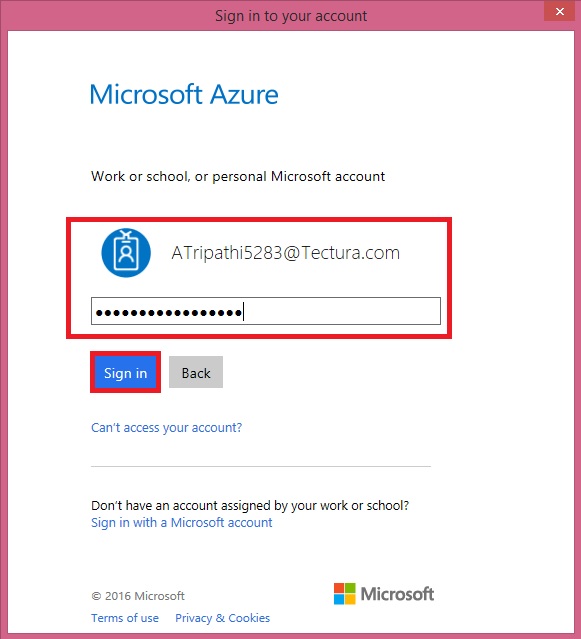
When you launch Power BI Gateway, you get above home screen. Login with your credentials.

PowerBI-51

If you are doing it for first time it will ask you to define the name for your Gateway as in my case it is Ash_TecturaGateway.

PowerBI-52

Make sure you don’t close this window else you will not be able to sync your data. This should remain connected all the time.

Minimize this window and keep it running, preferred this should be on the server itself, as local machines can be closed and accidently this may get closed.

Once you are done, Next step will be to add this Gateway to your Online BI account, so that it can be used to sync your data, as scheduled or when required.

Sign to your account using your credentials to tour online BI on PowerBI.com.

PowerBI-53

From settings choose Manage Gateways.

PowerBI-54

Provide the name that you provided in Power BI Gateway on your local machine.

Provide Data Source type as OData

Provide same URL one you provided to your Report in Power BI Desktop.

Key in the Credential Type as in my case I am using Windows.

Provide your credentials for the connection.

Once you are done it will show you the status, both the screen should be Online, You are good to go.

Additionally you can add users and Administrators to whom you wish to grant access to publish and manage reports using this Data Source.

Now your data source and Gateway is configured for sync.

PowerBI-55

This shows your Gateway is connected and now your data source can be synced with the in premise database.

Now let’s check quickly if our connection is working.

PowerBI-56

From your Left Navigation Pan, Select 3 dots next to your Data Source, and from resulting menu choose Refresh Now.

If there is no connection issue or Credentials issue your data will be refreshed, else you need to ensure there is no gap in connection.

I will come up with more details and how to schedule Refresh in my upcoming post.

Till then keep practicing and learn more using online help and Blogs available on PowerBI.com site itself.


PowerBI.com

Microsoft Power BI – Part – III

If you have not seen please check it out it will help you continuing with this post.

You can check:

Microsoft Power BI – Part – I

Microsoft Power BI – Part – II

If you remember in our first post of this series we have downloaded an installed 2 Component/Tool

PowerBI-25

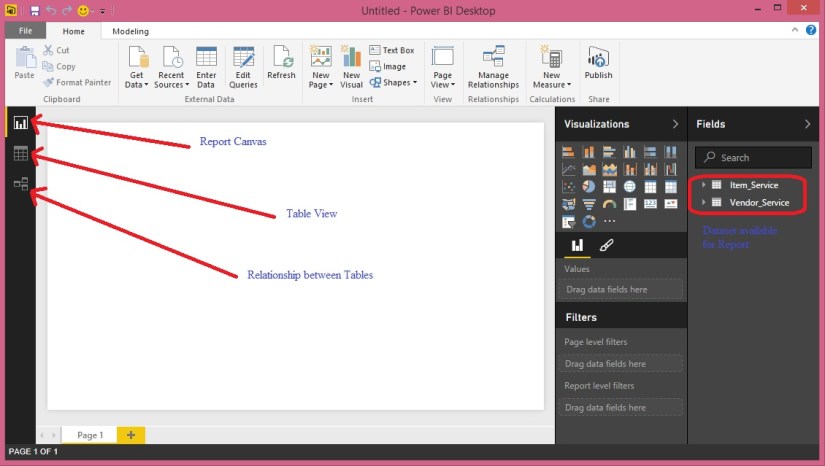
Today we will discuss and explore Power BI Desktop. It allows you to create the reports from in premise database and create visuals as we saw in our previous posts.

When you launch Power BI Desktop application opens as below:

PowerBI-26

Which more or less looks like one we saw online PowerBI.com.

Let’s try building one simple report using this tool.

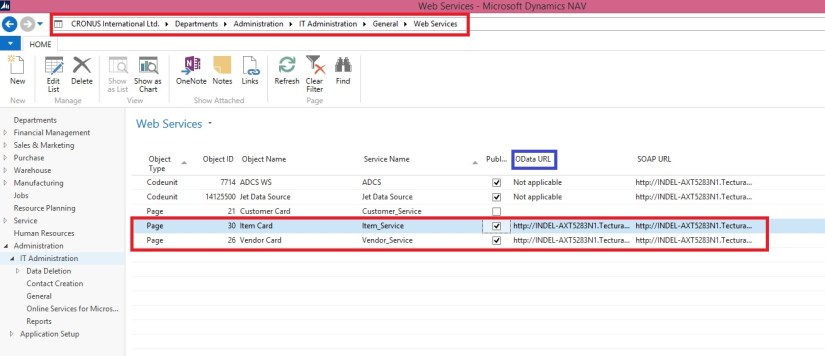
Step-1 We will require some services to be published before we can access data from our in premise database.

PowerBI-27

For my example I have published two pages Item Card & Vendor Card as a Web Service.

We will use OData URL to fetch data.

Step-2 Launch Power BI Desktop

PowerBI-28

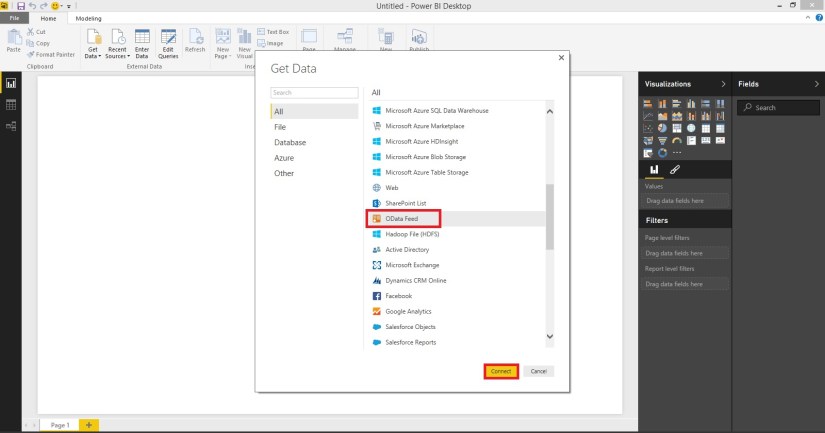
Step-3 Connect our Data source to create our reports.

Select Get Data from the Home Screen.

PowerBI-29

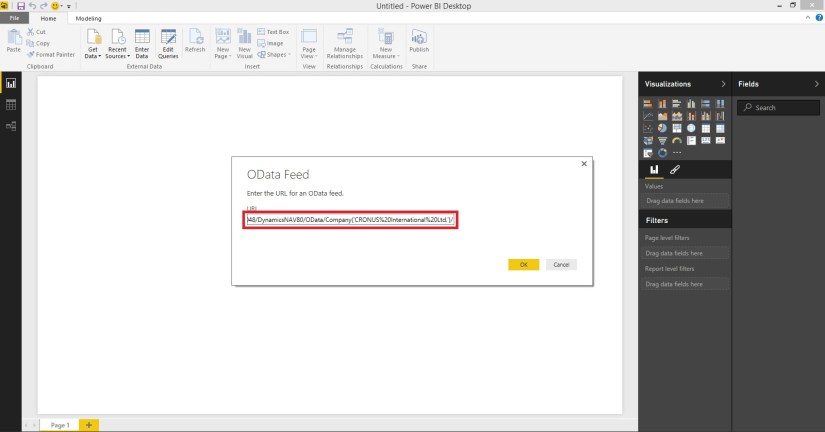
Copy the OData URL from the Web Service Page, in my case: http://INDEL-AXT5283N1.TecturaCorp.net:8048/DynamicsNAV80/OData/Company(‘CRONUS%20International%20Ltd.’)/Item_Service

Please take up to Company Name no Service Name required, it will list you all the services exposed from your database installation. In above remove the service name Item_Service from the URL.

PowerBI-30

On selecting OK you will get list of all Services available in form of Single Query.

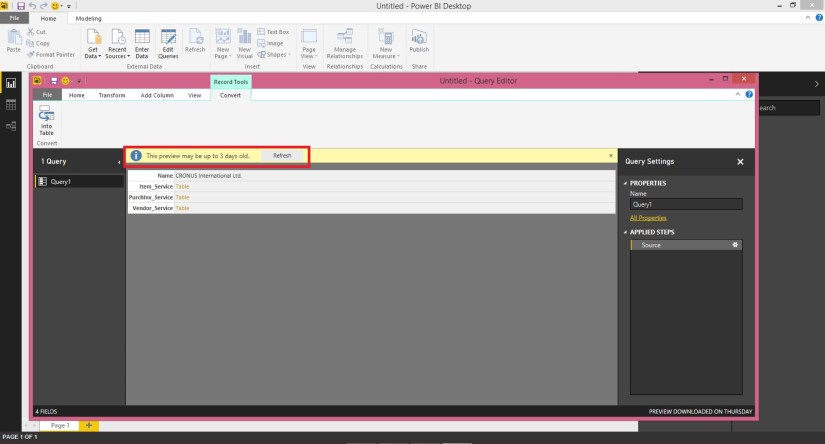
PowerBI-31

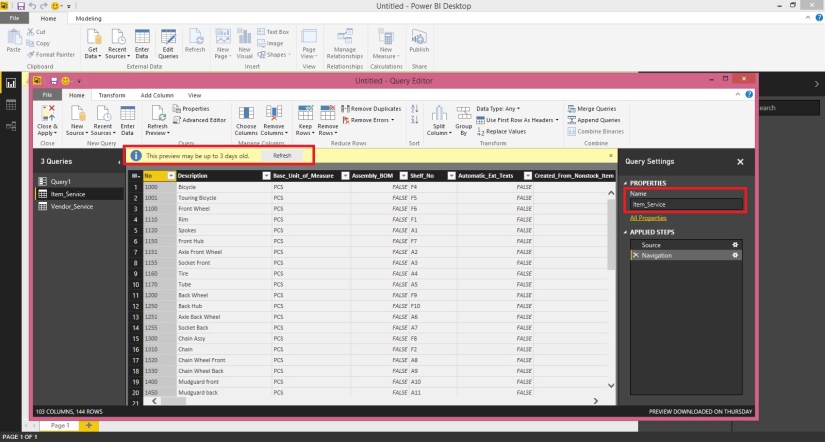
If you notice sometimes you may not get the latest list of services available, reason the connection is not refreshed. See the highlighted part in above screen.

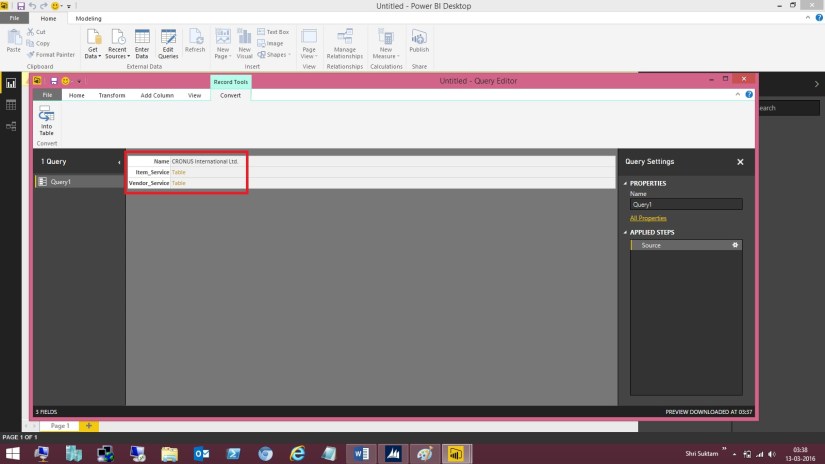
Refresh the connection to get latest list of services available.

PowerBI-32

In above screen show us the currently available services which we can use for creating our report/ visuals.

Step-4 Add available tables to our Dataset.

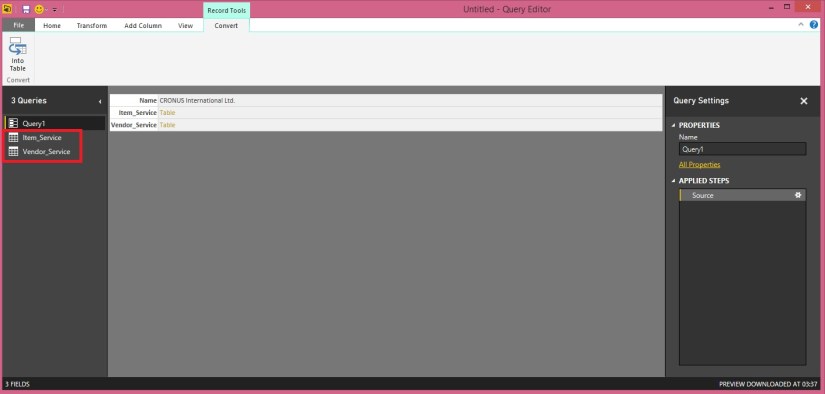
PowerBI-33

Right Click on the Table Link and choose “Add as New Query”

PowerBI-34

Once you add you can find Table Query in the Left Navigation Bar.

PowerBI-35

You can Browse the Table from the Left hand Navigation Bar and change its Name if required in the Right side “Query Settings”. On the Top of the Query you may find information if available data is old, you can Refresh it to get the updated one.

Here you can perform other operations too to tweak the table as per the requirement.

You can Add new columns deriving data from existing columns using formula and other available methods. You can drop unnecessary columns etc. We will look into same in future posts.

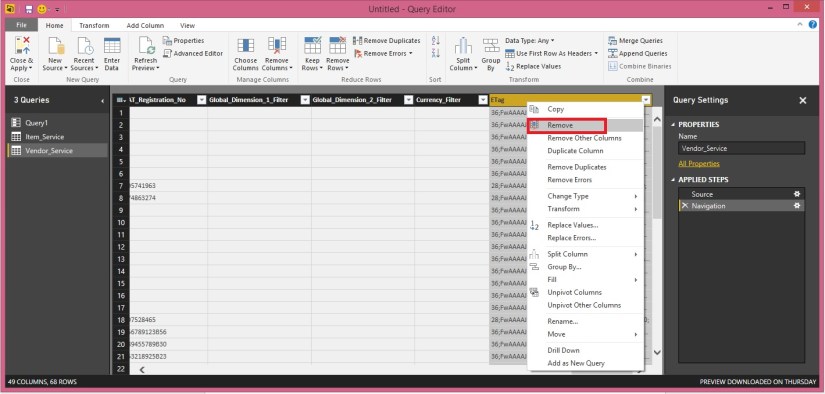
For now we will remove some additional columns which got added due to service.

PowerBI-36

Select the column Right Click and choose Remove.

PowerBI-37

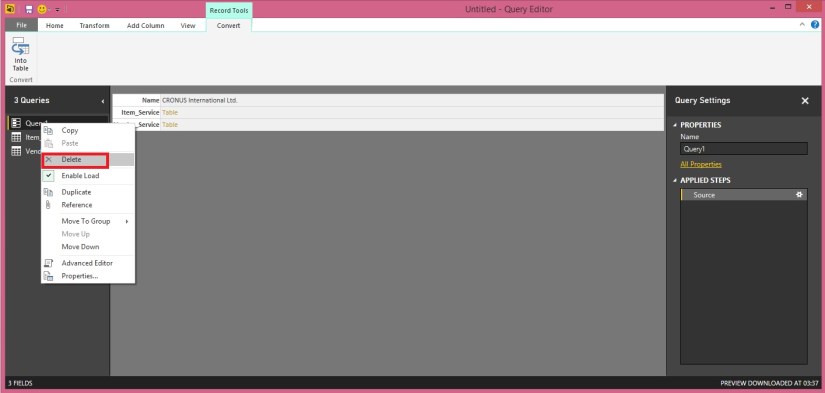
Finally we will remove the Source Query created after connecting to OData, Right Click to the Query and choose Delete.

PowerBI-38

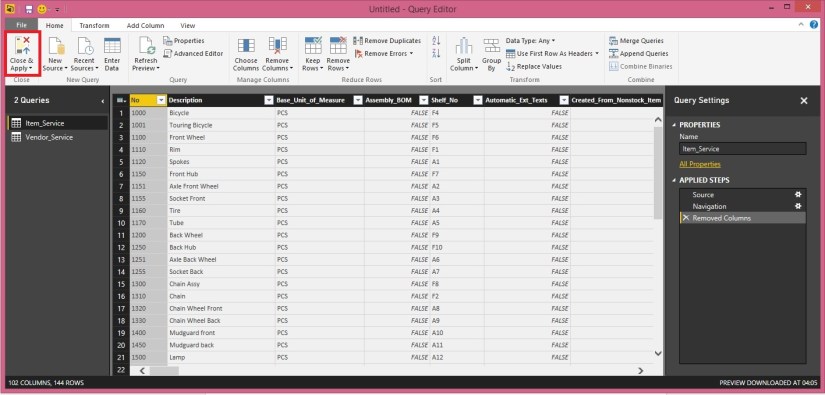
As a Final to this Step we will choose Close & Apply from the Top Left Corner Tool Bar.

PowerBI-39

You will be returned to main Report Builder Window.

This screen is similar to one we saw while Online Power BI window.

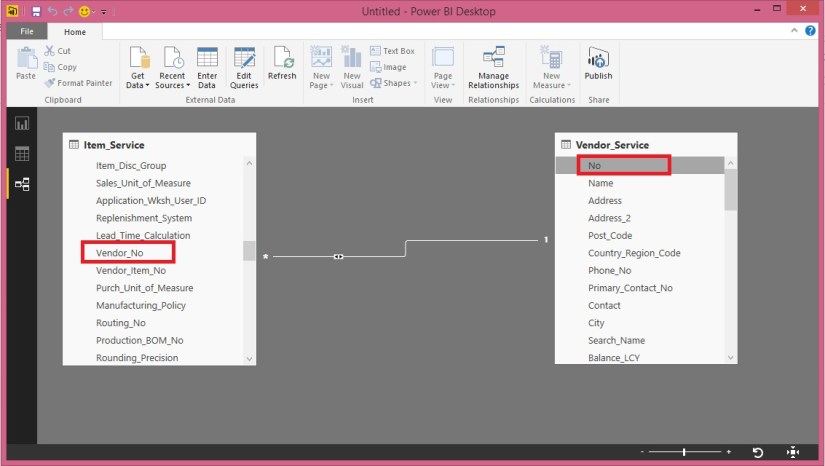
Step-5 We will build Relation between our tables added above.

Let us build the Relation between the Tables we selected.

To define the Relationship Select Relationship view from the Left Navigation Bar.

PowerBI-40

You will see both the Tables in the Relation Window.

To define relation Click on Vendor No field in Item Table and Drop on No field of Vendor Table.

You will see Many to One Relationship is established between these two Tables. For now we will use this only and come in more details of Managing Relationship in future posts.

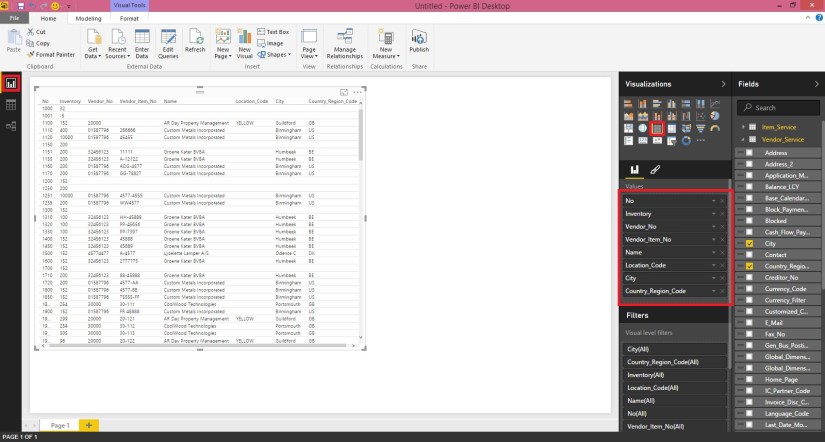
Step-6 Create our Report/ Visuals

Return to Report Canvas and add few Fields as we did while our First report using Online Power BI.

PowerBI-41

For my example I have added Item(No, Inventory, Vendor No, Vendor Item No) Vendor(Name, Location, City, Country Region Code).

Rest I leave up to you how you further categorize and Visualize the report. My objective was to demonstrate how you can create Reports in BI Desktop Tool using your in premise Navision Database installation.

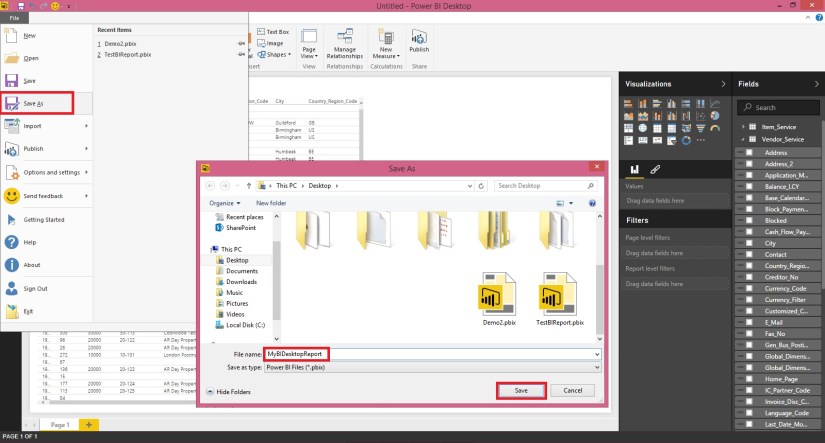
Step-7 Save my Report

PowerBI-42

Save the Report *.pbix which we can access to modify report in future if required.

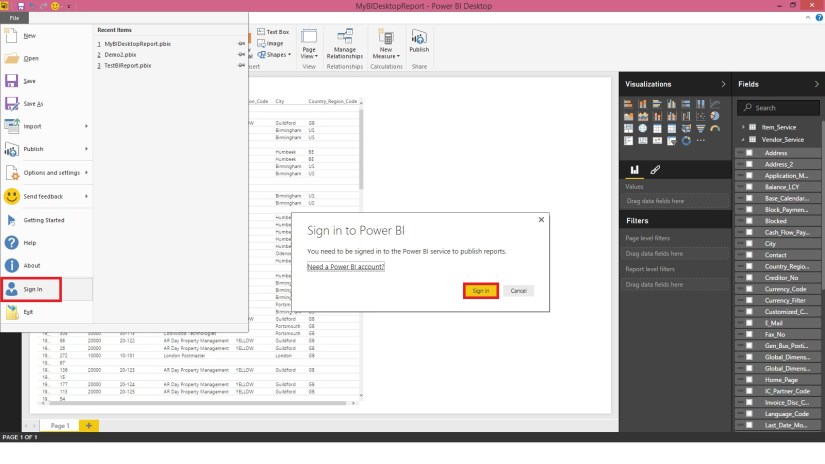
Step-8 Login to PowerBI Online

PowerBI-43

You will require credentials to your PowerBI online to connect.

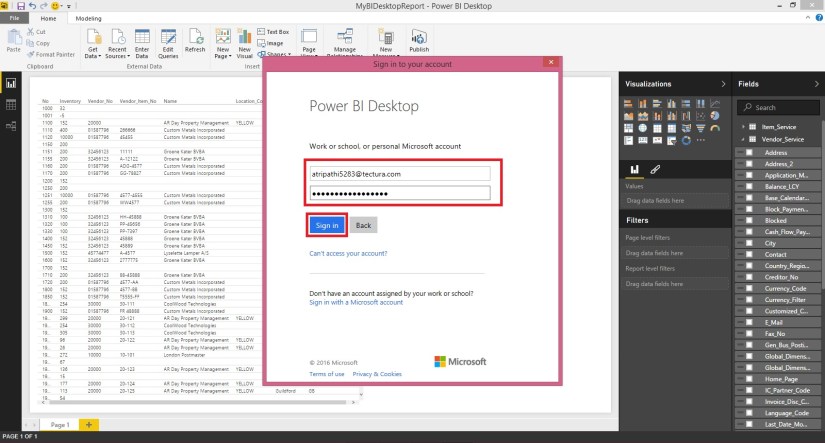
PowerBI-44

Provide your credentials and Sign in.

Once you successfully sign in to your account you can now proceed with next step.

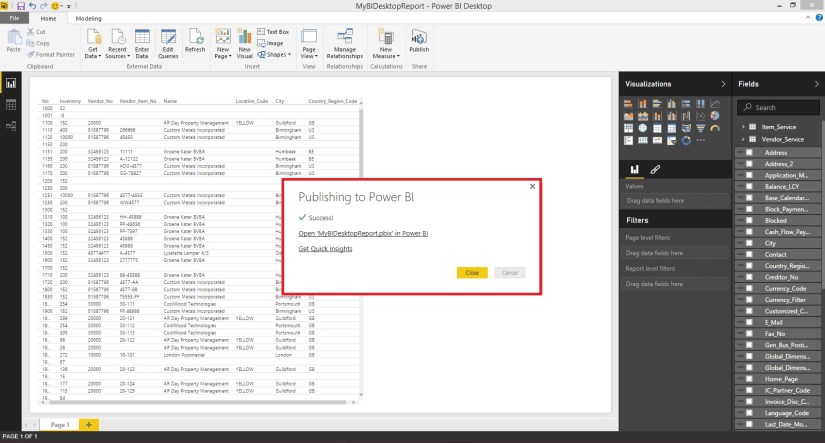
Step-9 Publish the Report to Online Power BI

PowerBI-45

Once your Report is published successfully you will get below screen

PowerBI-46

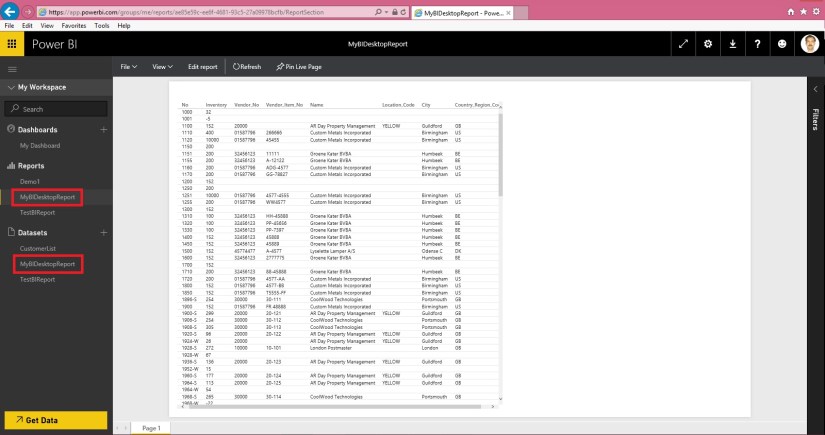
Step-10 Verifying the Report on PowerBI.com

PowerBI-47

Sign in using your credentials to PowerBI.com

PowerBI-48

Great, the report we published from BI Desktop is now available Online.

That’s all for today.

Truth is we have created the Report using in premise database, it should be in sync with latest data from our database. But this will not at this moment.

In our next post we will work on how to keep the data of this dataset in sync with the data from our in premise database.

Till then keep exploring and learning new features available with Power BI.


PowerBI.com

Microsoft Power BI – Part – II

Dear Friends I will be continue from my previous post where we left. If you have not seen please check it out it will help you continuing with this post. You can check here.

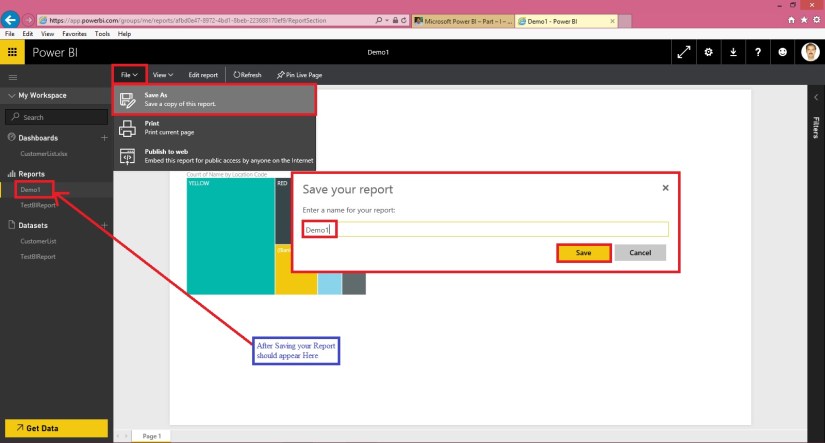
Let’s save the report we created in previous post and continue their after exploring more features.

PowerBI-15

Create a Dashboard and Pin our Visuals.

To create a Dashboard either you can use below any of the option.

PowerBI-16

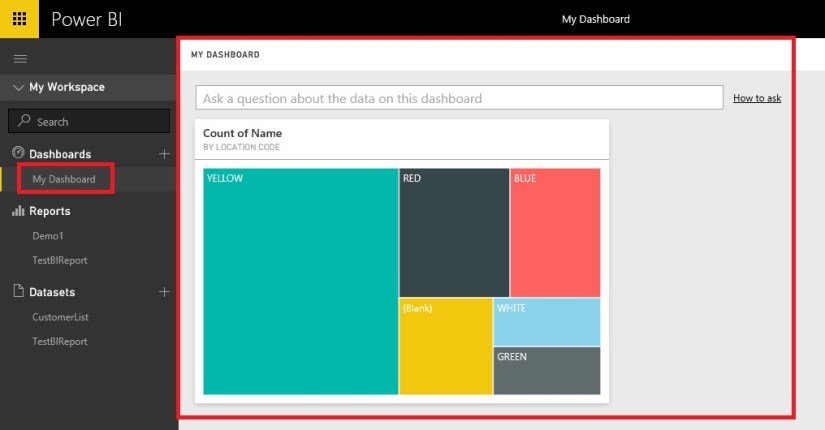
Once you Pin your Visuals to you Existing or New Dashboard, upon accessing the same it should appear as below.

PowerBI-17

Ask a question

On your dashboard you may find “Ask a question about the data on this dashboard” let us understand this feature.

Here you can ask to analyse the data present on dashboard using simple English language include some column names or data values that are present. I will take as the filter for those value and present you the analysed data.

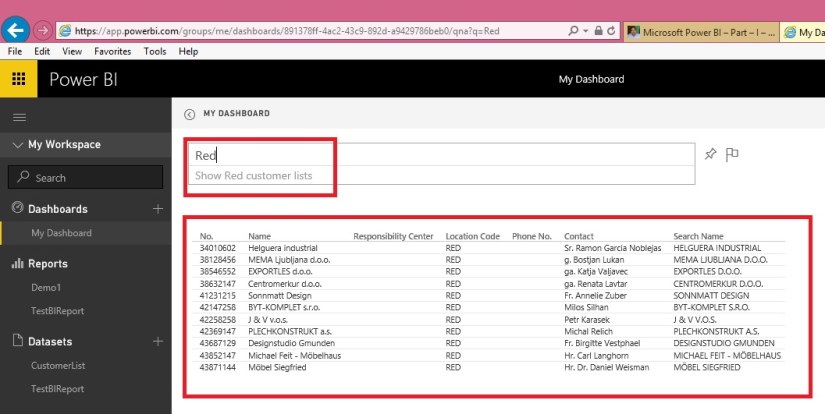
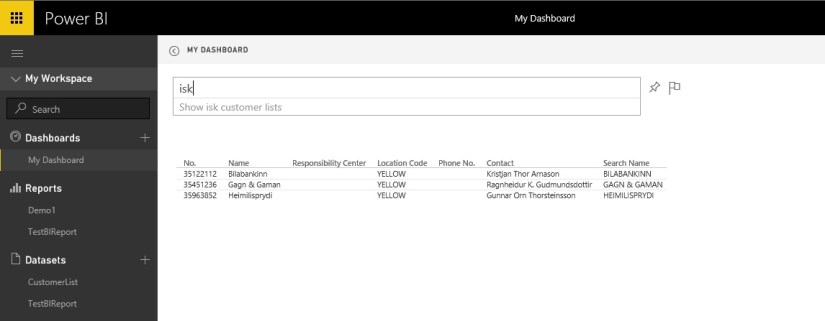
Let’s take an example I want to know all the customer who are associated with Red Location.

PowerBI-18

See I have entered Red in Question to Ask, it suggested me what valid question I can ask “Show Red customer lists” not only this it has analysed the data present on my dashboard and presented me the list of customers who are associated with RED Location.

Good feature and powerful too.

Filtering data across Visuals

Let’s add one more Visual on our Report, for this we edit our Existing Report.

PowerBI-19

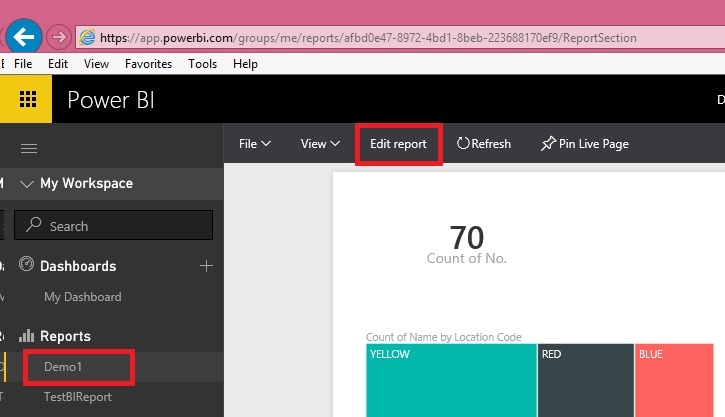
Select your report and click on Edit report

PowerBI-20

We select Credit Limit, Currency Code and No. field.

In value we will select “Count” for No. field. How to do it we have discussed in our previous post.

From Visualization we will select “Funnel”

Position the Chart at desired place available on your canvas.

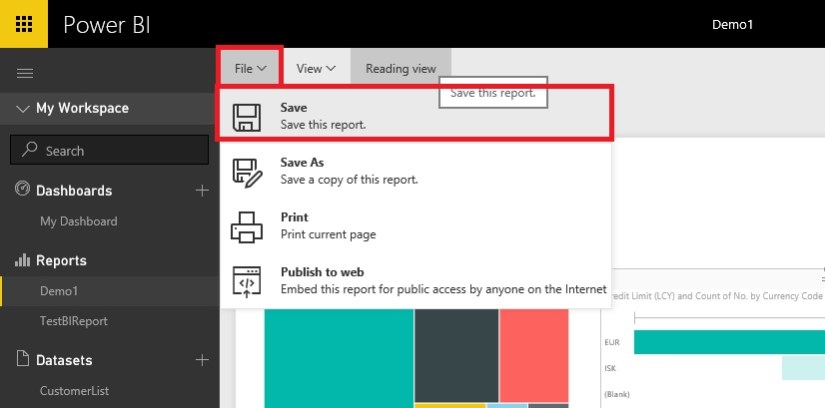
Save the Report.

PowerBI-21

Now open the Report to View.

PowerBI-22

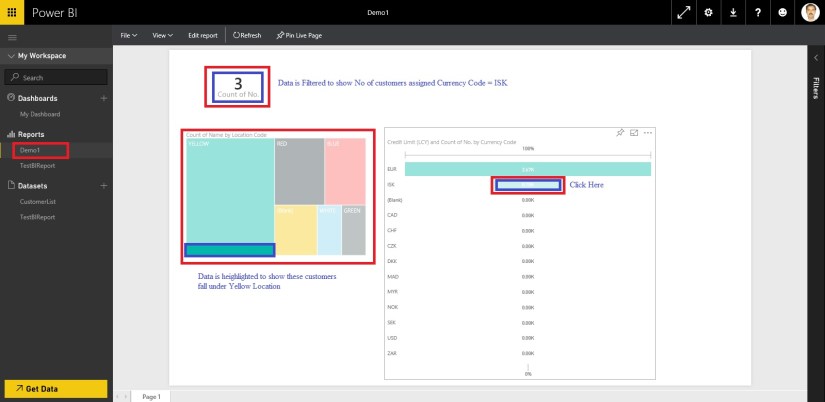
Click on the Funnel Chart on Currency Code = ISK.

Since all the tables/Visuals on this canvas share same data source/ dataset the data gets filtered.

See other Visuals are also showing the effect of same.

On Card Visual it Shows 3 Customers are which shares Currency Code = ISK.

On Treemap it shows these 3 Customer belongs to Yellow Location.

Yet another powerful feature for analysing the data.

Let’s add all of the above Visuals to our dashboard and arrange as below.

How to Pin the Visuals we have discussed above.

PowerBI-23


PowerBI-24

That’s all for today. We will learn and explore some more features in our upcoming posts.


PowerBI.com

Microsoft Power BI – Part – I

Dear Friends from quite long time I was wishing to write few blogs on this topic, but due to some limitation I was unable to do so. I will be posting few blogs in this series using which any beginners can practice and have hands on to understand this concept and start using this powerful tool for visuals and reporting.

Microsoft Power BI brings your data to life, transforming your company’s data into rich visuals for you to collect and organize so you can focus on what matters to you.

An Overview:

PowerBI-1

What all you need to get started with creating reports.

To get started first of all we will be required to register our account to PowerBI.com

Go to this Link Power BI

Scroll down on page to find below

PowerBI-2

Here you require your company registered e-mail id, any private e-mail id for example Yahoo, Google, Hotmail etc. will not be acceptable.

Follow the onscreen guide to complete your signup.

Please use this link to access available downloads.

PowerBI-3

As of now we will use highlighted two components. Download and Install them. We will use and explore them in our upcoming posts.

At this step you are ready to start with using Power BI, you can design the Reports & Datasets on your in premise database and publish to Power BI.

We will use these components in our future posts, today we will have a quick report creation using data from Excel as our first Report. Here we go…….


Step 1- Collecting the Data.

Open your Navision and Export some data which we can use to create our first Report.

In my example I am going to Export my Customer List and save the Excel file, make sure your data is saved in Table Format else Power BI will fail to import data.

Step 2- Getting Data in Power BI from Excel using Get Data.

Login to Power BI using your credentials used above to register the Power BI.

From Lading Page perform below step:

PowerBI-4

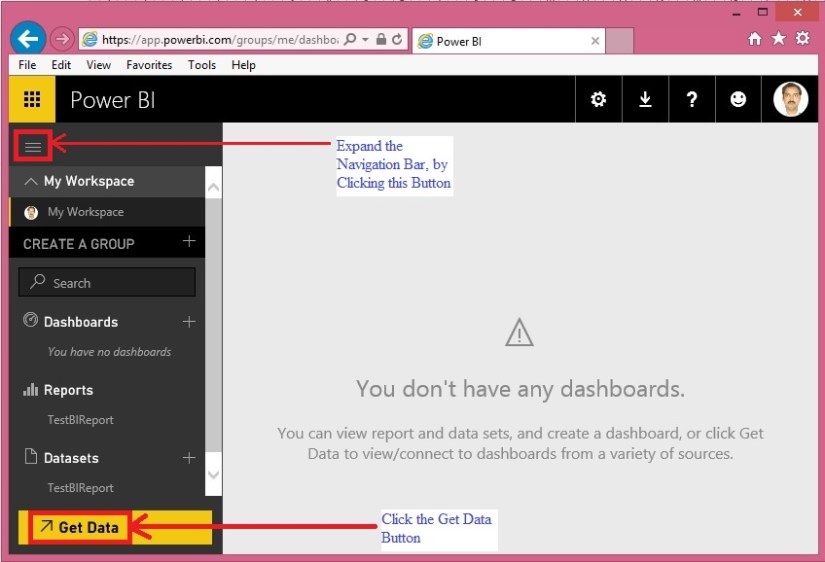
When you click to Get Data you will get options to connect with available data source options.

PowerBI-5

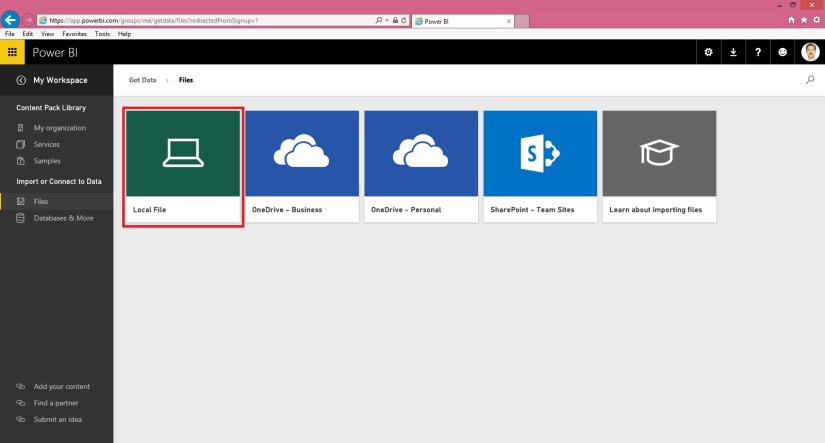
Click Get button as highlighted in above screen shot, as we are connecting the data from Excel file created in above Step.

On Clicking Get Button option available to get file will be displayed, depending upon where you placed your file select the desired option. In my case I have saved the File on My Desktop, so I will be using Local File option.

PowerBI-6


PowerBI-7

Select the desired file having data. In my case Customer List as created in above step.

PowerBI-8

Once done you will see a new Dataset and a Blank Report in Dashboard is added, in my case CustomerList.

Step 3- Analysing Data in Power BI or creating a Visual Report.

Click on the CustomerList dataset

PowerBI-9

This will show you the available Fields as per Excel columns, an available Visualization options.

PowerBI-10

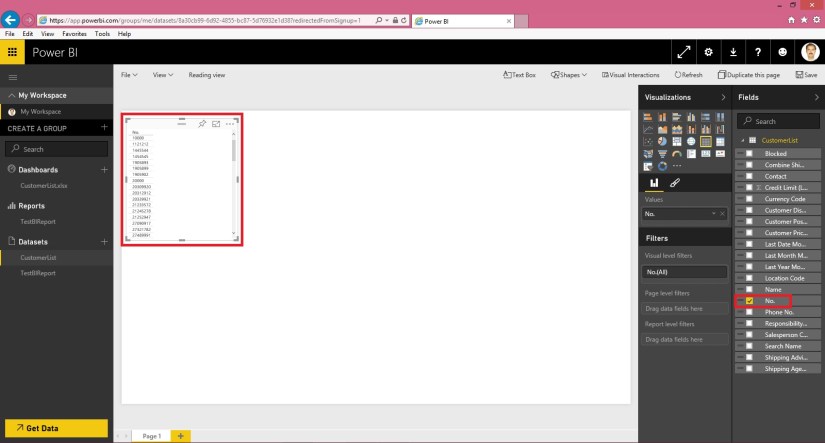
Select the No. Field from the Field List, a list table will be added on the canvas as shown in above screen.

Here say we want to count the no of Unique Customers in the data.

PowerBI-11

From the Values of the Field we will choose Count Option.

At the same time to make data more representable we will choose Card Visualization.

The data will be formatted and displayed as:

PowerBI-12

Next we will add sum summary analysis Data.

PowerBI-13

Here we added two Fields Location (Value = Don’t Summarize) and Name (Value = Count). Visualization = Table.

A new table gets added on the Report Canvas as shown above.

Let’s change the Visualization of above Table to Treemap, the Table will get formatted as:

PowerBI-14

That’s all for today, we will see more features and other available options in our next blog.


Till then practice and read available blog, documentations and help available online.


Cumulative Updates

Cumulative Update 5 for Microsoft Dynamics NAV 2016 Released in March

Cumulative Update 5 includes all application and platform hotfixes and regulatory features that have been released for Microsoft Dynamics NAV 2016.

Where to find Cumulative Update 5

You can download the cumulative update from KB 3145855 – Cumulative Update 5 for Microsoft Dynamics NAV 2016 (Build 45243).

Additional Information

For information about how to install the cumulative update, see How to Install a Microsoft Dynamics NAV 2016 Cumulative Update.

For a list of all cumulative updates for this version, see Released Cumulative Updates for Microsoft Dynamics NAV 2016.

Cumulative Updates

Cumulative Update 17 for Microsoft Dynamics NAV 2015 Released in March

Cumulative Update 17 includes all application and platform hotfixes and regulatory features that have been released for Microsoft Dynamics NAV 2015.

Where to find Cumulative Update 17

You can download the cumulative update from KB 3145854 – Cumulative Update 17 for Microsoft Dynamics NAV 2015 (Build 45244).

Additional Information

For information about how to install the cumulative update, see How to Install a Microsoft Dynamics NAV 2015 Cumulative Update.

For information about how to work around a recent process change, see How to Get Back the ‘Hotfix Directories’ from NAV 2015 Cumulative Update 1.

For a list of all cumulative updates for this version, see Released Cumulative Updates for Microsoft Dynamics NAV 2015.

Cumulative Updates

Cumulative Update 29 for Microsoft Dynamics NAV 2013 R2 Released in March

Cumulative Update 29 includes all application and platform hotfixes and regulatory features that have been released for Microsoft Dynamics NAV 2013 R2.

Where to find Cumulative Update 29

You can download the cumulative update from KB 3145852 – Cumulative Update 29 for Microsoft Dynamics NAV 2013 R2 (Build 45254).

Additional Information

For more information about cumulative updates for this version, see Announcement of update rollups for Microsoft Dynamics NAV 2013 R2.

For a list of all cumulative updates for this version, see Released Cumulative Updates for Microsoft Dynamics NAV 2013 R2.

For a list of all hotfixes included in cumulative updates for this version, see the following CustomerSource and PartnerSource pages:

CustomerSource:

PartnerSource

Cumulative Updates

Cumulative Update 36 for Microsoft Dynamics NAV 2013 Released in March

Cumulative Update 36 includes all application and platform hotfixes and regulatory features that have been released for Microsoft Dynamics NAV 2013

Where to find Cumulative Update 36

You can download the cumulative update from KB 3145849 – Cumulative Update 36 for Microsoft Dynamics NAV 2013 (Build 45241).

Additional Information

For a list of all cumulative updates for this version, see Released Cumulative Updates for Microsoft Dynamics NAV 2013.

For a list of all hotfixes included in cumulative updates for this version, see the following CustomerSource and PartnerSource pages:

CustomerSource:

PartnerSource:

Corfu Navision 2016, Warehouse

Warehouse Terminology

What is Bin?

A bin is a storage device designed to contain discrete parts. It is the smallest container unit in Microsoft Dynamics NAV.

What is Bin Content?

Item quantities in bins are referred to as bin content. A lookup from the Item field or Bin Code field on any warehouse-related document line displays the calculated availability of the item in the bin.

A bin content can be given a property of Fixed, Dedicated, or Default to define how the bin content can be used. Bins with none of these properties are referred to as floating bins.

What dose Fixed Bin means?

A fixed bin holds items that are assigned to the bin code.

The Fixed bin property ensures that even if the bin content is momentarily emptied, the bin content does not disappear, and the bin is therefore selected again as soon as it has been replenished.

What dose Dedicated Bin means?

A dedicated bin holds bin content that can only be picked for the dedicated resource, such as a machine center, that uses the bin.

Other non-pick content, such as quantities outbound on a shipment posting, can still be consumed from a dedicated bin.

Only bin content considered by the Create Pick algorithm is protected in a dedicated bin.

What are Default Bins?

The Default bin property is used by the system to suggest bins for warehouse activities. At WMS locations, the Default bin property is not used.

At locations where bins are required, the property is used in inbound flows to specify where to place items. In outbound flows, the property is used to specify where to take items from.

Rule for Bin preference

If the outbound items are placed in several bins, then items are first taken from the non-default bins, to empty that bin content, and then the remaining items are taken from the default bin. There can only be one default bin per item per location.

What are the Bin Types?

You can restrict the warehouse activities that are allowed for a bin by assigning a bin type to it.

Below are the bin types in Navision:

Type Description
RECEIVE Items posted as received but not yet put away.
SHIP Items picked for warehouse shipment lines but not yet posted as shipped.
PUT AWAY Typically, items are stored in large units of measure but you do not want to access for picking purposes.

These bins are not used for picking, either for production orders or shipments, this bin type could be useful if you have purchased a large quantity of items.

Use of these type of bin might be limited.

Bins of this type should always have a low bin-ranking, so that when received items are put away, other higher-ranking PUTPICK bins fixed to the item are put away first.

These type of bins should regularly perform bin replenishment so that the items stored in these bins are also available in PUTPICK or PICK type bins.

PICK Used for picking only.

The replenishment of these bins can only be made by movement, not by put-away.

PUTPICK Bins that are suggested for both the put-away and pick functions.

Bins of this type probably have different bin rankings.

You can set up your bulk storage bins as this type of bin with low bin rankings compared to your ordinary pick bins or forward picking area bins.

QC This bin is used for inventory adjustments if specified on the location card in the Adjustment Bin Code field.

You can also set up bins of this type for defective items and items being inspected.

You can move items to this type of bin if you want to make them inaccessible to the usual item flow.

The QC bin type has none of the item handling check boxes selected by default.

Any content you place in a QC bin is excluded from item flows.

For all bin types, except PICK, PUTPICK, and PUTAWAY, no other activity is allowed for the bin than what is defined by its bin type.

Only movement can be made to bins of type RECEIVE and QC. Similarly, only movements can be made from bins of type SHIP and QC.

What dose Bin Ranking means?

In advanced warehousing, you can automate and optimize how items are collected in put-away and pick worksheets by ranking bins so that items are suggested taken or placed according to rank criteria to use warehouse space optimally.

  • Put-away processes are optimized according to bin ranking by suggesting higher-ranking bins before lower-ranking bins.
  • Pick processes are optimized by first suggesting items from bin content with high bin ranking.
  • Bin replenishments are suggested from lower-ranking bins to higher-ranking bins.

Bin ranking together with bin content information are the basic properties that allow users to slot items in the warehouse.

How are Bin Setup?

Bins can be set up with capacity values, such as quantity, total cubage, and weight to control which and how items are stored in the bin.

On each item card, you can assign a unit of measure (UOM) for the item, such as pieces, pallets, liters, grams, or boxes.

If you want to set a maximum quantity of a specific item to be stored in an individual bin and the item has more than one UOM, then you must set the maximum quantity for every UOM that exists on the item card.

If an item has been set up to be handled in pieces and pallets, then the Max. Qty. field in the Bin Content window for that item must also be in pieces and pallets.

Allowed quantity for that bin is not calculated correctly if above rule is not followed.

In order to set capacity restrictions for bin contents on a bin, UOM and dimensions of the item must be set up on the item card.

What is Zone?

In advanced warehousing, bins can be grouped in zones to manage how the workflow of warehouse activities is directed.

A zone could be a receiving zone or a stocking zone, and each zone can consist of one or several bins.

Most properties assigned to a zone will by default assigned to the bin that is created from that zone.

What are Classes?

In advanced warehousing, you can assign warehouse class codes to items, bins, and zones to control where different item classes are stored, such as frozen goods.

You can divide a zone into several warehouse classes.

When you work with warehouse classes and a default receiving/shipping bin, you must manually fill in the appropriate bins in the warehouse receipt and shipment lines.

In inbound flows, the class code is only highlighted on inbound lines where the item class code does not match the default receiving bin. If the correct default bins are not assigned, then the quantity cannot be received.

What does Location refer to?

A location is a physical structure or place where inventory is received, stored, and shipped, potentially organized in bins. A location can be a warehouse, service car, showroom, plant, or an area in a plant.

What is First Expired First Out setup?

If you select the Pick According to FEFO check box on the Bin Policies FastTab on the location card, then item-tracked items are picked according to their expiration date. Below rule applies while picking the item:

  • The items with the earliest expiration dates are picked first.
  • Warehouse activities in all pick and movement documents are sorted according to FEFO, unless the items already have serial/lot numbers assigned.
  • If only a part of the quantity on the line already has serial/lot numbers assigned, then the remaining quantity to be picked is sorted according to FEFO.
  • When picking by FEFO, the available items that expire first are gathered in a temporary item tracking list based on the expiration date.
  • If two items have the same expiration date, then the item with the lowest lot or serial number is picked first.
  • If the lot or serial numbers are the same, then the item that was registered first is selected first.

What is Put-away Template?

The put-away template can be assigned to an item and to a location.

The put-away template specifies a set of prioritized rules that must be respected when creating put-aways.

Corfu Navision 2016, Warehouse

Warehouse Overview

One of my reader have demanded a Warehouse related query, before jumping to the solution I thought to have a brief overview regarding this topic. As I have not covered this topic in my past posts, so I will be posting couple of posts on this series as and when I get some time and the answer will be in these couple of posts.
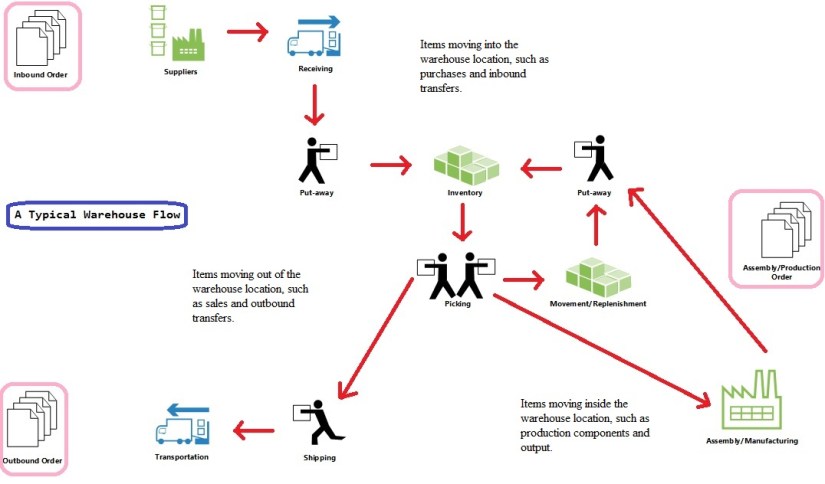
Each transactions performed using warehouse is stored in a Warehouse Register.

For each transaction or movement in the warehouse is recorded in Warehouse Entry table.

Warehouse Documents and Warehouse Journal are used to register item movements in the warehouse.

Whenever an item in the warehouse is moved, received, put away, picked, shipped, or adjusted, Warehouse Entries are registered to store the physical information about zone, bin, and quantity

The Bin Content table is used to handle all the different dimensions of the contents of a bin per item, such as unit of measure, maximum quantity, and minimum quantity.

Below is the typical Warehouse Flow:

Flow Diagram

Basic UI Documents

  • Inventory Put-away
  • Inventory Pick
  • Inventory Movement
  • Item Journal
  • Item Reclassification Journal

Advanced UI Documents

  • Warehouse Receipt
  • Put-away Worksheet
  • Warehouse Put-away
  • Pick Worksheet
  • Warehouse Pick
  • Movement Worksheet
  • Warehouse Movement
  • Internal Whse. Pick
  • Internal Whse. Put-away
  • Bin Creation Worksheet
  • Bin Content Creation Worksheet
  • Whse. Item Journal
  • Whse. Item Reclass. Journal


Below are the warehouse-related granules in Navision:

  • Basic Inventory (4010)
  • Bin (4170)
  • Put Away (4180)
  • Warehouse Receipt (4190)
  • Pick (4200)
  • Warehouse Shipment (4210)
  • Warehouse Management Systems (4620)
  • Internal Picks and Put-aways (4630)
  • Automated Data Capture System (4640)
  • Bin Setup (4660)


Granules Vs  UI Documents:

The following table shows which granules are required to define different warehouse complexity levels, which UI documents support each level.

Complexity level Description UI document Minimum granule requirement
1 No dedicated warehouse activity.

Receive/ship posting from orders.

Order Basic Inventory
2 No dedicated warehouse activity.

Receive/ship posting from orders.

Bin code is required.

Order, with bin code Basic Inventory/Bin
3 Basic warehouse activity, order-by-order.

Receive/ship posting from inventory put-away/pick documents.

Bin code is required.

Inventory Put-away/Inventory Movement/Inventory Pick, with bin code Basic Inventory/Bin/

Put Away/Pick

4 Advanced warehouse activity, for multiple orders.

Consolidated receive/ship posting based on warehouse put-away/pick registrations.

Warehouse Receipt/Warehouse Put-away/Warehouse Pick/Warehouse Shipment/Pick Worksheet Basic Inventory/

Warehouse Receipt/

Put Away/

Pick/

Warehouse Shipment

5 Advanced warehouse activity, for multiple orders.

Consolidated receive/ship posting based on warehouse put-away/pick registrations.

Bin code is required.

Warehouse Receipt/Warehouse Put-away/Warehouse Pick/Warehouse Shipment/Pick Worksheet/Put-away Worksheet, with bin code Basic Inventory/Bin/

Warehouse Receipt/

Put Away/Pick/

Warehouse Shipment

6

This level is referred to as “WMS”, since it requires the most advanced granule, Warehouse Management Systems.

Advanced warehouse activity, for multiple orders.

Consolidated receive/ship posting based on warehouse put-away/pick registrations.

Bin code is required.

Zone/class code is optional.

Warehouse workers directed by workflow.

Bin replenishment planning.

Bin ranking.

Bin setup by capacity.

Slotting.

Hand-help device integration.

Warehouse Receipt/Warehouse Put-away/Warehouse Pick/Warehouse Shipment/Warehouse Movement/Pick Worksheet/Put-away Worksheet/Internal Whse. Pick/Internal Warehouse Put-away, with bin/class/zone code

Various worksheets for bin management

ADCS screens

Basic Inventory/Bin/

Put Away/

Warehouse Receipt/

Pick/

Warehouse Shipment/

Warehouse Management Systems/

Internal Picks and Put-aways/

Bin Setup/

Automated Date Capture System/

Bin Setup

I will come up with more details in my next post.