Cumulative Updates, Development Tips, How To, Information, Instalation & Configuration, Tip & Tricks, Updates

Cumulative Update 11 for Microsoft Dynamics NAV 2017 (Build 18609) – Released in Oct 2017

This cumulative update includes all hotfixes and regulatory features that have been released for Microsoft Dynamics NAV 2017, including hotfixes and regulatory features that were released in previous cumulative updates.

This cumulative update replaces previously released cumulative updates. You should always install the latest cumulative update.

Note Implementing this cumulative update will require a database upgrade.

It may be necessary to update your license after implementing this hotfix to gain access to new objects included in this or a previous cumulative update (this only applies to customer licenses).

For a list of cumulative updates released for Microsoft Dynamics NAV 2017, see released cumulative updates for Microsoft Dynamics NAV 2017. Cumulative updates are intended for new and existing customers who are running Microsoft Dynamics NAV 2017.

How to obtain the Microsoft Dynamics NAV update files

This update is available for manual download and installation from the Microsoft Download Center.

Download Cumulative update CU 11 for Microsoft Dynamics NAV 2017

How to install a Microsoft Dynamics NAV 2017 cumulative update

See How to install a Microsoft Dynamics NAV 2017 cumulative update .

Prerequisites

You must have Microsoft Dynamics NAV 2017 installed to apply this hotfix.

For more details see :- https://support.microsoft.com/en-us/help/4045671/cumulative-update-11-for-microsoft-dynamics-nav-2017-build-18609

Cumulative Updates, Development Tips, How To, Information, Instalation & Configuration, Tip & Tricks

Cumulative Update 10 for Microsoft Dynamics NAV 2017 (Build 18197)-Released in Sep 2017

This cumulative update includes all hotfixes and regulatory features that have been released for Microsoft Dynamics NAV 2017, including hotfixes and regulatory features that were released in previous cumulative updates.

This cumulative update replaces previously released cumulative updates. You should always install the latest cumulative update.

Note Implementing this cumulative update will require a database upgrade.

It may be necessary to update your license after implementing this hotfix to gain access to new objects included in this or a previous cumulative update (this only applies to customer licenses).

For a list of cumulative updates released for Microsoft Dynamics NAV 2017, see released cumulative updates for Microsoft Dynamics NAV 2017. Cumulative updates are intended for new and existing customers who are running Microsoft Dynamics NAV 2017.

How to obtain the Microsoft Dynamics NAV update files

This update is available for manual download and installation from the Microsoft Download Center.

Download Cumulative update CU 10 for Microsoft Dynamics NAV 2017

How to install a Microsoft Dynamics NAV 2017 cumulative update

See How to install a Microsoft Dynamics NAV 2017 cumulative update .

Prerequisites

You must have Microsoft Dynamics NAV 2017 installed to apply this hotfix.

For more details see:- https://support.microsoft.com/en-us/help/4040570/cumulative-update-10-for-microsoft-dynamics-nav-2017-build-18197

Cumulative Updates, Development Tips, How To, Information, Tip & Tricks

Cumulative Update 09 for Microsoft Dynamics NAV 2017 (Build 17972)- Released in Aug 2017

This cumulative update includes all hotfixes and regulatory features that have been released for Microsoft Dynamics NAV 2017, including hotfixes and regulatory features that were released in previous cumulative updates.

This cumulative update replaces previously released cumulative updates. You should always install the latest cumulative update.

Note Implementing this cumulative update will require a database upgrade.

It may be necessary to update your license after implementing this hotfix to gain access to new objects included in this or a previous cumulative update (this only applies to customer licenses).

For a list of cumulative updates released for Microsoft Dynamics NAV 2017, see released cumulative updates for Microsoft Dynamics NAV 2017. Cumulative updates are intended for new and existing customers who are running Microsoft Dynamics NAV 2017.

How to obtain the Microsoft Dynamics NAV update files

This update is available for manual download and installation from the Microsoft Download Center.

Download Cumulative update CU09 for Microsoft Dynamics NAV 2017

How to install a Microsoft Dynamics NAV 2017 cumulative update

See How to install a Microsoft Dynamics NAV 2017 cumulative update .

Prerequisites

You must have Microsoft Dynamics NAV 2017 installed to apply this hotfix.

For more details see:- https://support.microsoft.com/en-us/help/4037309/cumulative-update-09-for-microsoft-dynamics-nav-2017-build-17972

Cumulative Updates, Development Tips, How To, Information, Instalation & Configuration, Tip & Tricks

Cumulative Update 07 for Microsoft Dynamics NAV 2017 (Build 16996)- Released in July 2017

released cumulative updates for Microsoft Dynamics NAV 2017This cumulative update includes all hotfixes and regulatory features that have been released for Microsoft Dynamics NAV 2017, including hotfixes and regulatory features that were released in previous cumulative updates.

This cumulative update replaces previously released cumulative updates. You should always install the latest cumulative update.

Note Implementing this cumulative update will require a database upgrade.

It may be necessary to update your license after implementing this hotfix to gain access to new objects included in this or a previous cumulative update (this only applies to customer licenses).

For a list of cumulative updates released for Microsoft Dynamics NAV 2017, see released cumulative updates for Microsoft Dynamics NAV 2017. Cumulative updates are intended for new and existing customers who are running Microsoft Dynamics NAV 2017.

How to obtain the Microsoft Dynamics NAV update files

This update is available for manual download and installation from the Microsoft Download Center.

Download Cumulative update CU07 for Microsoft Dynamics NAV 2017

How to install a Microsoft Dynamics NAV 2017 cumulative update

See How to install a Microsoft Dynamics NAV 2017 cumulative update .

Prerequisites

You must have Microsoft Dynamics NAV 2017 installed to apply this hotfix.

For more details see:- https://support.microsoft.com/en-us/help/4024642/cumulative-update-07-for-microsoft-dynamics-nav-2017-build-16996

Cumulative Updates, Development Tips, How To, Information, Instalation & Configuration, Tip & Tricks, Updates

Cumulative Update 07 for Microsoft Dynamics NAV 2017 (Build 16996)- Released in June 2017

How to install a Microsoft Dynamics NAV 2017 cumulative update This cumulative update includes all hotfixes and regulatory features that have been released for Microsoft Dynamics NAV 2017, including hotfixes and regulatory features that were released in previous cumulative updates.

This cumulative update replaces previously released cumulative updates. You should always install the latest cumulative update.

Note Implementing this cumulative update will require a database upgrade.

It may be necessary to update your license after implementing this hotfix to gain access to new objects included in this or a previous cumulative update (this only applies to customer licenses).

For a list of cumulative updates released for Microsoft Dynamics NAV 2017, see released cumulative updates for Microsoft Dynamics NAV 2017. Cumulative updates are intended for new and existing customers who are running Microsoft Dynamics NAV 2017.

How to obtain the Microsoft Dynamics NAV update files

This update is available for manual download and installation from the Microsoft Download Center.

Download Cumulative update CU07 for Microsoft Dynamics NAV 2017

How to install a Microsoft Dynamics NAV 2017 cumulative update

See How to install a Microsoft Dynamics NAV 2017 cumulative update .

Prerequisites

You must have Microsoft Dynamics NAV 2017 installed to apply this hotfix.

For more details see :- https://support.microsoft.com/en-us/help/4024642/cumulative-update-07-for-microsoft-dynamics-nav-2017-build-16996


Cumulative Updates, Development Tips, How To, Information, Instalation & Configuration, Tip & Tricks

Cumulative Update 06 for Microsoft Dynamics NAV 2017 (Build 16585) – Released in May 2017

This cumulative update includes all hotfixes and regulatory features that have been released for Microsoft Dynamics NAV 2017, including hotfixes and regulatory features that were released in previous cumulative updates.

This cumulative update replaces previously released cumulative updates. You should always install the latest cumulative update.

Note Implementing this cumulative update will require a database upgrade.

It may be necessary to update your license after implementing this hotfix to gain access to new objects included in this or a previous cumulative update (this only applies to customer licenses).

For a list of cumulative updates released for Microsoft Dynamics NAV 2017, see released cumulative updates for Microsoft Dynamics NAV 2017. Cumulative updates are intended for new and existing customers who are running Microsoft Dynamics NAV 2017.

How to obtain the Microsoft Dynamics NAV update files

This update is available for manual download and installation from the Microsoft Download Center.

Download Cumulative update CU06 for Microsoft Dynamics NAV 2017

How to install a Microsoft Dynamics NAV 2017 cumulative update

See How to install a Microsoft Dynamics NAV 2017 cumulative update .

Prerequisites

You must have Microsoft Dynamics NAV 2017 installed to apply this hotfix.

For more details see : https://support.microsoft.com/en-us/help/4021396/cumulative-update-06-for-microsoft-dynamics-nav-2017-build-16585

Cumulative Updates, How To, Information, Instalation & Configuration, Tip & Tricks

Cumulative Update 05 for Microsoft Dynamics NAV 2017 (Build 16177) – Released in April 2017

This cumulative update includes all hotfixes and regulatory features that have been released for Microsoft Dynamics NAV 2017, including hotfixes and regulatory features that were released in previous cumulative updates.

This cumulative update replaces previously released cumulative updates. You should always install the latest cumulative update.

Note Implementing this cumulative update will require a database upgrade.

It may be necessary to update your license after implementing this hotfix to gain access to new objects included in this or a previous cumulative update (this only applies to customer licenses).

For a list of cumulative updates released for Microsoft Dynamics NAV 2017, see released cumulative updates for Microsoft Dynamics NAV 2017 . Cumulative updates are intended for new and existing customers who are running Microsoft Dynamics NAV 2017.

How to obtain the Microsoft Dynamics NAV update files

This update is available for manual download and installation from the Microsoft Download Center.

How to install a Microsoft Dynamics NAV 2017 cumulative update

See How to install a Microsoft Dynamics NAV 2017 cumulative update .

Prerequisites

You must have Microsoft Dynamics NAV 2017 installed to apply this hotfix.

How To, Information, Instalation & Configuration, Tip & Tricks

Cumulative Update 04 for Microsoft Dynamics NAV 2017 (Build 15601) – Released in March 2017

This cumulative update includes all hotfixes and regulatory features that have been released for Microsoft Dynamics NAV 2017, including hotfixes and regulatory features that were released in previous cumulative updates.

This cumulative update replaces previously released cumulative updates. You should always install the latest cumulative update.

It may be necessary to update your license after implementing this hotfix to gain access to new objects included in this or a previous cumulative update (this only applies to customer licenses).

For a list of cumulative updates released for Microsoft Dynamics NAV 2017, see released cumulative updates for Microsoft Dynamics NAV 2017 . Cumulative updates are intended for new and existing customers who are running Microsoft Dynamics NAV 2017.

How to obtain the Microsoft Dynamics NAV update files

This update is available for manual download and installation from the Microsoft Download Center.

How to install a Microsoft Dynamics NAV 2017 cumulative update

See How to install a Microsoft Dynamics NAV 2017 cumulative update .

Prerequisites

You must have Microsoft Dynamics NAV 2017 installed to apply this hotfix.

Cumulative Updates, How To, Information, Tip & Tricks

Cumulative Update 03 for Microsoft Dynamics NAV 2017 (Build 15140)- Released in Feb 2017

This cumulative update includes all hotfixes and regulatory features that have been released for Microsoft Dynamics NAV 2017, including hotfixes and regulatory features that were released in previous cumulative updates.

This cumulative update replaces previously released cumulative updates. You should always install the latest cumulative update.

It may be necessary to update your license after implementing this hotfix to gain access to new objects included in this or a previous cumulative update (this only applies to customer licenses).

For a list of cumulative updates released for Microsoft Dynamics NAV 2017, see released cumulative updates for Microsoft Dynamics NAV 2017 . Cumulative updates are intended for new and existing customers who are running Microsoft Dynamics NAV 2017.

How to obtain the Microsoft Dynamics NAV update files

This update is available for manual download and installation from the Microsoft Download Center.

How to install a Microsoft Dynamics NAV 2017 cumulative update

See How to install a Microsoft Dynamics NAV 2017 cumulative update .

Prerequisites

You must have Microsoft Dynamics NAV 2017 installed to apply this hotfix.

Development Tips, How To, Information, Instalation & Configuration, Language Module, NAV 2017, Tip & Tricks

How to Add my Custom Language Pack to W1 Version?

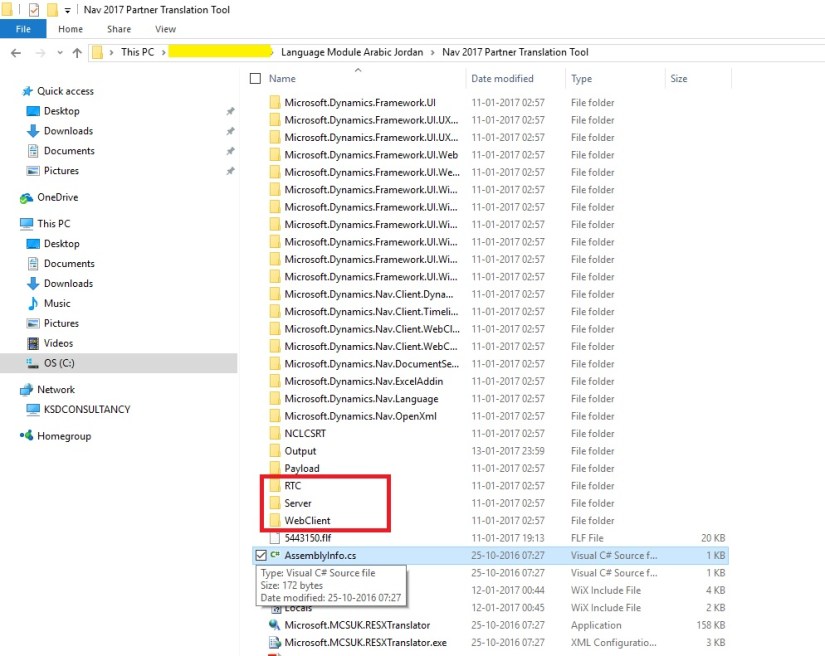
Post you build the PartnerTranslation solution from inside Visual Studio, choose Build Solution from the Build menu.

This will pick up all translated artifacts, and create three installer files (.msi):

  • Server.msi – Located in the Server\Bin\Debug folder.
  • RTC.msi – Located in the RTC\Bin\Debug folder.
  • WebClient.msi – Located in the WebClient\Bin\Debug folder.

You can check my earlier post for more details:

How do I translate my ResX Files?

Managing Multilanguage support in Navision Overview
 

ilm-01

Install the new language pack on the target computer with W1. To do this, select and click each of the three .msi files listed below, one after the other. The order is not significant:

  • Server\Bin\Debug\Server.msi
  • RTC\Bin\Debug\RTC.msi
  • WebClient\Bin\Debug\WebClient.msi

Each installer quickly shows a dialog, which disappears when the installer has completed.

ilm-02

The language pack is now installed, but you must make some final configuration.

Next step is to register root assemblies with strong name key token in the Add-ins table

Microsoft Dynamics NAV cannot load untrusted assemblies. To enable your custom resource assemblies as trusted, you must register the strong name key in the database:

  1. Open the Microsoft Dynamics NAV Development Environment.
  2. On the View menu, choose Object Designer, and then choose Table.
  3. Navigate to the Add-in table, table 2000000069, and then choose Run.
  4. For each assembly, enter the name and the public key token used when signing the files. The assemblies to add can be found in the Output folder of Partner Translation Tool Project.

ilm-03

To find the public key token, use the Strong Name tool (sn.exe) with the -T parameter.

At the command prompt, enter the following command: sn.exe –T

For example, enter the following command to find the public key token for the Microsoft.Dynamics.Framework.UI.dll file:

sn.exe –T Microsoft.Dynamics.Framework.UI.dll.

The sample assemblies that are included in the Partner Translation solution have the following signature: 15e5b2499d4875c1.

Optionally, you can use PowerShell to register a strong name key for the custom resource assemblies.

New-NAVAddIn -AddInName -PublicKeyToken -Category LanguageResource

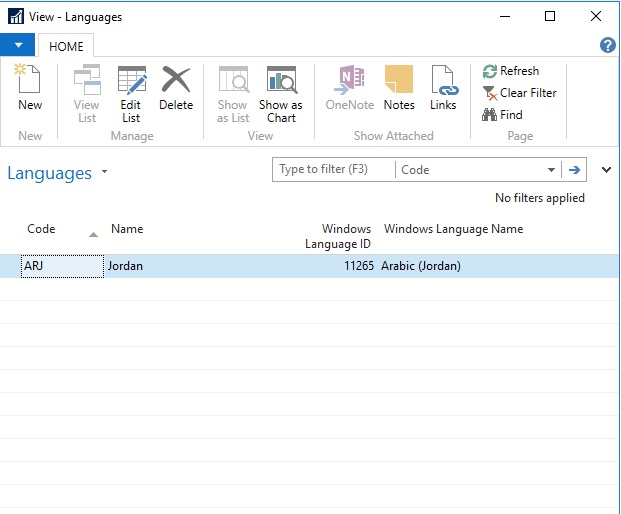
Next step is, you need to update the Languages page:

  1. In the Object Designer, choose Pages.
  2. Navigate to the Languages page, page 9, and then choose Run.
  3. Add the Arabic Jordan (ARJ) language to it.
ilm-04

Restart the Microsoft Dynamics NAV Server service

To enable the newly added language, you must restart the Microsoft Dynamics NAV Server service:

  1. Choose the Start button, point to Administrative Tools, and then choose Services.
  2. In the Services window, right-click Microsoft Dynamics NAV Server, and on the shortcut menu, choose Restart.

Connect to the Microsoft Dynamics NAV Server and select the new language

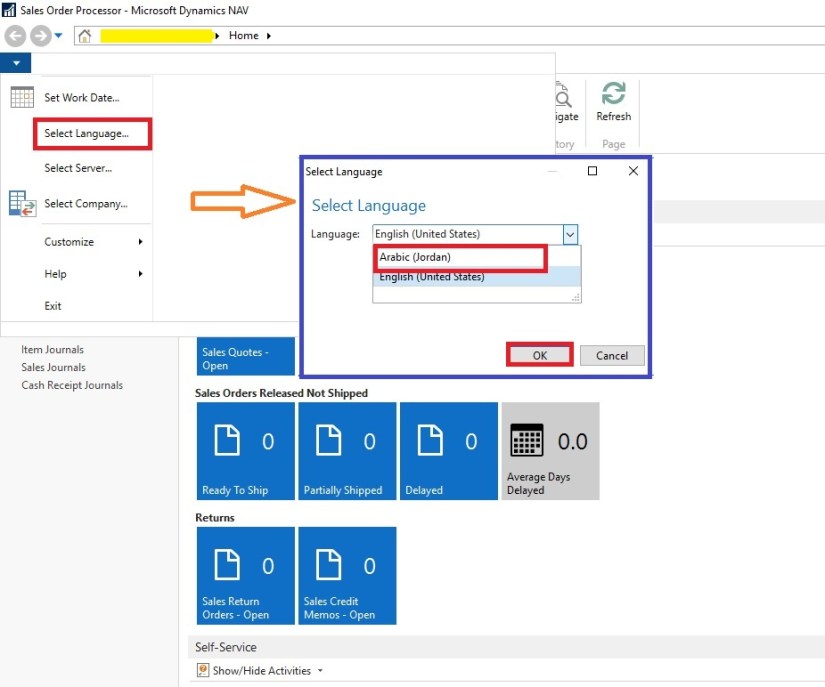
After you have restarted the Microsoft Dynamics NAV Server service, you can then open the Microsoft Dynamics NAV Client and select the new language:

  1. Choose the Start button, and then choose Microsoft Dynamics NAV.
  2. Choose Microsoft Dynamics NAV, and then choose Select Language.
  3. In the Language Selection field, select the new language, Arabic (Jordan), and then choose the OK button.
ilm-05

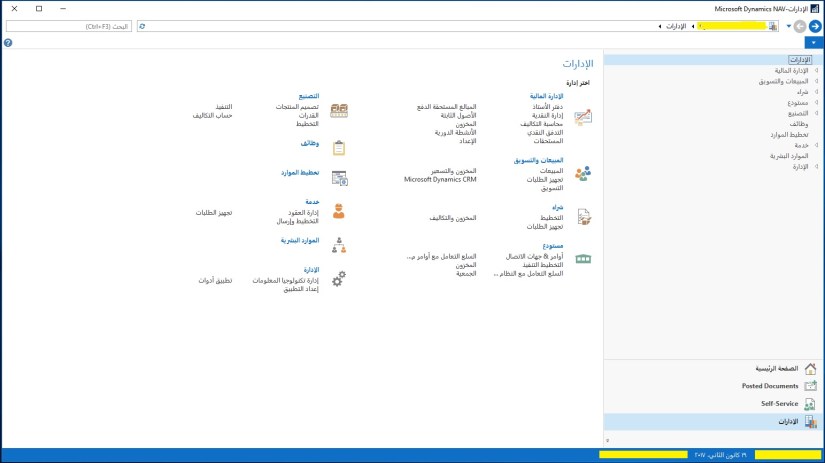
Complete Captions are not translated for this project yet at the time of writing of this post and it is in progress, but the sample screen will look like one shown below.
ilm-06

Will come up with more details in my upcoming posts, till then keep exploring and learning.