Cues

Enhanced Cues

Cues appear as tiles in the Microsoft Dynamics NAV client that display business data and key performance indicators (KPIs) on RoleCenters. Microsoft Dynamics NAV 2015 includes the following new features that expand the data that can be displayed in a Cue, and enhance Cue set up and appearance.

Coloured Indicators

You can configure the Cue to display a bar along its upper border that changes colour based on the data in the cue.
New Images

You can change the image that displays on the Cue or set up the Cue without an image. There are several images to choose from.
Normal Fields

In previous Microsoft Dynamics NAV versions, you could only set up Cues based on FlowFields for data. In Microsoft Dynamics NAV 2015, you can also use normal fields, which expands your possibilities for the Cue data source, such as using Query objects or source expressions.
Decimal and Text Data Types

In previous Microsoft Dynamics NAV versions, you could only set up Cues to display on integer data types. In Microsoft Dynamics NAV 2015, you can also use decimal and text data types. This provides you with additional data aggregation possibilities instead of just COUNT, such as SUM, MAX, MIN, and AVG.
Custom Formatting of Data

By using the AutoFormat property, you customize the format of the value that appears in a Cue. For example, you can set the number of decimal places, or place a symbol such as a +, -, or %, before or after a value.
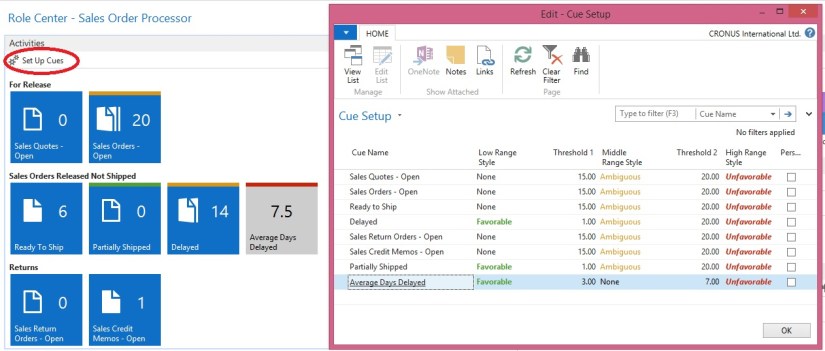
Cues

Show Mandatory Property

Show Mandatory Property

With Microsoft Dynamics NAV a new property called ShowMandatory has been introduced on page fields. The ShowMandatory property is set on page fields and marks the field with a red asterisk on the UI.

ShowMandatory Property

NOTE:The ShowMandatory property can be used to mark all page fields, but does not enforce any validation of the field. This means that the user will be able to close a page without entering data.

Comment or Uncomment Selection

Commenting and uncommenting multiple lines of C/AL Code

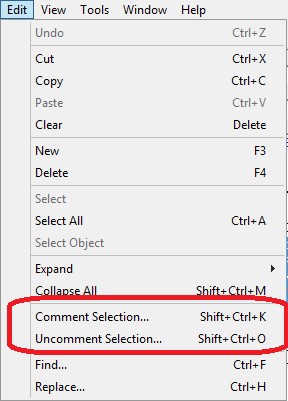
We can add and remove comment marks manually for each line till now. But from now the Comment Selection and Uncomment Selection options available in the Edit menu. The Comment Selection and Uncomment Selection options enable you to comment or uncomment multiple lines of code all at once.

  • To comment lines of code, select the lines, and then, in the Edit menu, choose Comment Selection (Shift+Ctrl+K).
  • To uncomment lines of code, select the lines, and then choose Uncomment Selection (Shift+Ctrl+O).


Comment / UnComment Selection

Tablet Client

Microsoft Dynamics NAV Tablet Client

In Microsoft Dynamics NAV 2015 Microsoft introduced a new interface called Microsoft Dynamics NAV for Tablet. The Microsoft Dynamics NAV for Tablet allows users in small and medium sized businesses to access data from a tablet. Developing for Microsoft Dynamics NAV for Tablet is very similar to developing for the Microsoft Dynamics NAV Web client using the Microsoft Dynamics NAV Development Environment.

To open Microsoft Dynamics NAV for Tablet in browser mode

  • The Role Center for the default company

http://NavisionWebClient:7080/DynamicsNAV80/WebClient/tablet.aspx

  • The Role Center for a specific company

http://NavisionWebClient:7080/DynamicsNAV80/WebClient/tablet.aspx?company=CRONUS%20International%20Ltd.

  • A specific page

http://NavisionWebClient:7080/DynamicsNAV80/WebClient/tablet.aspx?page=22


Replace (http://NavisionWebClient:7080/DynamicsNAV80) with URL for Web Client in your environment.

How it looks:

Tab Screen

You will have to install below App: http://apps.microsoft.com/windows/en-in/app/d8a4908d-61f2-4740-b4fc-b559fbdd2e51

Readiness Library

Microsoft Dynamics NAV 2015 Readiness Library

If you want to find out more about this release, please have a look at below link, Partner Source Login Required. https://mbs.microsoft.com/partnersource/northamerica/readiness-training/readiness-training-news/NAV2015ReadinessLibrary