Development Tips

Data Upgrade Codeunit in Navision 2015 – Part -1

Let us start with background preparation.

I have prepared a table with below fields and filled with some sample data.
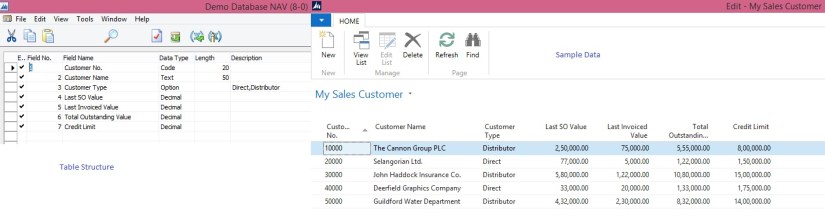
DataUpgradeCU-1

Fill in the My Sales Customer table with demo data.

Make sure you have data in all columns, preferably create several records in this table.

Now when the fields are deleted from the My Sales Customer Table and the data is saved in the UPG My Sales Customer table, we will create the new table where the data will reside in the new version (My Detailed Customer Entry) and move that data into that table using Data Upgrade action in the Dev. Environment.

Since now my project requirement is to refactor the My Sales Customer table and delete the fields which store the information about the Sales Information (“Value” fields), we need to create an intermediate upgrade table where the data from those fields will be stored until you move it into the new My Detailed Customer Entry table.

We will perform below action:

  • Open the Object Designer and select table My Sales Customer
  • Select the Design button to open the table in the designer.
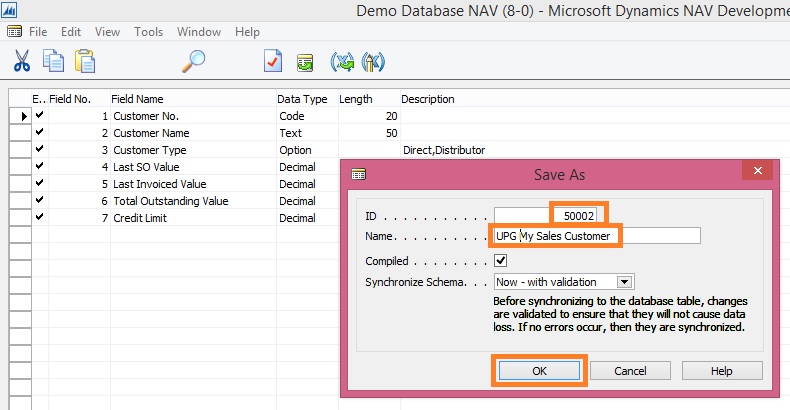
  • In the Dev. Environment menu, select File-Save As… action.
  • Change the ID value to New ID, change the Name to UPG My Sales Customer and select OK button to close the dialogue and create a copy of the table.
DataUpgradeCU-1

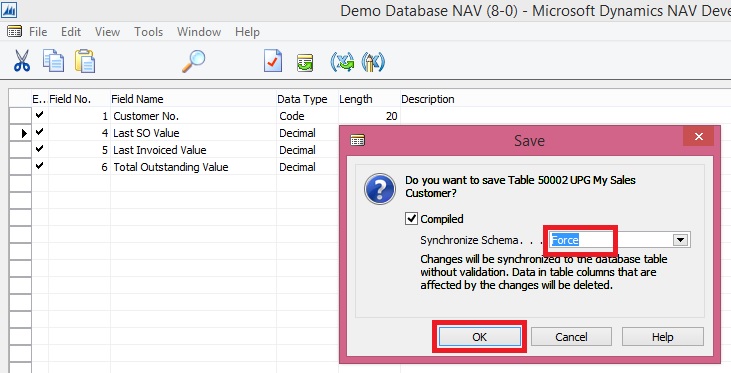
  • In table UPG My Sales Customer delete fields Customer Name, Customer Type and Credit Limit.
  • In the Dev. Environment menu, select File-Save action.
  • On the Save dialogue, set the Synchronize Schema option to “Force” and  select OK button to close the dialogue.
DataUpgradeCU-1

  • In the Object Designer select the Codeunits button and then click New to start creating a new upgrade codeunit.
  • In the Dev. Environment menu, select View-Properties action to start editing the properties of the codeunit.
  • Change the Subtype property to Upgrade and close the Properties form.
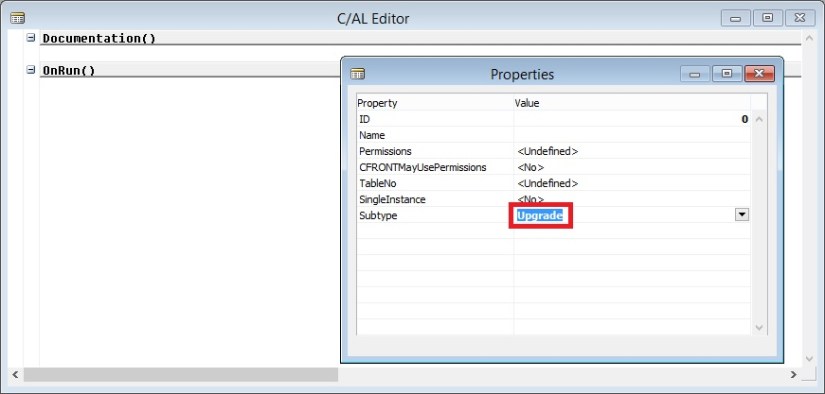
DataUpgradeCU-1

  • In the Dev. Environment menu, select View-C/AL Globals action and in the form which is opened select the Functions tab.
  • Enter the name of the function, e.g. GetTableSyncSetup
  • In the Dev. Environment menu, select View-Properties action to start editing the properties of the function.
  • Change the FunctionType property to TableSyncSetup and close the Properties form.
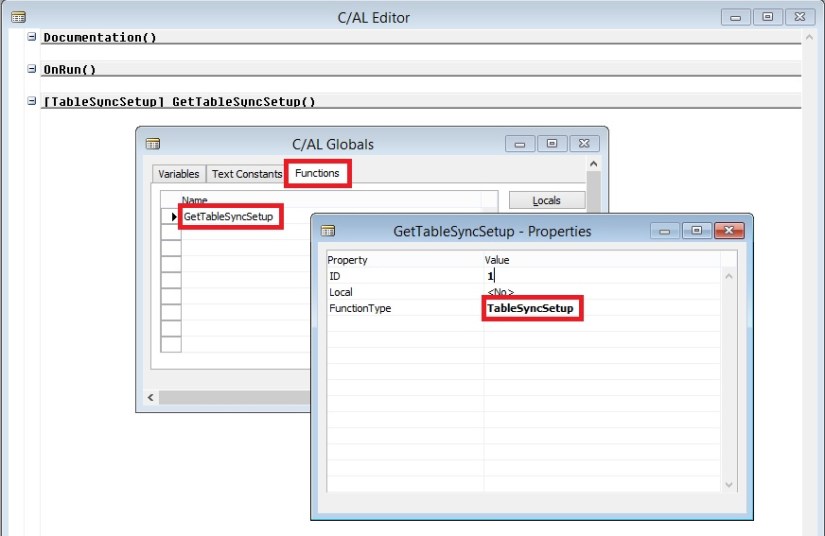
DataUpgradeCU-1

  • Select the GetTableSyncSetup function on the Functions tab and then select the Locals button to define function parameters.
  • Add a parameter of DataType = Record, Subtype = Table Synch. Setup, Name = TableSynchSetup, Var = Yes.
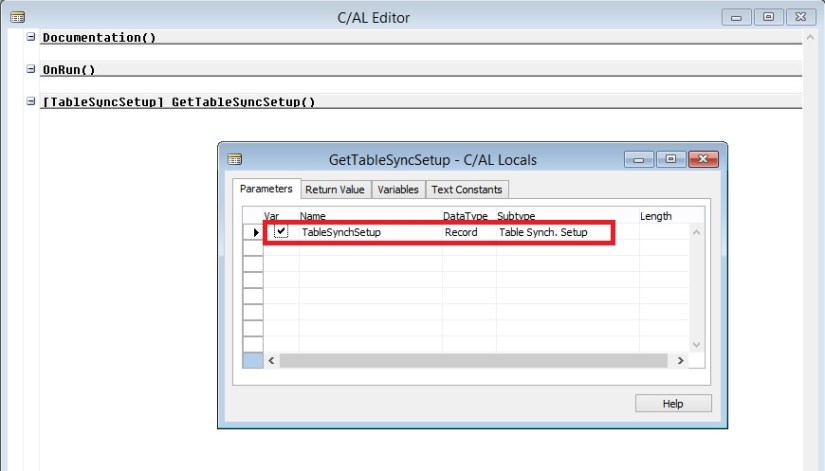
DataUpgradeCU-1

  • On the C/AL Locals form, select Variables tab and add a local variable of DataType = Codeunit, Subtype = Data Upgrade Mgt.
  • Close the C/AL Locals and C/AL Globals forms to return to the C/AL Editor.
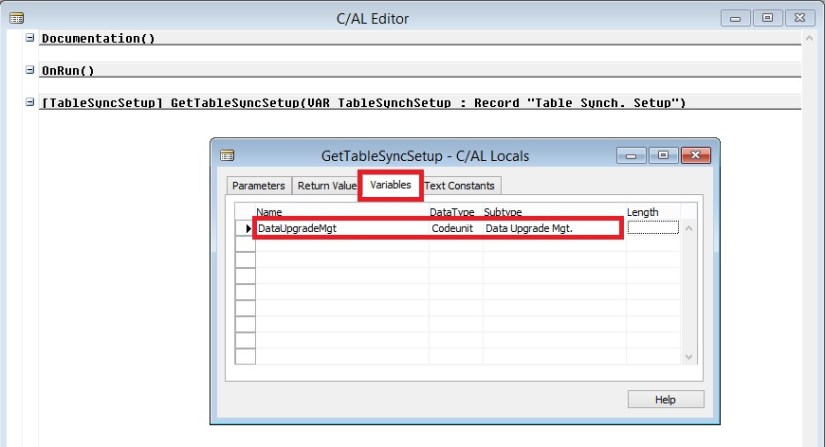
DataUpgradeCU-1

  • In the GetTableSyncSetup function, add the C/AL statement as presented on the screenshot.
  • In the Dev. Environment menu, select File-Save action to save the codeunit.
  • On the Save dialogue, define ID , Name = UPGTK Codeunit, and select OK to save the codeunit.
  • Close the codeunit editor.

DataUpgradeCU-1

[

//>>Data Upgrade Code

// To copy data from table My Sales Customer to UPG My Sales Customer table

DataUpgradeMgt.SetTableSyncSetup

(

DATABASE::”My Sales Customer”,

50002,

TableSynchSetup.Mode::Copy

);

//<<Data Upgrade Code

]

  • In the Object Designer, select the Tables button and then select the My Sales Customer table in the list of tables.
  • Click Design to open the table in the table designer.
  • Delete the following fields:
  • Last SO Value
  • Last Invoiced Value
  • Total Outstanding Value
  • In the Dev. Environment menu, select File-Save action.
  • On the Save dialogue, notice that the Synchronize Schema option is set to “Now – with validation” and select OK button to close the dialogue.
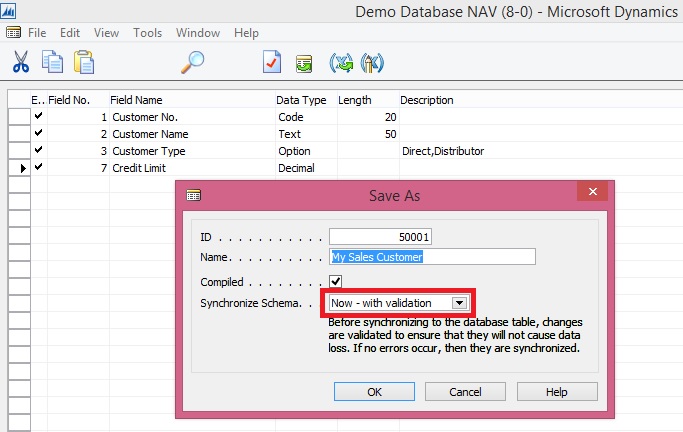
DataUpgradeCU-1

  • In the Object designer, find table UPG My Sales Customer and click Run to check if the data was copied there by the schema synchronization.
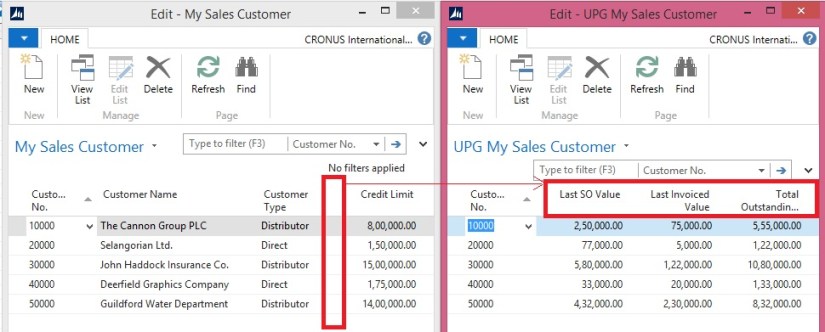
DataUpgradeCU-1

Here we are now done with the Part -1 of our exercise. Next step is to move this temp data in respective table as part of our Upgrade. We will see upgrade part in our next post.

Development Tips

Schema Synchronization in Microsoft Dynamics Navision 2015

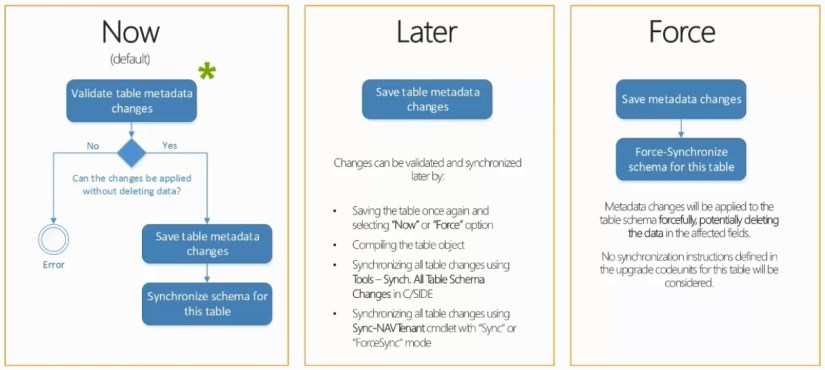
NAV 2015 provides you with flexibility of deciding when and how your table changes should be synchronized with corresponding SQL tables.

What is table synchronization?

SchemaSync-1

NAV 2013 R2:- Schema synchronization executes automatically on any connection to the Server.

NAV 2015:- Schema synchronization executes on demand by the Server.

Way the Synchronization works:

  1. Per Table Synchronization
  2. Synchronizing schema changes for all tables

SchemaSync-2

Now let us see how it works:

SchemaSync-3

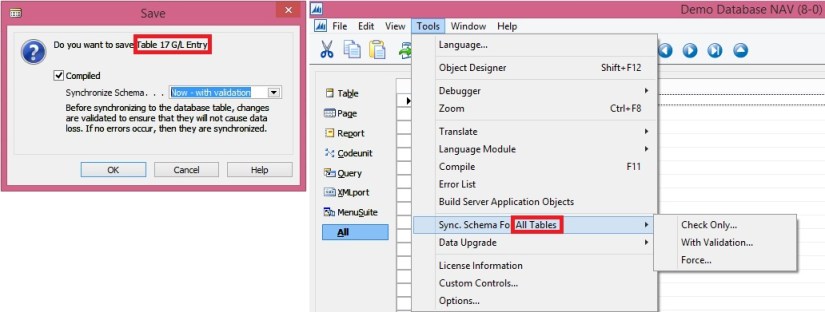
Add/Modify/Delete Fields (change table definition) we will be prompted for Synchronizing the Schema.

It gives three options description is self-explanatory.

Some time we have to do major changes to the tables which takes lots of time to sync, we can postpone the sync process by selecting Later. Once we are done with all of our changes we can go with synchronization in one go.

SchemaSync-4

We get same options.

New option Check Only….

SchemaSync-5

This option will only report outcome and will not Sync the Schema.

Since we have just added new field so no risk as reported by above check.

Now I will delete one field from the table and let’s see what result comes.

SchemaSync-6

Summary of the 3 options as below:

SchemaSync-7

When data loss is reported while changes in table definition is referred as destructive changes.

SchemaSync-8

You use upgrade codeunits when you make changes to a table definition, either from the Microsoft Dynamics NAV Development Environment or during an upgrade. Upgrade codeunits migrate existing business data from the old table structure into the new table structure. An upgrade codeunit serves the following purposes:

  • Provides instructions for how to handle data changes to a table during schema synchronization.
  • Provides the logic for migrating existing data in the business data table from the old format to the new format after schema synchronization.

A typical example of when to use an upgrade codeunit is when you remove a field from a table definition and you do not want to lose the existing data in the business data table. Instead, you want to use it somewhere else in the new application.

You implement upgrade codeunits when you make destructive changes to tables in Microsoft Dynamics NAV Development Environment. After you have created an upgrade codeunit to handle table changes, you can use it when you upgrade data from an earlier version of Microsoft Dynamics NAV to the current version. A single upgrade codeunit will typically contain table schema synchronization instructions and data migration logic for multiple tables that have changed from one version of Microsoft Dynamics NAV to another.

SchemaSync-9

I will come back on this topic in another post with more details.

And many more options like PowerShell Sync with above options.

Benefits:-

Perform on demand – transparency -> As developer and system administrator, you are in control when to call the schema synchronization and how to synchronize table changes. You can invoke it, plan for it and schedule for it on a case by case basis. You can also monitor its progress and monitor the state of your database (tenant).

Not blocking other changes – productivity -> Schema Synchronization has become more granular. It can be performed per table object as well as for all table changes at once. When one table is being synchronized you are no longer blocked, and you can continue making changes to other tables.

Opened for additional instructions – flexibility -> Using upgrade codeunits you can provide input for the schema synchronization to do extra tasks, like automatically moving or copying data into upgrade tables, checking the changes or forcefully applying them where necessary. (Will come up with more details on this in my next post)