
To start with this exercise you need to first create certificate and certificate revocation list, if not yet created refer to previous post.
Previous Step Link- How to create a root CA and a private key file by using the makecert.exe utility
Previous Step Link- How to create certificate revocation list for the root certification authority
Previous Step Link- How to create and install a test certificate for the Microsoft Dynamics NAV Server computer
Let’s start with this exercise:
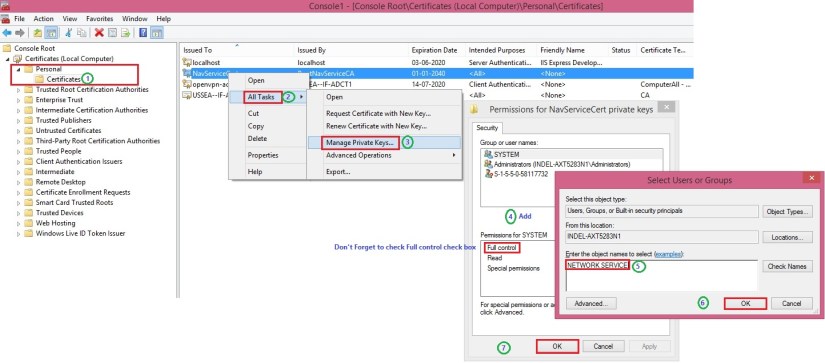
- In the left pane of MMC, expand the Certificates (Local Computer) node, expand the Personal node, and then select the Certificates subfolder.
- In the right pane, right-click the NavServiceCert certificate, choose All Tasks, and then choose Manage Private Keys.
- In the Permissions for NavServiceCert private keys dialog box, choose Add.
In the Select Users, Computers, Service Accounts, or Groups dialog box, enter the name of the service account that is used by Microsoft Dynamics NAV Server By default, the service account is NETWORK SERVICE. Choose OK when done.
Security Note
In a production environment, you run Microsoft Dynamics NAV Server under a dedicated domain user account instead of the less secure NETWORK SERVICE account. Because this is a test implementation, the NETWORK SERVICE account is acceptable.
- In the Permissions for NavServiceCert private keys dialog box, select the account, and then select the Allow check box next to Full Control. Choose OK when done.
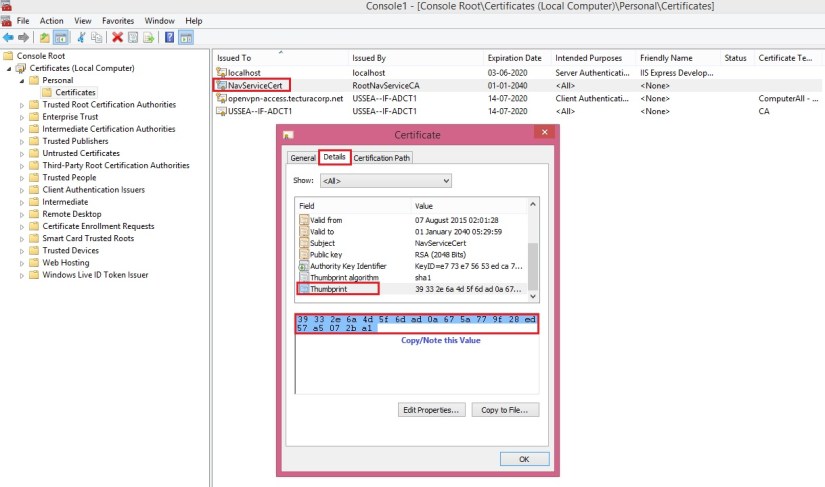
- In the right pane, double-click the NavServiceCert certificate.
- In the Certificate dialog box, choose the Details tab, and then select the Thumbprint field.
Copy or note the value of the Thumbprint field.
In next step we will Implement Security Certificates and configure Microsoft Dynamics Server and update configuration file for Windows & Web Clients to support login over a WAN.
Next Step Link- Implementing Security Certificates.
 ARKSD Consultancy Private Limited